Installation Guide
5. Right click on the Settings under the configured camera in the left tree,
and create a new Setup! Right click on it and Rename it!
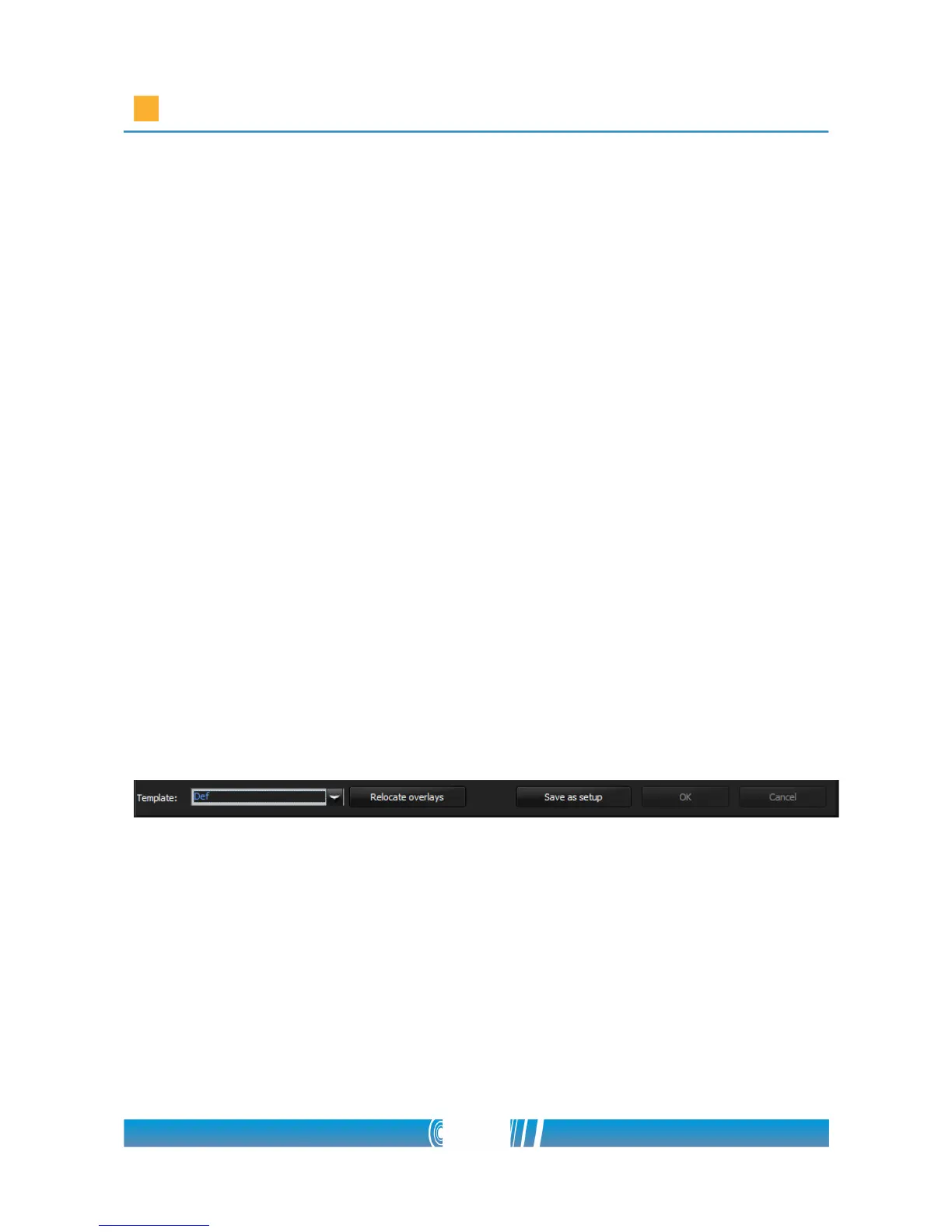
6. If the new setup is selected, find the Template list on the settings form!
Select Stadium Full HD after event from the drop down list! Override the
actual settings! The software is going to configure the Logipix 2MP
camera automatically for after the event. This camera setup will operate
when the Event has closed.
Configuring the Logipix PTZ cameras
1. Click on the Configure icon on the main software surface!
2. Select the Logipix PTZ camera in the left tree which you would like to
configure! Click on the '+' sign near the camera name and select
Settings!
3. Find the Template list on the settings form! Select Stadium PTZ event
from the drop down list! Override the actual settings! The software is
going to configure the Logipix Full HD PTZ camera automatically.
4. Press the Save as setup button at the bottom of the window! Right click
on the created setup in the left camera tree then Rename it! This camera
setup will operate while the Event is open.
5. Right click on the Settings under the configured camera in the left tree,
and create a new Setup! Right click on it and Rename it!
6. If the new setup is selected, find the Template list on the settings form!
Select Stadium PTZ after event from the drop down list! Override the
actual settings! The software is going to configure the Logipix Full HD PTZ
camera automatically for after the event. This camera setup will operate
when the Event has closed.
54/80



 To Next Page