Installation Guide
Configuring the analog cameras
1. Click on the Configure icon on the main software surface!
2. Select the Hybrid extender in the left tree to which the analog camera is
connected! Click on the '+' sign near the Hybrid extender! The cameras
of the device appear. Click on the '+' sign near the camera name and
select Settings!
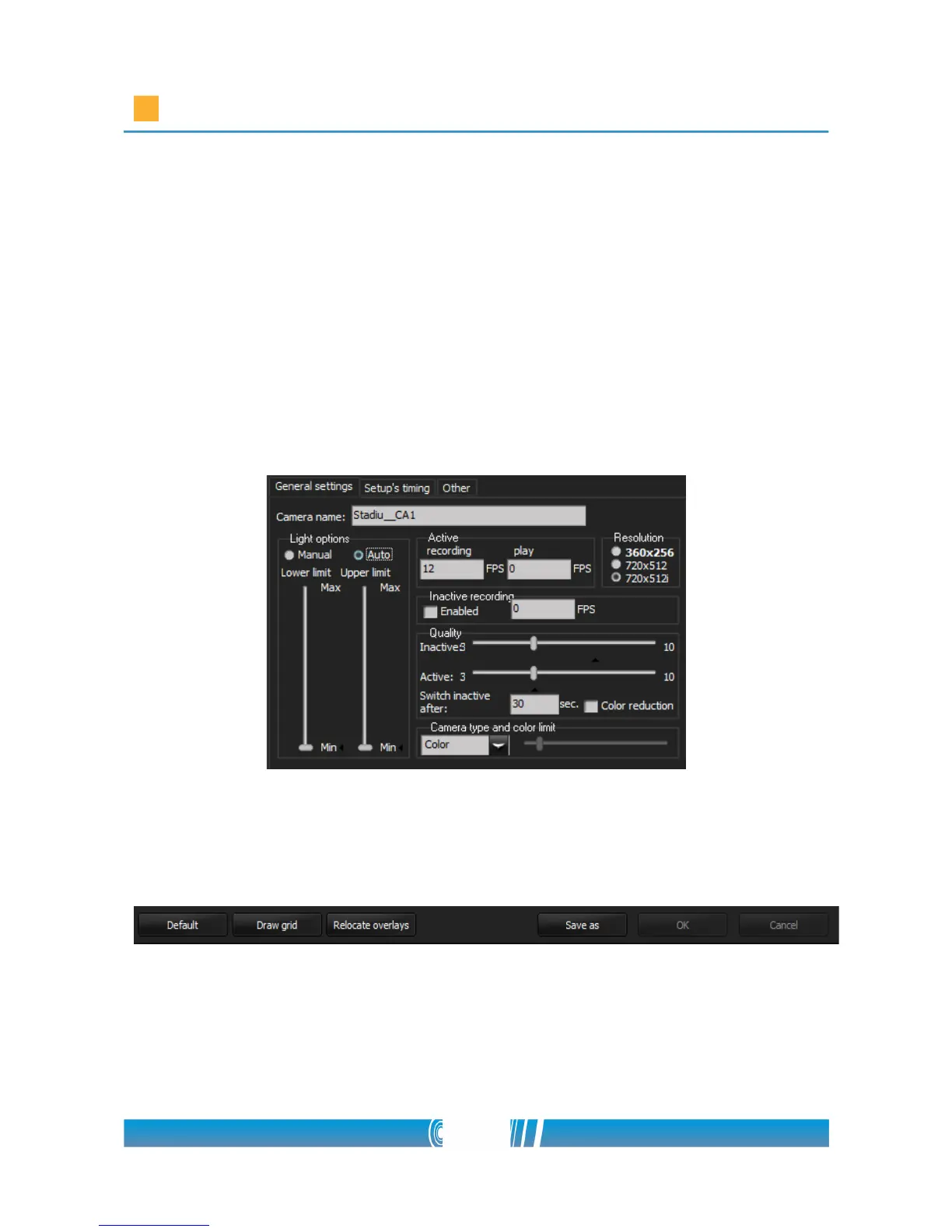
3. Select Auto at Light options section! Adjust 12 FPS for Active recording
and 0 for play! Set the Resolution! Select 720x512i! Adjust the quality by
selecting the value 4 on the Quality (Active) slider!
4. Press the Save as button at the bottom of the window! Right click on the
created setup in the left camera tree then Rename it! This camera setup
will operate while the Event is open.
5. Right click on the Settings under the configured camera in the left tree,
and create a new Setup! Right click on it and Rename it!
55/80



 To Next Page