Installation Guide
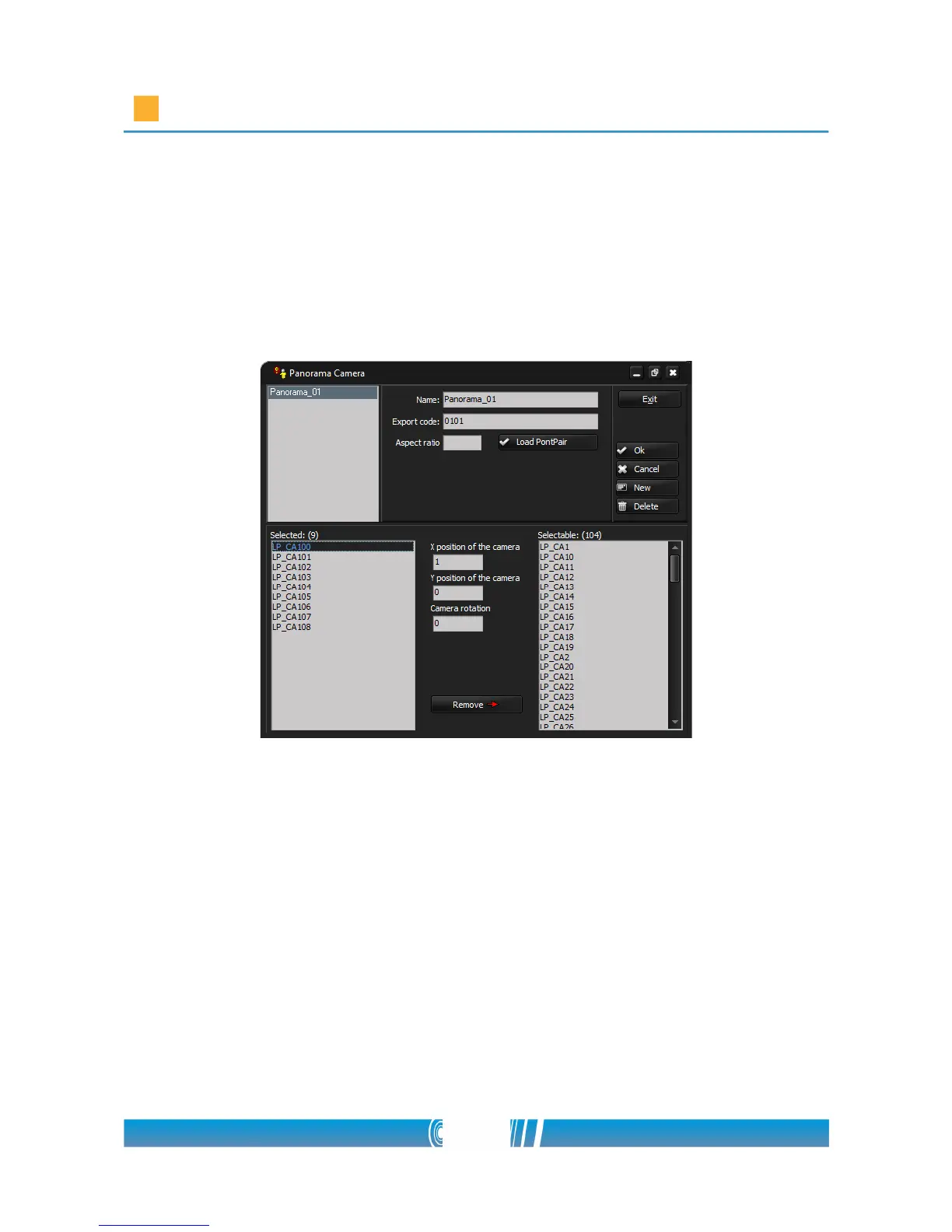
Move those cameras to the list on the left (Selected) which form a
Panorama camera picture! Use the traditional Drag & Drop method, or
use the Add button!
5. At the X position of the camera field set each camera's X axis position
according to their physical position in the line of the cameras! Number
one is the camera that records the left side of the panoramic image.
6. Repeat steps 2-5. for all the panoramic cameras in the stadium!
Creating Monitor Profiles
Define displaying units with the camera pictures at each workstations! These
monitor profiles will contain your Panoramic images, the pictures of the PTZ
cameras and the map of the stadium.
1. Click on the Monitor profiles icon on the main surface of the Control
Center!
2. Click on New button and Name the new profile!
3. Adjust a number at Order field to define the order of appearance of the
61/80



 To Next Page