95
Mobile Apps: Accessing your DVR Using a Mobile Device
Android
Use the Lorex Mobile Eco application to connect to
your DVR on an Android smartphone or tablet.
NOTE: Th
e instructions below may differ depending on
the model of your Android device.
System requirements
• Android v. 1.5 and above.
NOTE: For
the latest device compatibility list, visit www.lorextechnology.com
Step 1 of 2: Downloading the App
NOTE: For support on downloading or installing Android apps, consult your Android device’s
user’s manual or the manufacturer’s support site.
1 T
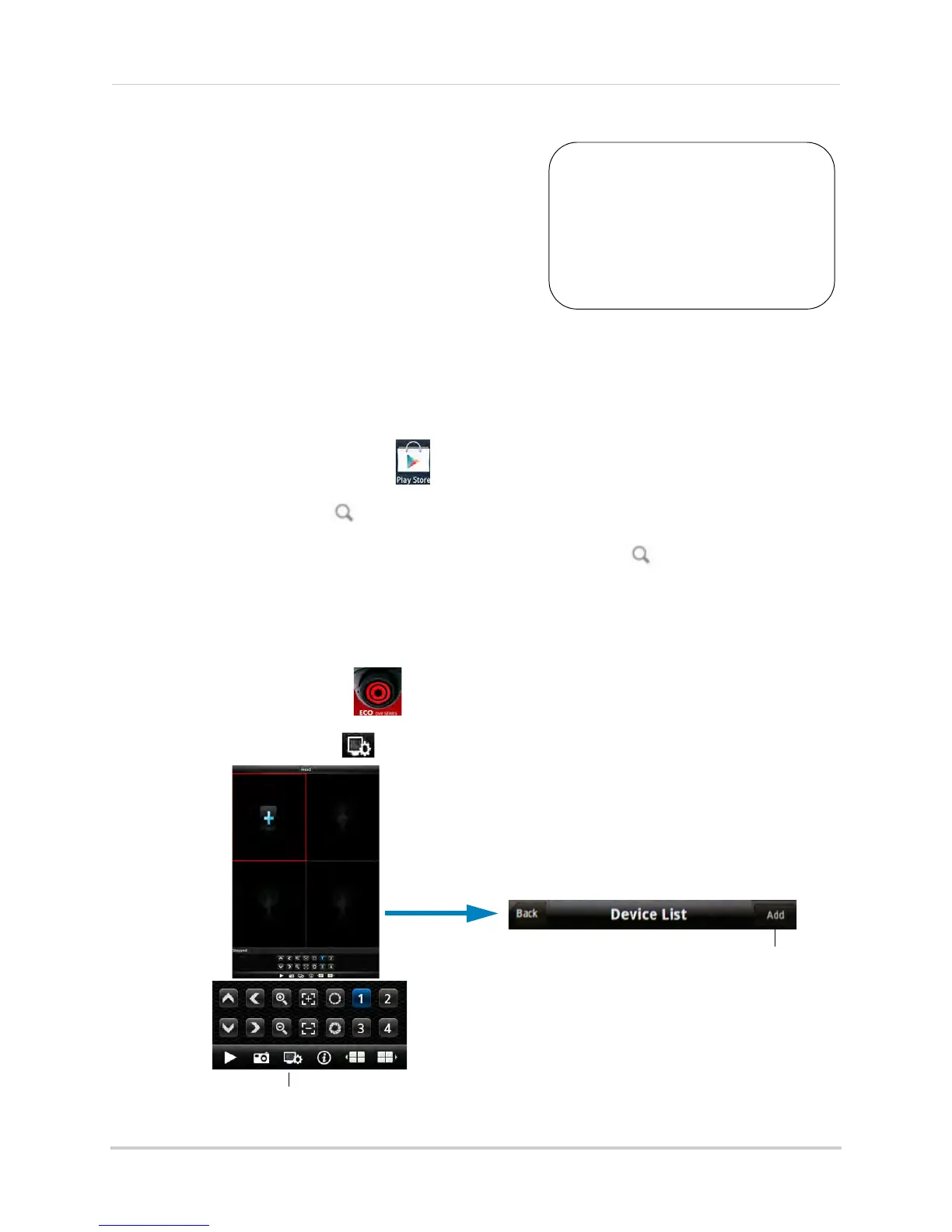
ouch the Google Play Store icon ( ) in your Applications list.
2 Pr
ess the search button ( ).
3 Ent
er Lorex Mobile Eco and then press the search button again ( ).
4 T
ouch Lorex Mobile Eco. Then touch Install to download and install the app. Wait for the app
to install.
Step 2 of 2: Configuring and Connecting to Lorex Mobile Eco
1 Open the Lorex Mobile Eco ( ) app from the applications list.
2 Touch the Settings button ( ) to open the Device List and touch Add.
You must port forward the
mobile port (default: 1025)
on your router before you can
connect to your system using
a mobile device (e.g.
Samsung Galaxy S, HTC
Incredible S)
!




 To Next Page