127
Appendix I: Connecting Additional External Monitors
Configuring the Spot Monitor for Full-Screen or Split-Screen
(16-Channel Models Only)
By default, a monitor connected to the Spot port automatically shows channels in
Sequence View.
To configure the Spot monitor to show channels in
split-screen:
1 Right-click
to open the Menu Bar and click the Main Menu button ( ).
2 Cl
ick Display and select the Output tab.
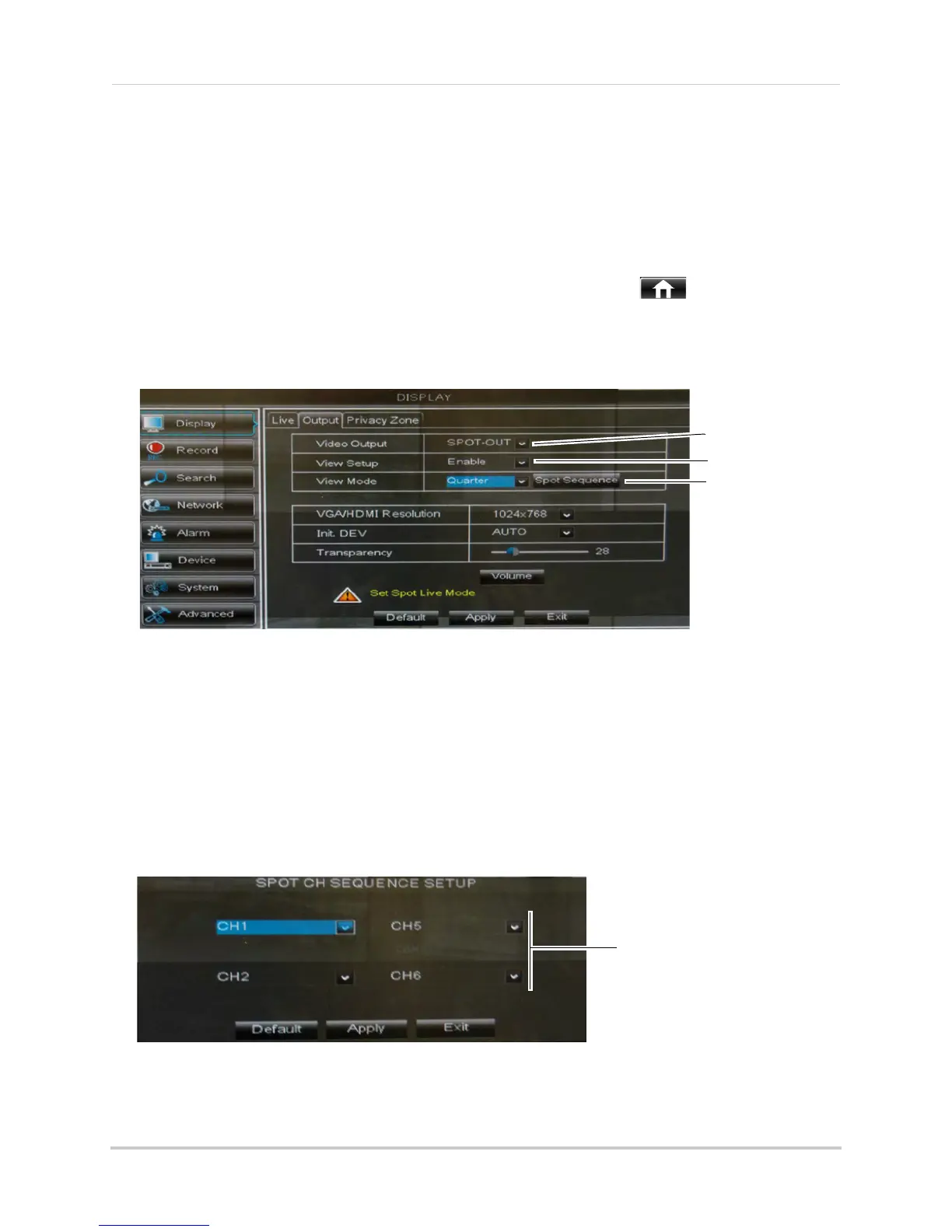
3 Under Vid
eo Output, select Spot-Out to configure settings for the monitor connected to Spot.
4 Under
View Setup, select Enable. This lets you select and arrange the channels you want to
show on the screen.
5 Under Vie
w Mode, select Single to show 1 channel in full-screen, Quarter to show
4-channels in split-screen, or Ninth to show 9-channels in split-screen.
6 Cl
ick Spot Sequence. A menu appears that allows you to select the arrangement of channels
you would like to show on the Spot monitor.
7 Click the dr
op-down menus to select which channels you would like to show on the screen
and the arrangement of channels.
8 Cl
ick Apply to save changes. Click Ok. Right-click repeatedly to exit all menus and return to
live viewing.
Select Enable
Select Spot-Out
Click Spot Sequence
Select the channels that will
be shown on the screen and
the arrangement of channels





 To Next Page