4. Control buttons continued
IN
OUT
REC
SELEC T
PUSH ENTER
POWER STANDBY
TREBLE
MID
BASS
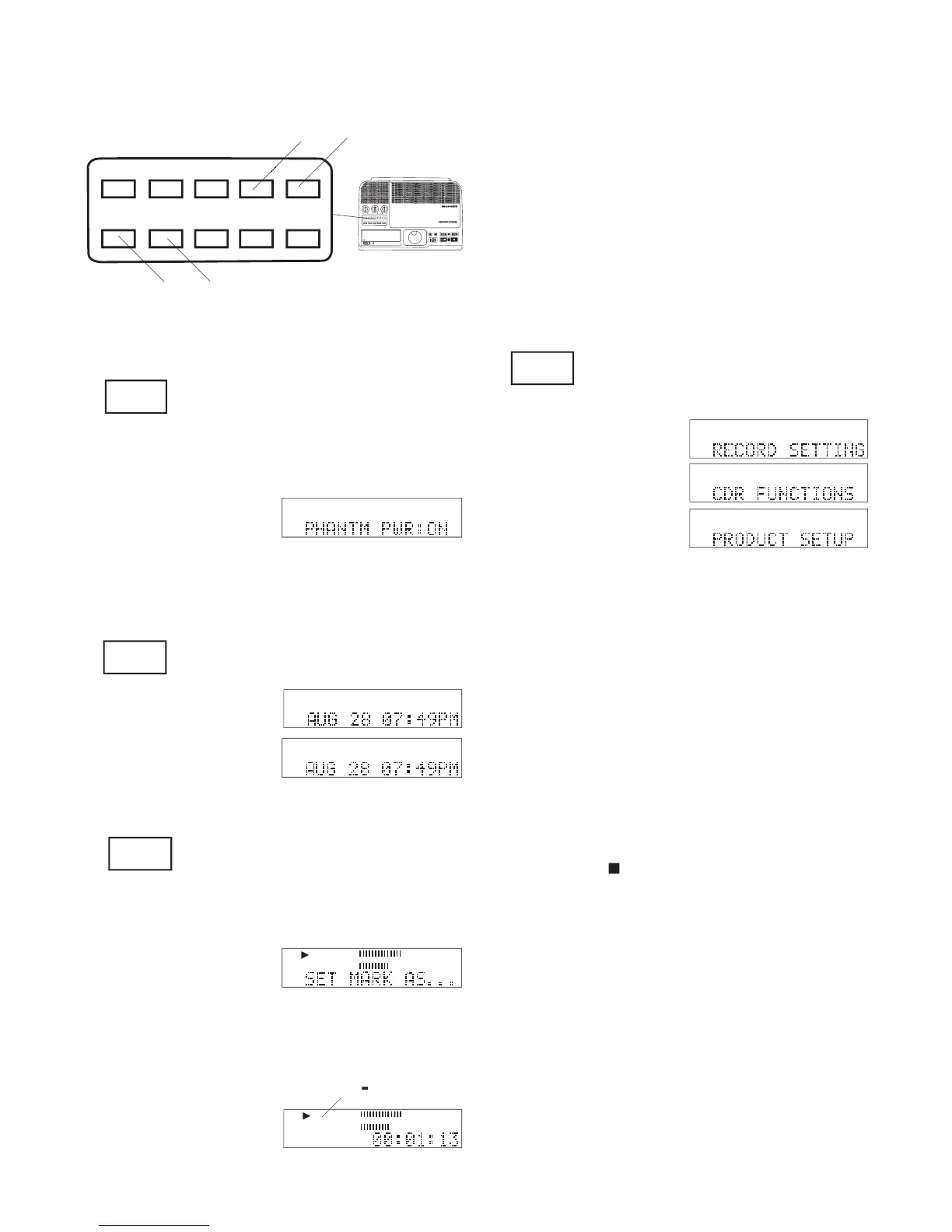
FILE DIR INFO JUMP PHANTOM CD/HD
MARK UNDO REDO EDIT MENUUTILITY MENU
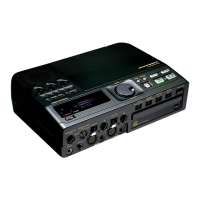
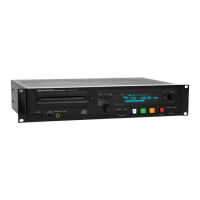
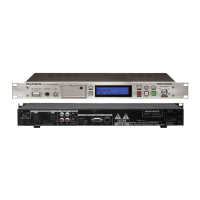
HD/CD RFECORDER CDR420
FILE DIR INFO JUMP PHANTOM CD/HD
MARK UNDO REDO EDIT MENUUTILITY MENU
PHANTOM provides a power sup-
ply for condenser microphone(s)
plugged into the MIC/LINE jack(s).
Press and release to begin the
process of marking a location of
playback as the beginning "IN" or ending "OUT" point
of a segment of audio. SET MARK AS . . . appears in
When correct, wait, the display will automatically
return to the previous display after about 2 seconds.
Press and release to toggle between
the CD drive and the Hard drive.
Press and release to turn PHANTOM microphone
power on or off. The display will show the new state
If playing, playing contin-
ues, if paused, play pause
While SET MARK AS? is displayed press and release
either the IN or OUT button.
• IN and/or OUT marks are not remembered if you change the
• After an IN and/or OUT mark is present, you can jump to the
IN or the OUT mark by pressing and releasing the IN or OUT
• You can mark an audio segment during playback or in Edit
Mode. If during normal playback, you can switch to Edit
Mode with the IN and/or OUT marks if you don't change the
• A marked audio segment can be copied, cut, deleted, or pasted
Press and release to enter the Utility/
Press and release to tab through the menu categories:
• Turning the Jog Wheel also tabs through the menu categories.
• Utility Menu mode times out if there is no activity for one
To set or change a menu parameter:
1. Press and release the UTILITY MENU button to
2. Turn the Jog Wheel to select a menu parameter,
then press and release the Jog Wheel to confi rm.
3. Turn the Jog Wheel to change the value of the
4. then press and release the Jog Wheel to confi rm
and switch to the next Utility Menu category.
5. Edit the next menu item or press and release the
to exit the UTILITY MENU.
Descriptions of the menu items and how to set or
change them are on the following pages:
..................................
• TRACK TYPE (PCM or MP3)
• CHANNEL (Stereo or Mono)
......................................
..................................
.......................................


 To Next Page