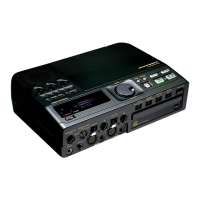
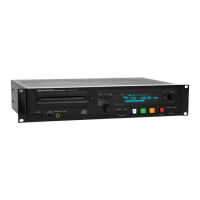
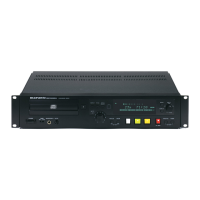
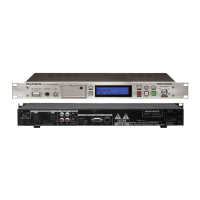
The CDR420's fi rmware is the program that includes
the operating instructions for the CDR420. Installed
fi rmware is in a read-only memory unit and loads on
The CDR420's fi rmware update procedure lets you
update your CDR420 to the latest operating procedures
to keep up with current changes in audio features,
install improved or additional operating instructions,
and correct any errors or bugs that have been found in
previous fi rmware versions.
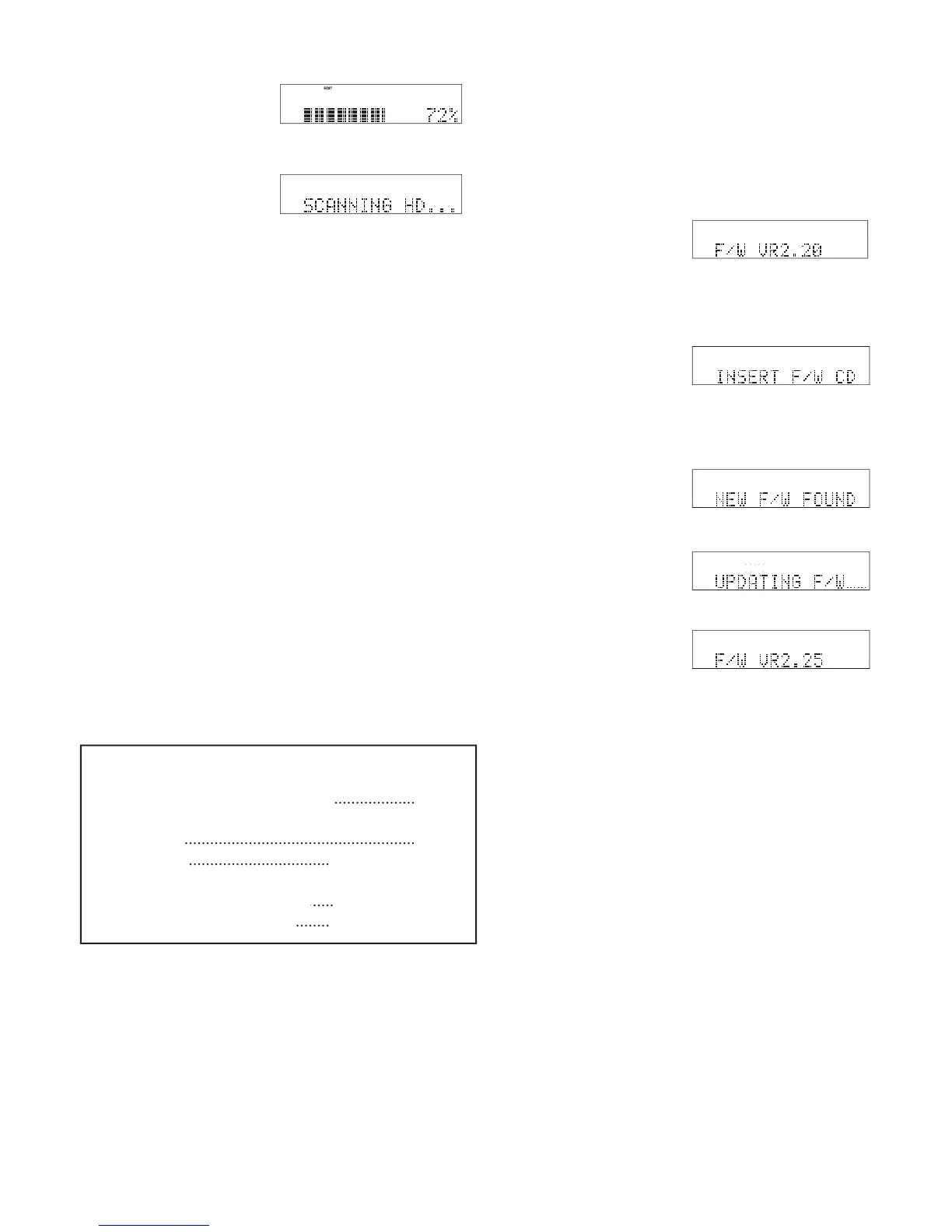
The current fi rmware version is briefl y displayed on
start-up after the full display is shown.
See www.d-mpro.com and search for "CDR420" for
information about the latest fi rmware version available
and how to obtain it. The fi rmware is a .bin fi le about
fi rmware version is briefl y displayed.
If there is no new fi rmware on the CDR420 Hard
drive and no CD in the CDR420,
a. If new fi rmware on computer
copy to CDR420 System folder
copy to CDR420 System folder ................... copy to CDR420 System folder
......................................................
.................................
b. Power off .................................b. Power off
c. Press and hold Jog Wheel while Power ON
CDR 420 does the rest, wait
CDR 420 does the rest, wait ..... CDR 420 does the rest, wait
Automatically powers off ........ Automatically powers off
The CDR420 switches to STANDBY MODE.
When you next power up from STANDBY MODE
the new fi rmware version is used.
4. If a newer version of the fi rmware fi le is detected
1. If the new fi rmware fi le is on your computer, copy
the new fi rmware fi le into the System folder on the
Hard drive of the CDR420. See Connect computer
On a CD the fi rmware fi le has to be in a folder
named System. Insert the CD into the CDR420
numerical percent converted is displayed.
The CDR420 returns to idle mode.
2. Slide and release the POWER switch to switch to
3. Press and hold the Jog Wheel while you slide
and hold the POWER switch to start up and enter


 To Next Page