EasyManua.ls Logo

Marantz CDR420 - Precise Editing Navigation; Inserting Silence into Tracks

Marantz CDR420
66 pages
Print Icon
To Next Page IconTo Next Page
To Previous Page IconTo Previous Page
Loading...
- 54 -
0
-4
-8
-1
2
-1
6
-2
2
-3
0
dB -5
0
R
L
HD
MENU
EDI
T
1. Enter Edit Mode (see
How to enter Edit
Mode)
Example display
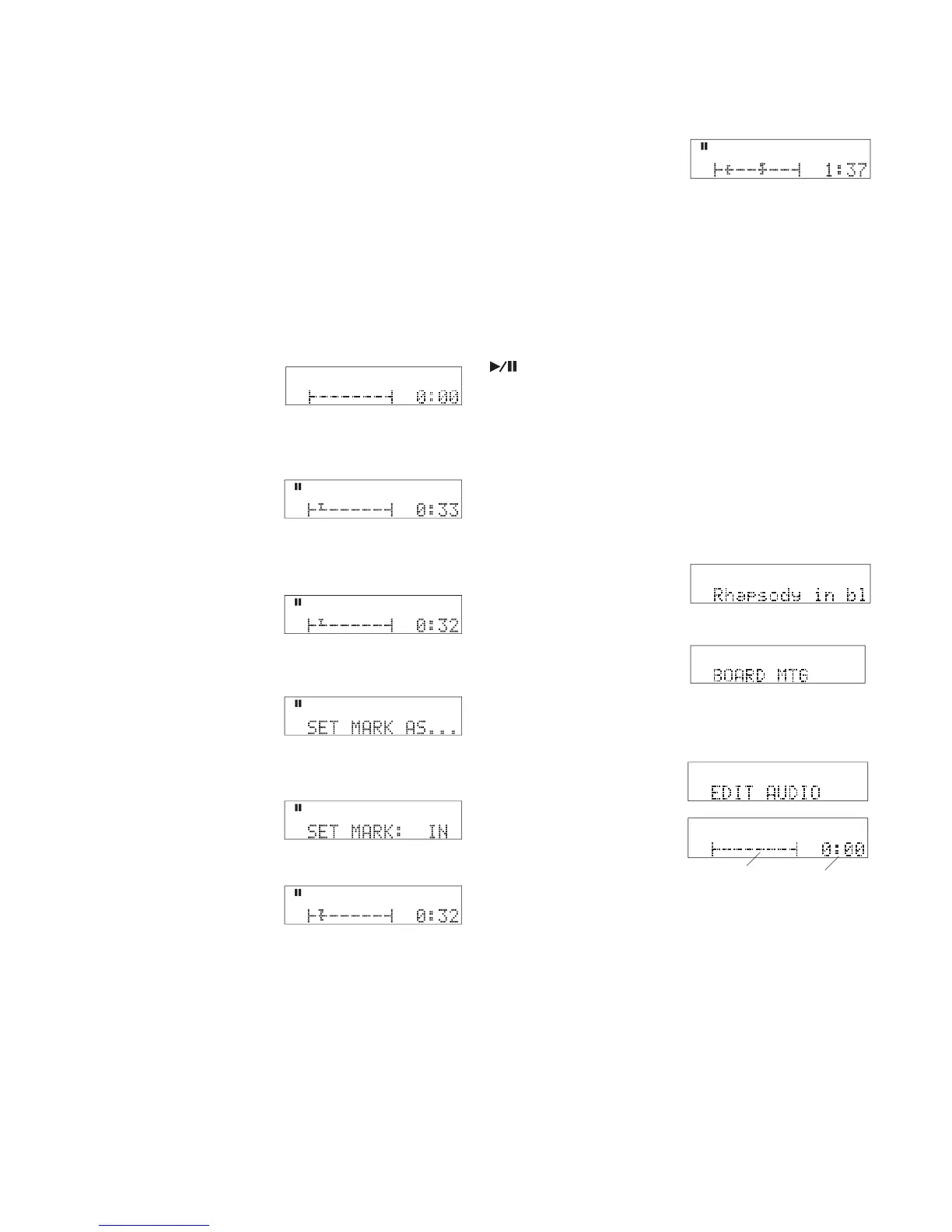
2. Use play, and/or jump and/or the Scrub Forward
and Scrub Reverse
buttons to fi nd and
pause at the approxi-
mate position of the
0
-4
-8
-1
2
-1
6
-2
2
-3
0
dB -5
0
R
L
HD
MENU
EDI
T
Example display
IN point (beginning point of the audio segment).
3. Use Jog Wheel scrub
(turn the Jog Wheel) to
precisely locate the IN
point.
4. Press and release the
MARK button.
SET MARK AS . . . is
displayed.
5. Turn the Jog Wheel to
toggle between SET
MARK: IN and SET
MARK: OUT. When at
IN press and release the
Jog Wheel. An IN point
marker appears in the
graphic.
0
-4
-8
-1
2
-1
6
-2
2
-3
0
dB -5
0
R
L
HD
MENU
EDI
T
0
-4
-8
-1
2
-1
6
-2
2
-3
0
dB -5
0
R
L
HD
MENU
EDI
T
Example display
Example display
0
-4
-8
-1
2
-1
6
-2
2
-3
0
dB -5
0
R
L
HD
MENU
EDI
T
Example display
IN -
0
-4
-8
-1
2
-1
6
-2
2
-3
0
dB -5
0
R
L
HD
MENU
EDI
T
Example display
6. Similarly, set the OUT point.
Hint
To precisely position your OUT point:
1 Push the Play/Pause button to resume playback.
2 Use the Scrub Forward and Scrub Reverse buttons to fi nd the
approximate position of the OUT point.
3 Pause playback as close as you can to the desired OUT point.
4 Turn the Jog Wheel to scrub backward and forward in 1/10ths
of a second to locate your desired OUT point.
Precise Editing (navigation)
Example display
EDI
T
OUT
IN -
0
-4
-8
-1
2
-1
6
-2
2
-3
0
dB -5
0
R
L
HD
MENU
Display with both
an IN and OUT
mark set.
To review only the marked audio segment, use Clip-
board play.
Clipboard play
To play a selection that has both an IN and an OUT
point set, from stop or pause, press and hold the EDIT
MENU button while you press the Play/Pause button
. The CDR420 will start playing back at the IN
pint and stop at the OUT point.
To review only the marked audio segment, use Clip-
board play, see below.
To reposition your IN point repeat steps 2 and 3.
To reposition your OUT point repeat steps 4 and 5.
Your next step depends on what you intend to do with
the marked IN-OUT selection.
Go to How to Cut, Copy or Delete, page 55.
5 When at the precise position press the MARK button and
then the OUT button.
How to Insert Silence
1 Enter Edit Mode:
Select the track (fi le) you wish to edit. Play the
track or select from Idle mode.
Select
HD
MENU
FILES
MP3
a From Idle mode
press and release
FILE DIR.
b Turn the Jog Wheel
until the track you
wish to edit is dis-
played.
PCM
Select
HD
MENU
FILES
Example display
HD
MENU
EDI
T
0
-4
-8
-1
2
-1
6
-2
2
-3
0
dB -5
0
R
L
HD
MENU
EDI
T
Example display
d Press and release the EDIT MENU button. EDIT
AUDIO is displayed.
The display shows
a
the time within the track (at
the beginning 0:00), and
b
a graphic of time within
the track.
2 Navigate to the point at which you wish to insert
silence.
Example navigation by playing to the approximate edit point
then Jog Wheel Scrub for precise positioning.

continues
e Press and release the
Jog Wheel to enter
track Edit Mode.
b
a

Table of Contents

Related product manuals