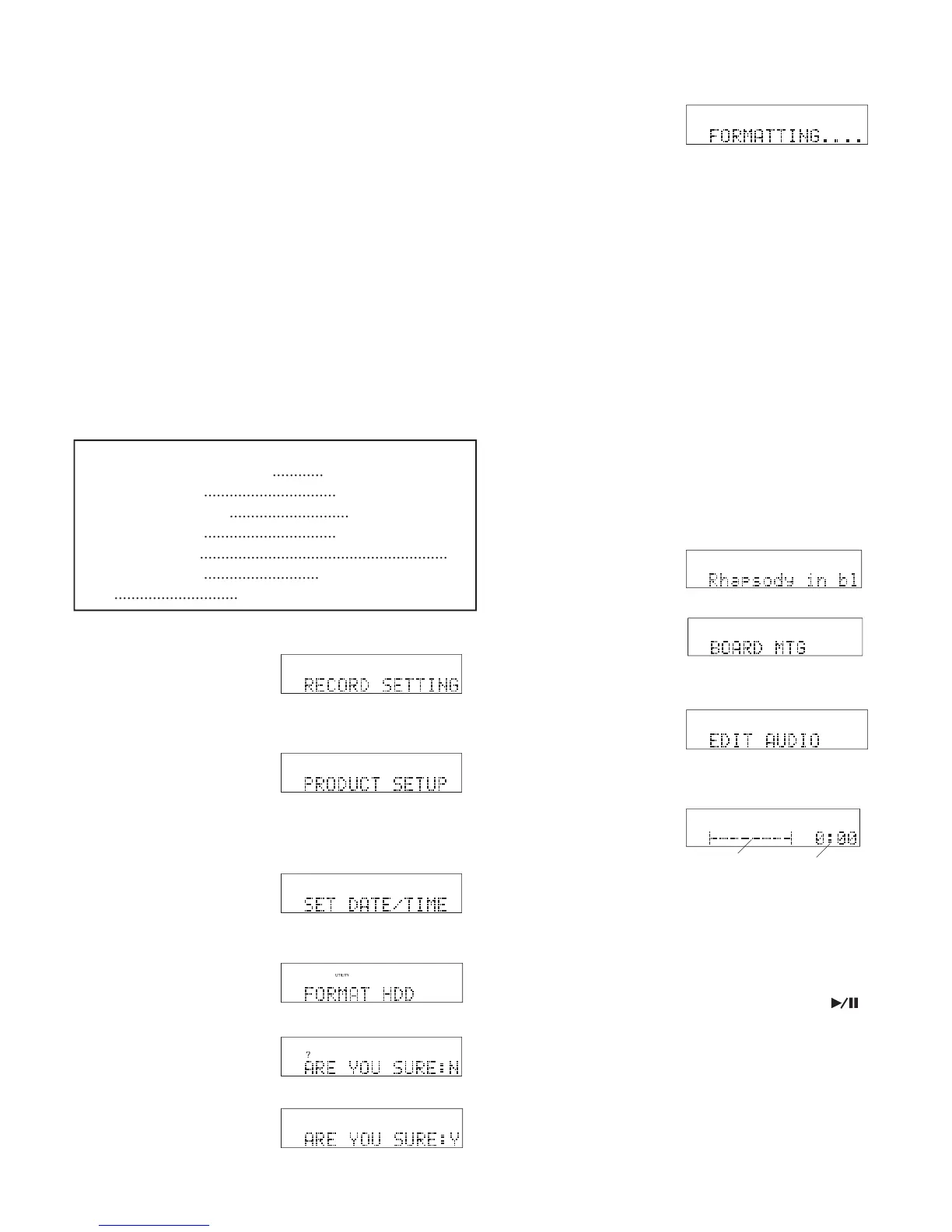
1 From Idle Mode, press and release the UTILITY
2 While RECORD SETTING is displayed, press and
PRODUCT SETUP is displayed.
3 While PRODUCT SETUP is displayed, press and
4 While SET DATE/TIME is displayed, turn the Jog
5 While FORMAT HDD is displayed press and
7 Press and release the Jog Wheel to confi rm.
When too many fi les are on the HDD, creating play
lists or editing becomes diffi cult. You can format the
hard drive to delete all fi les on the HDD.
Formatting the HDD erases all the tracks
• ALLOW FORMAT, page 47, must be set to Y.
• File recovery after formatting is similar to a soft format on a
computer. All fi le names on the HDD are modifi ed to indicate
that their space is available for use. When connected to your
computer, a recovery program on your computer might be
able to restore deleted fi les.
...............................
............................
...............................
..........................................................
...........................
.............................
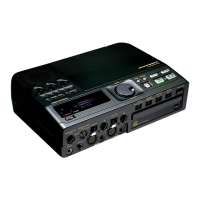
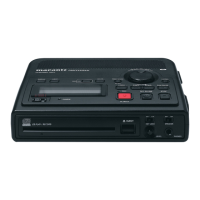
CDR420 automatically turns off
The CDR420 automatically turns off.
Slide the POWER switch to turn on.
You can cut and paste, copy and paste, or delete seg-
ments of audio in a track (fi le) that is recorded on the
CDR420. You can insert silence into the track.
the time within the track (the
time is always at the beginning 0:00 when you
Navigate to an edit point. You can do your edit opera-
tion 'on the fl y' by pressing the Play/Pause button
to play the track and listen for your edit point. Or you
can precisely navigate to your edit point (see below),
locating it to 1/10th of a second.
NOTE:: To exit, see How to Exit Edit Execute Mode on page 56.
1. Select the track (fi le) you wish to edit.
a. While playing the track go to step 2.
You determine the edit points such as the precise beginning, end
and paste points of an audio segment to be pasted by listening.
Before entering edit mode set up the CDR420 for how you want
to monitor the editing (headphones, internal speaker, line out to an


 To Next Page