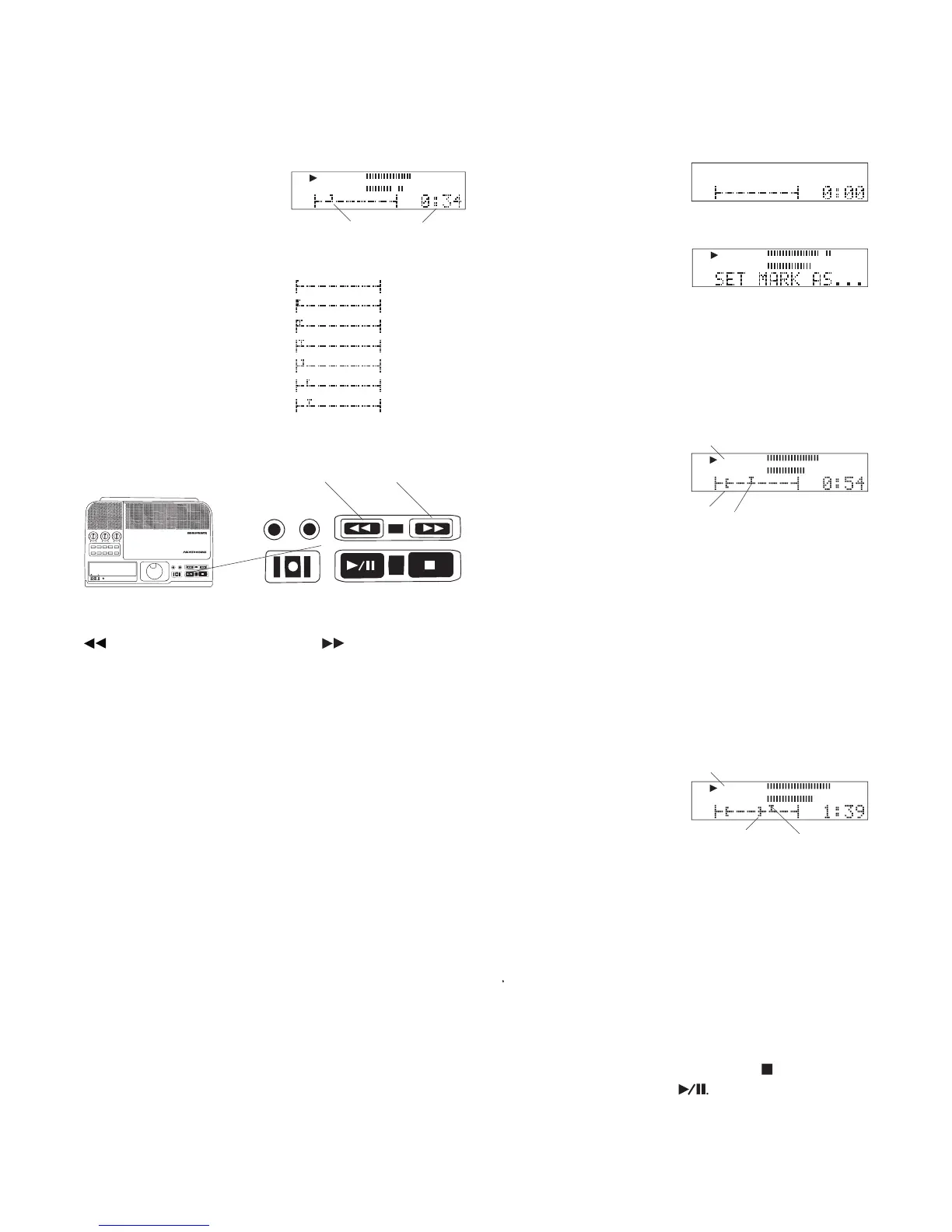
elapsed track time advances
the cursor advances across the graphic.
advance quickly through the track.
• after 3 seconds the scrub speed increases.
• play continues when you release a scrub button.
Listen to track playback to determine your edit point
and note the approximate elapsed time to the second.
You can use the JUMP button (page 16) to return to
that position and do fi ne scrub from that point.
4. Fine scrub (Jog Wheel scrub)
Turn the Jog Wheel to scrub forward or reverse.
• audio is played during Jog Wheel scrub
• you can initiate Jog Wheel scrub from Play or
• when the Jog Wheel is released playback is at
• each click of the Jog Wheel is 1/10th of a second
• you can mimic play by turning the Jog Wheel
Navigation is complete when the cursor is at your
desired edit point and at pause.
IN
OUT
REC
SELEC T
PUSH ENTER
POWER STANDBY
TREBLE
MID
BASS
FILE DIR INFO JUMP PHANTOM CD/HD
MARK UNDO REDO EDIT MENUUTILITY MENU
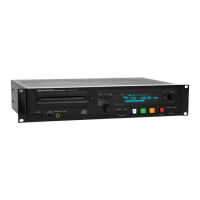
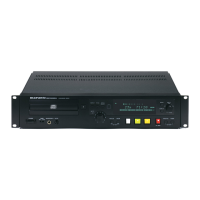
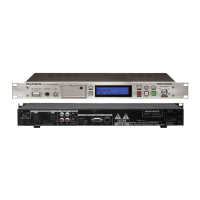
HD/CD RFECORDER CDR420
How to navigate within the track:
Press the Play/Pause button to play.
How to mark an audio segment
Quick Marking (on the fl y)
IN-OUT is displayed to indicate that IN and OUT
An OUT point marker appears in the graphic.
Play continues with the playback position indi-
f Play continues with the playback position indi-f
To review your selection from the beginning of the
track, press and release the Stop button
and release the Play button
SET MARK AS . . . is displayed and playback
3. Listen and press and release the IN button at the
Play continues with the playback position indi-
4. While play continues press and release the MARK
SET MARK AS . . . is displayed and play contin-
at the desired end point.


 To Next Page