EasyManua.ls Logo

Marantz CDR420 - Record Timer Functionality; Setting the Record Timer

Marantz CDR420
66 pages
Print Icon
To Next Page IconTo Next Page
To Previous Page IconTo Previous Page
Loading...
- 31 -
Record Timer
The CDR420 can be set to automatically begin record-
ing at a pre-specifi ed date and time, record for a set
time period and automatically stop recording. Record
Timer can be set to be single or repeated daily, weekly,
or only on weekdays. Only one timer recording session
can be set.
How to set the RECORD TIMER
HD
MENU
UTILITY
HD
MENU
UTILITY
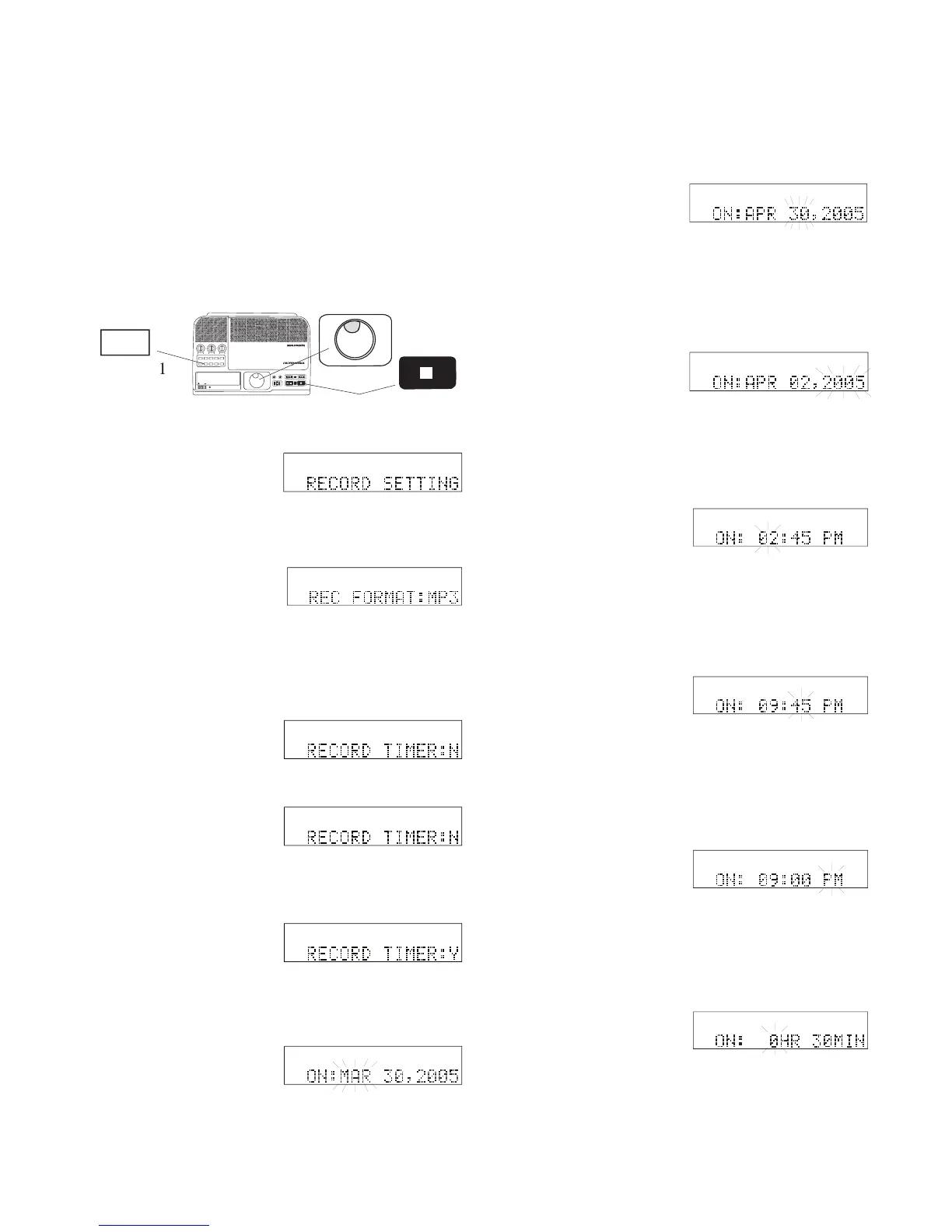
1 From Idle Mode, press
and release the UTIL-
ITY MENU button.
RECORD SETTING is
displayed.
2 While RECORD SET-
TING is displayed,
press and release the
Jog Wheel to accept
IN
OUT
REC
SELEC T
PUSH ENTER
POWER STANDBY
TREBLE
MID
BASS
FILE DIR INFO JUMP PHANTOM CD/HD
MARK UNDO REDO EDIT MENUUTILITY MENU
HD/CD RFECORDER CDR420
SELEC T
PUSH ENTER
HD/CD RFECORDER CDR420
UTILITY MENU
1
2 - 13
14
Example display
the RECORD SETTING menu choice. REC FOR-
MAT: is displayed.
3 Turn the Jog Wheel
until RECORD
TIMER is displayed.
4 Press and release the
Jog Wheel to select
RECORD TIMER.
"?" appears in the dis-
play.
HD
MENU
UTILITY
Example display
?
HD
MENU
UTILITY
Example display
5 If :N is displayed, turn
the Jog Wheel so Y is
displayed then press
and release the Jog
Wheel.
6 The display switches
to setting the month for
the recording to begin.
?
HD
MENU
UTILIT
Y
ON: is displayed with the current month fl ashing.
HD
MENU
UTILITY
Example display
To change the setting, turn the Jog Wheel so the
desired month is displayed.
Press and release the Jog Wheel to confi rm the
month.
HD
MENU
UTILITY
HD
MENU
UTILITY
7 The display switches
to setting the day of
the month, with the
day fl ashing.
Example display
To change the setting, turn the Jog Wheel to select
the day. When correct, press and release the Jog
Wheel.
8 The display switches
to setting the year,
with the year fl ashing.
To change the setting, turn the Jog Wheel to select
the year. When correct, press and release the Jog
Wheel.
8 The display switches
to setting the hour for
recording to begin,
with the hour fl ashing.
Example display
To change the setting, turn the Jog Wheel to se-
lect the hour. When correct, press and release the
Jog Wheel.
9 The display switches
to setting the minute,
with the minute fl ash-
ing.
To change the setting, turn the Jog Wheel to select
the minute. When correct, press and release the
Jog Wheel.
10 The display switches
to setting am or pm,
with the am or pm
ashing.
To change the setting, turn the Jog Wheel to select
am or pm. When correct, press and release the Jog

Wheel.
11 The display switches
to setting the dura-
tion of the recording
in hours and minutes,
with hours fl ashing.
Example display
HD
MENU
UTILITY
Example display
Example display
HD
MENU
UTILITY
Example display
HD
MENU
UTILITY
Example display
HD
MENU
UTILITY
continues

Table of Contents

Related product manuals