UTILITY MENU - NEW CD PROJECT
After you have tracks, audio fi les, recorded on the HD
and have edited the tracks you can assemble one or
more tracks into a CD project and then burn that CD
project onto one or more CD's.
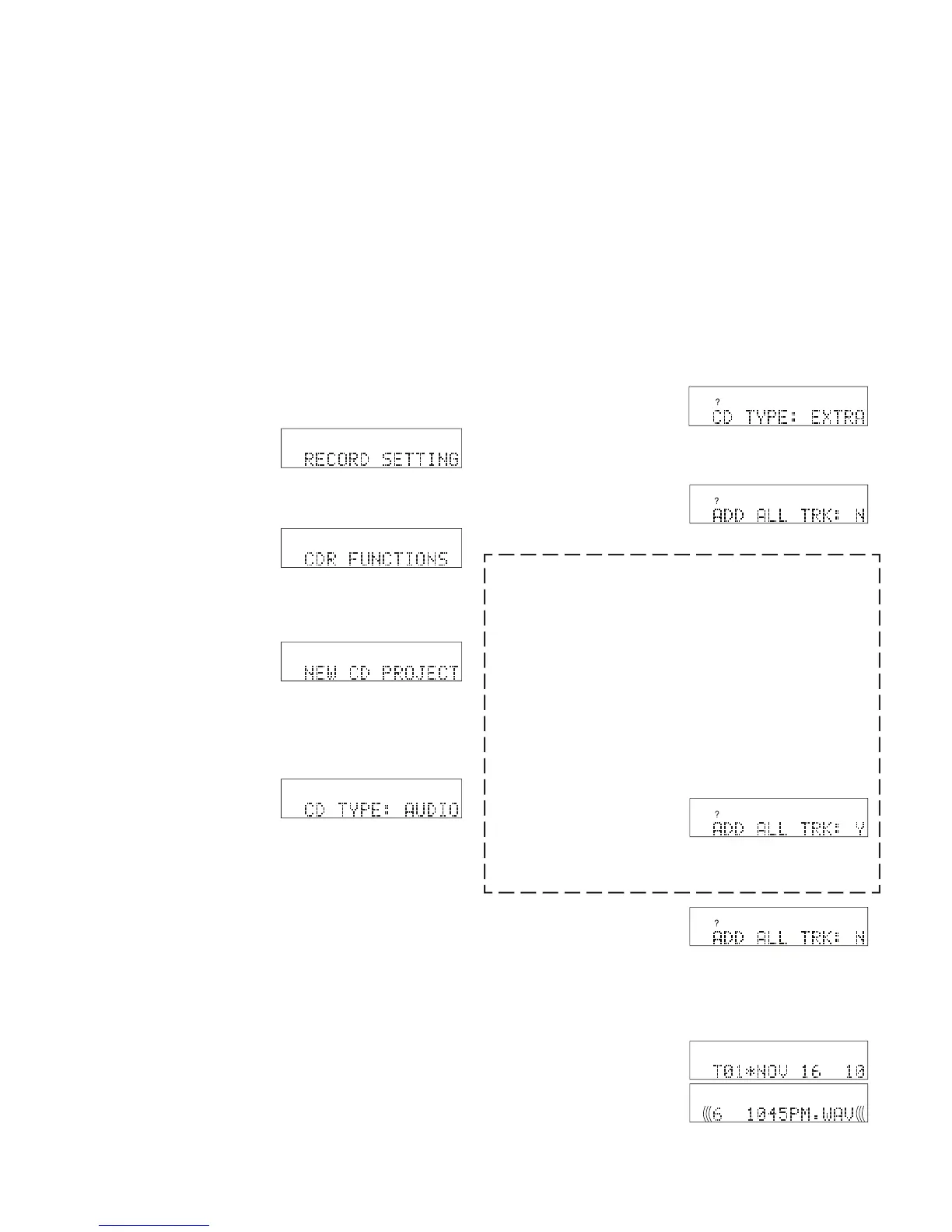
RECORD SETTING is displayed.
NEW CD PROJECT is displayed.
CD TYPE: AUDIO is displayed. "?" appears in the
5 Turn the Jog Wheel to tab through the CD TYPE
choices: AUDIO, DATA and EXTRA.
Prepares CDs that can be played on standard CD
players. Compact Disc Digital Audio (CDDA) uses
uncompressed, PCM, .wav fi les. The CDR420 does
not convert MP3 fi les to PCM so MP3 fi les are ignored
if you choose AUDIO as the CD TYPE.
If you choose ADD ALL TRK: Y, all of the tracks
recorded on the HD will be included. This is a use-
ful choice if you started from a blank HD and you
have recorded multiple small tracks, for example,
an hour of a meeting in minute track (60 tracks).
See page 29 for setting minute track recording.
AUDIO and EXTRA CDs will burn all PCM tracks.
DATA CDs will burn all MP3 and PCM tracks.
recorded on the CD are to be included. Tracks are
selected one at a time from all the tracks in the fi le
directory. Press and release the Jog Wheel.
If you have a lot of fi les on the HD, and the fi les have default
(date and time) names, selecting fi les for your CD project can
be confusing. Before starting your CD project you can:
• Review the fi les and write down track names.
• Select Pre-roll track (so the fi rst fi ve seconds of a dis-
played track are automatically played) see page 49.
The DATA CD choice will burn exact fi le images of
fi les (tracks) on the CDR420 HD, MP3 and/or PCM.
The CD is formatted as ISO 9660.
The EXTRA CD choice will burn a multi-session disc.
It prepares the same CD format as AUDIO (no MP3
fi les) but adds text fi le records of all the tag informa-
tion of the PCM fi les selected to burn. A CD prepared
in "EXTRA" will play in standard CD players the
same as a CD prepared in "AUDIO." If you put the
EXTRA CD in your computer, you can also access the
CDR FUNCTIONS is displayed.


 To Next Page