4.1.5 Change of the Title Bar
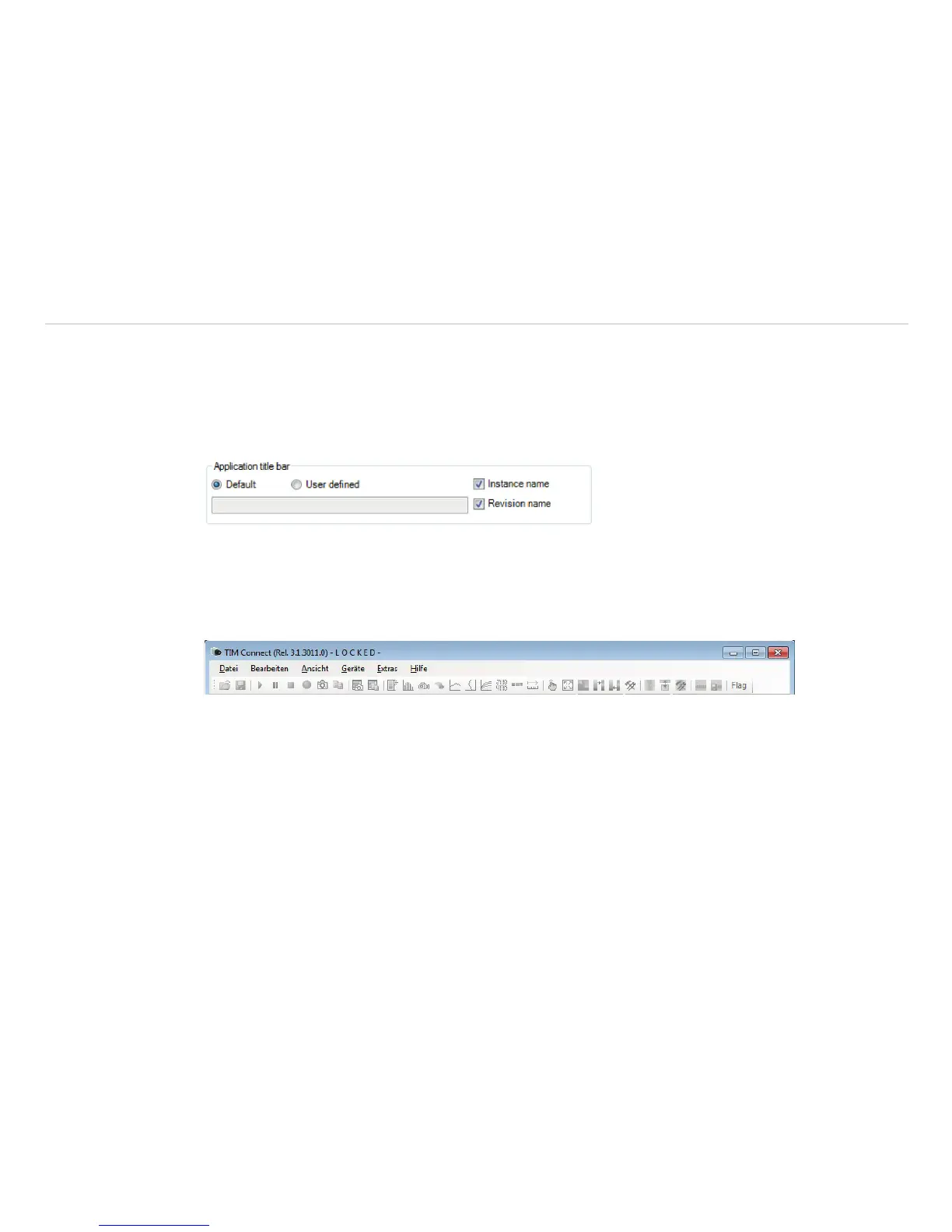
The Application title bar option enables the individual setting for an own title name.
The setting Default displays the standard software name TIM Connect. Using the setting User defined
you can specify an individual name. The option Instance name is important if starting several cameras and
software on one computer. The option Revision name is disabling the display of software version in the title
bar.
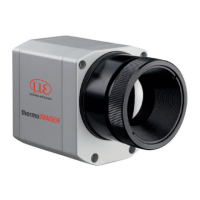
Fig. 15 View application title bar
4.1.6 Lock / Unlock Application
The software offers the possibility to block or unlock the application by entering a password. This is possible
under menu Help and Lock / unlock application. Enter a password and repeat it. Then press Lock
and the application is locked, see Fig. 16.
The setting options are now all gray in color and they are no longer able to make changes. Only when you
go to Help and Lock / unlock application, enter the password and click Unlock, the software will be
unlocked again, see Fig. 17.
Remove Password removes the current password and with Change Password a new password can be
assigned, see Fig. 18.
If the application should be locked again, the current password remains memorized and a repeated entry of
the password is no longer necessary.


 To Next Page