4.2 Software Layout
4.2.1 Displayed Windows
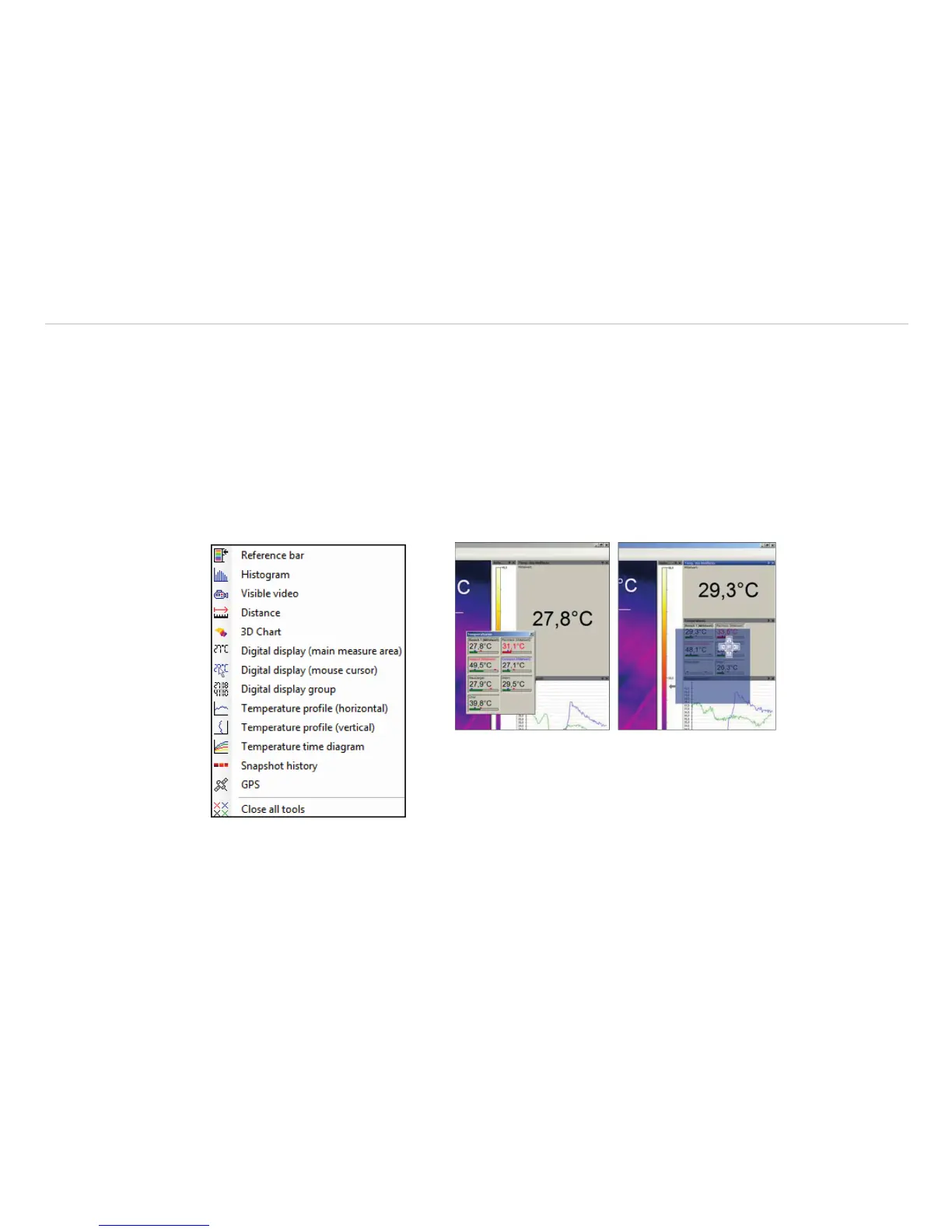
You can individually choose the displayed windows and easily change their positions within the desktop area
(drag & drop). To add windows please use the menu item View and Windows.
On the one hand a window can be positioned separately on the screen. On the other hand a window can be
set at a fixed position in the software. The location can be determined using the positioning field (mouse over
the arrows „above“, „below“, „right“, „left“).
When a window is dragged into another one (mouse has to be placed within title head) both will be merged.
You can switch between them using the tab provided.
Fig. 20 Tool bar Fig. 21 Separate window and window with positioning field to place it
into the software individually


 To Next Page