12. Usage
MiR600 User Guide (en) 08/2021 - v.1.0 ©Copyright 2021: Mobile Industrial Robots A/S. 178
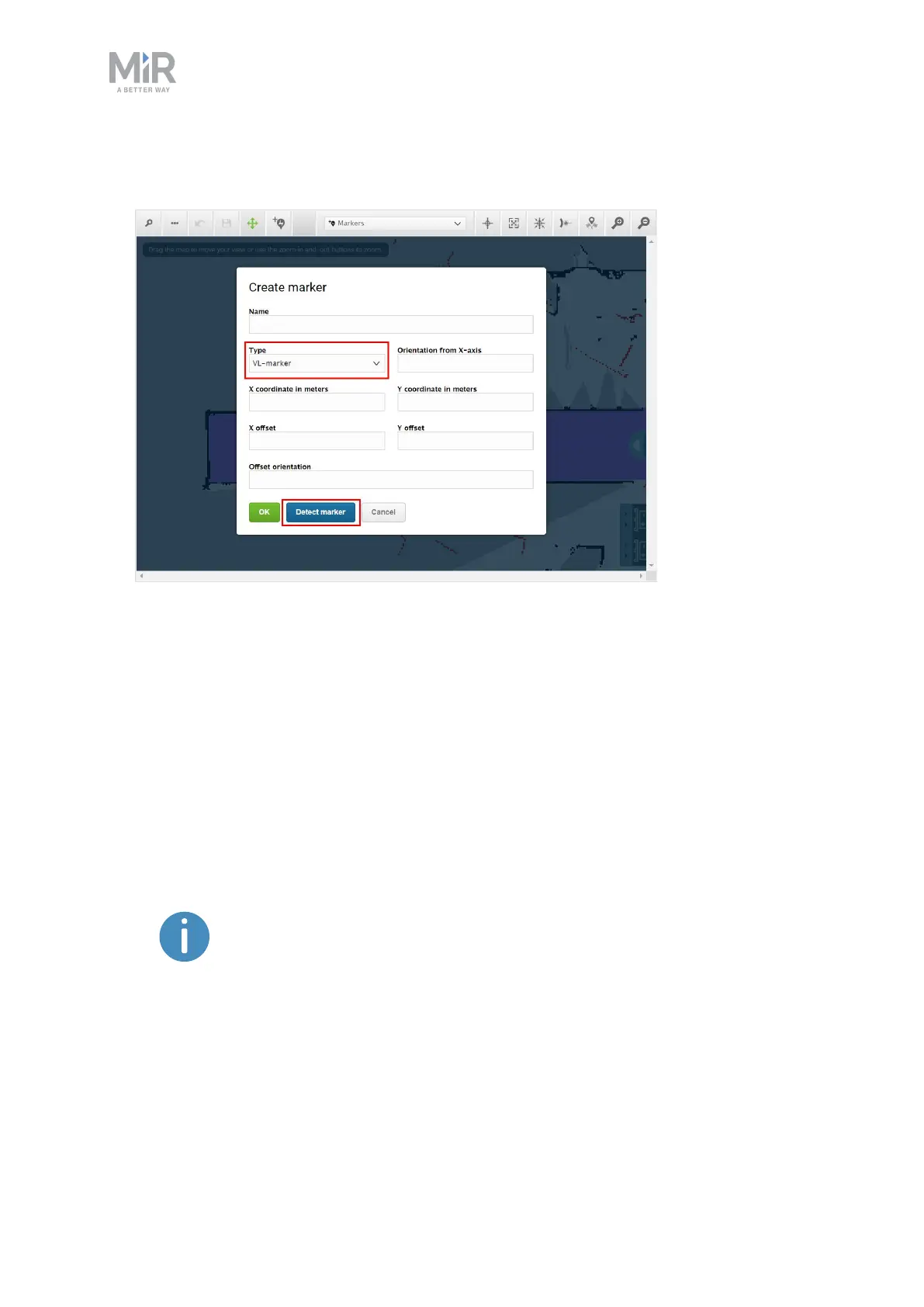
5. In the Create marker dialog box, name the marker. Under Type, select your marker type.
In this case, a VL-marker is used. Then select Detect marker.
The X, Y, and orientation values will automatically be filled out with the current position
of the robot.
• If the robot cannot detect the marker, verify that the robot is correctly positioned and
that the laser scanners can detect the marker in the active map by checking that red
lines are displayed on the map where the marker is.
• If you are trying to make the robot detect an L-marker but it keeps detecting other
objects with a 90° angle instead, shield the objects that the robot is not supposed to
detect with a flat plate.
• If you want the robot to dock straight to the marker, set the Offset orientation to 0°. If
you want the robot to reverse into the marker, set the Offset orientation to 180°.
Detecting the marker with the rear scanner will automatically set the
orientation offset to approximately 180° for a reverse docking.


 To Next Page