Description of the unit
20 Operating instructions
3.5.2 Display elements
The following table lists the basic display elements of the unit's
control system with examples.
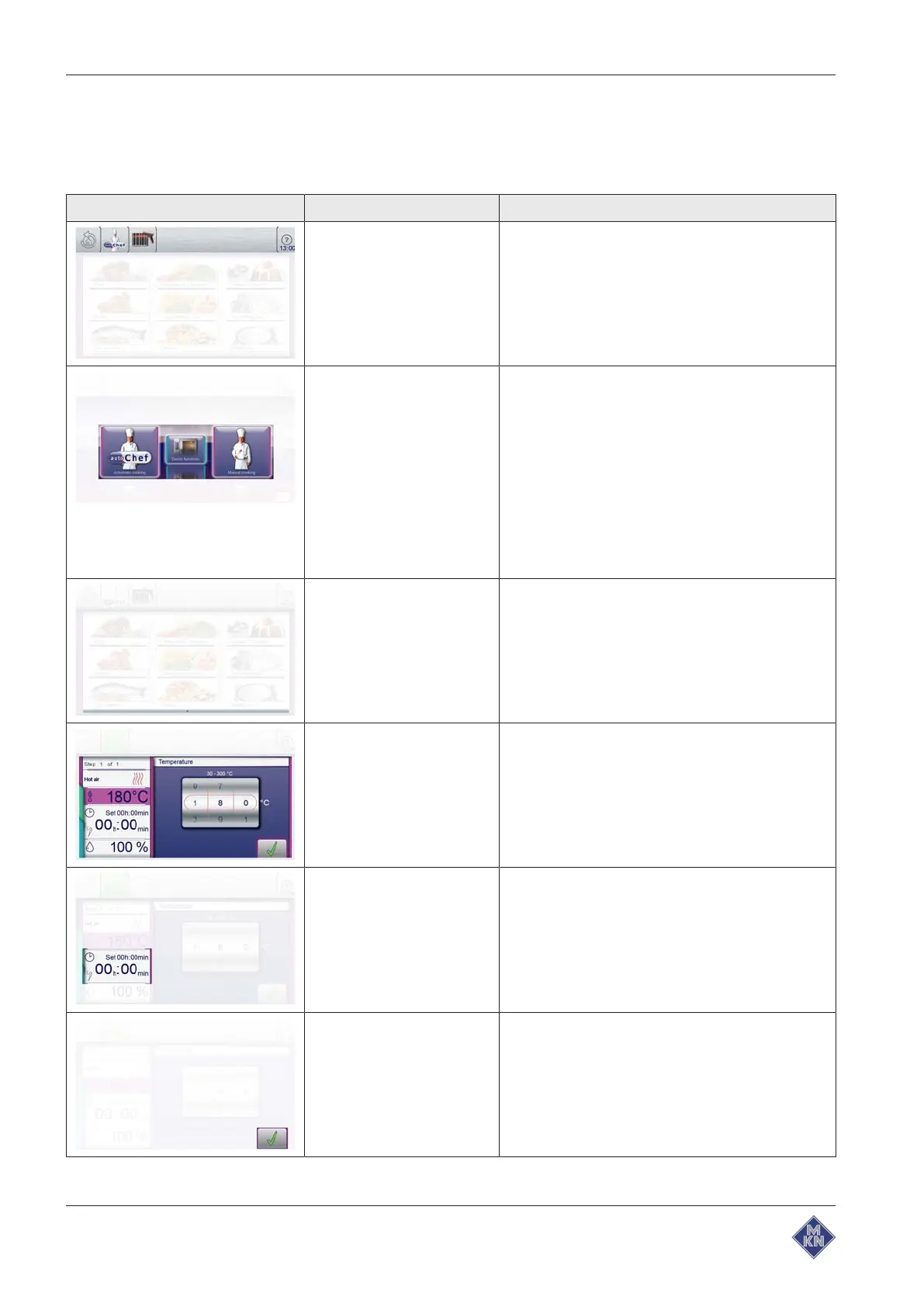
Symbol Display element Function
Information bar The information bar is the uppermost bar on the
touchscreen and visible at all times.
The information bar is used to display current
information; for instance, categories or cooking
programs.
Menu Menus have a coloured border that identifies the
associated subject.
• Blue for equipment functions
and
• Violet for cooking functions.
Menus frequently contain vertical separating bars
to simplify swipe gestures.
Menus represent central entry points and provide
an overview of the selectable functions and
submenus.
Page Pages are the areas with content in windows and
menus. Several pages can follow one another in
sequence.
An arrow symbol displays further pages. Changing
to the next or the previous page is accomplished
by swiping up or down.
Window Windows have a coloured border and are opened
from menus or higher-level windows.
Functions are executed and settings displayed in
windows.
Depending on the function, there are several
window types, for instance, Find.
Field Fields are areas in windows or menus defined by
separating bars.
Tapping fields opens functions and settings.
Button Buttons are areas enclosed by borders in windows
or menus.
Tapping buttons confirms settings. Buttons control
functions and are used to navigate in menus and
windows.
4426201-20ABBE-A


 To Next Page