NMC-WOLLARD 2021Truax Blvd., Eau Claire, WI 54703, Phone (715) 835-3151, Fax (715) 835-6625
M100 Tow Tractor Manual No. 46052
PAGE 25
CHAPTER 5 MAUFACTURER’S INFORMATION
18
NexSysLink
®
2" Stand-Alone CAN Display Operation Manual SAE J1939
© 2011 Beede Electrical Instrument Co., Inc.
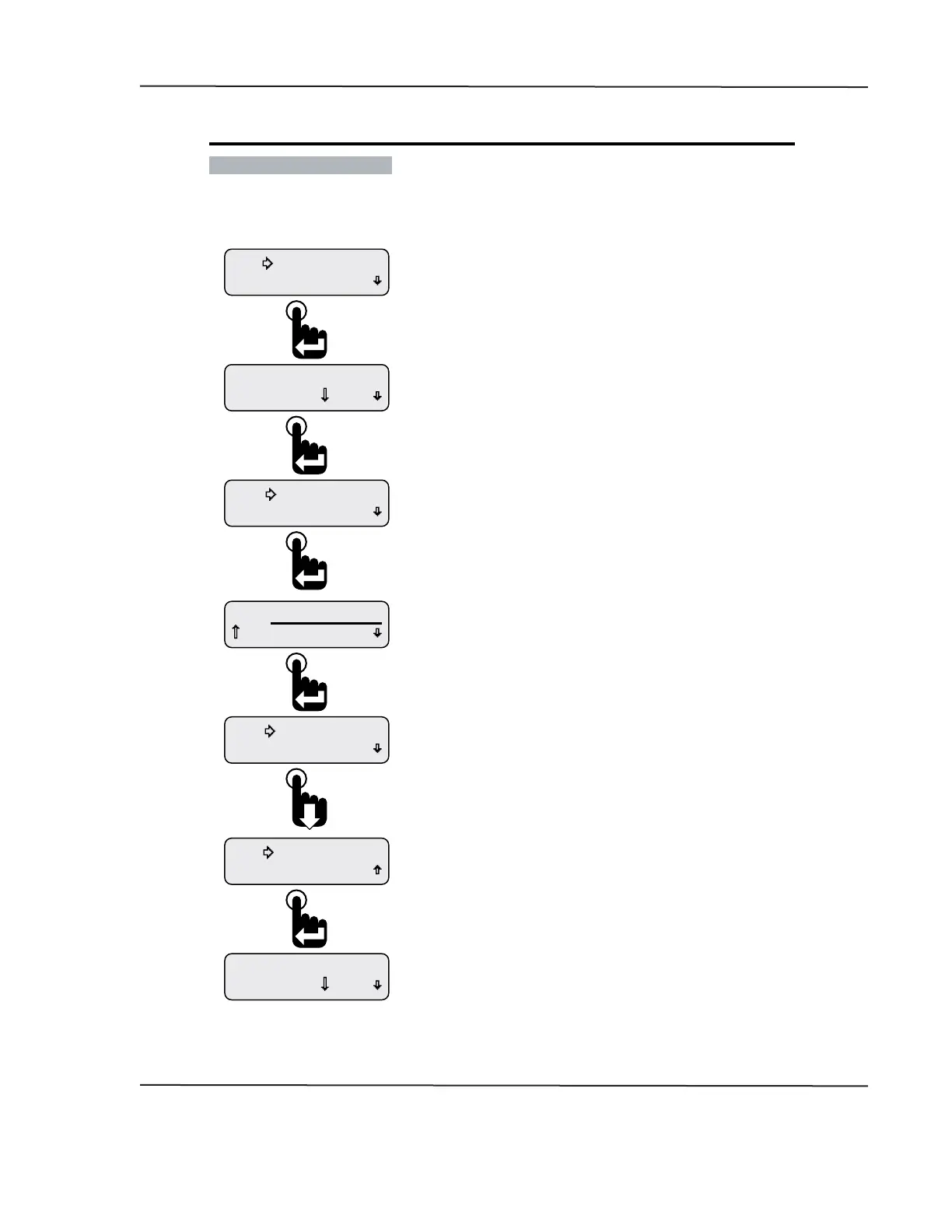
• Editing Alarms
The Edit Alarms function is used to change an alarms existing CAN parameter, higher/lower than
threshold indicator or trigger value�
Figure 1-17: Editing an Alarm
Change? 10.0 V
A1 Alternator Volts
Save Alarm
Save Alarm
No Change
0.0 V
A1 Alternator Volts
Delete Alarm
Edit Alarm
Change? 10.0 V
A1 Alternator Volts
Return
Edit Alarms
After choosing to either save or discard alarm changes, the same
alarm conguration screen appears to allow users to re-edit the
alarm if necessary�
Once the displayed alarm conguration is acceptable, press the
Down switch to scroll to the next alarm if one is congured or to the
Add Alarm and Return menu options�
With the selection arrow cursor next to the Save Alarm option,
press the Enter switch to save alarm changes�
Pressing the Enter switch after accepting the existing or edited
trigger value opens the save options menu choices�
To discard changes to the alarm, press the Enter switch to select
No Change� Otherwise, scroll down to place the selection arrow
cursor next to the Save Alarm option�
The alarms conguration screen appears with the blinking bar
cursor beneath the CAN parameter name�
Step through and edit the parameter name, threshold direction
and trigger value as desired using the Up and Down switches�
Pressing the Enter switch accepts and sets any changes�
After choosing an alarm to change, the selection arrow cursor
appears next to the Edit Alarm, option�
Press the Enter switch to begin editing the chosen alarm�
Pressing the Enter switch displays the rst previously congured
CAN parameter for alarm notication, A1�
The prompt “Change?” appears in the lower left corner of the display�
Press the Enter switch to accept the prompt to change/edit the
the displayed alarm, A1�
If more than one alarm exists, scroll down to display the desired
alarm then press the Enter switch to change/edit it�
From the Alarms Menu place the selection arrow cursor
next to the Edit Alarms option, Main Menu-Alarms-Edit Alarms,
then press the Enter switch to begin editing alarms�
CAN DISPLAY MANUAL
NOVEMBER 02, 2015



 To Next Page