www.nordsonefd.com info@nordsonefd.com 800-556-3484 Sales and service of Nordson EFD dispensing systems are available worldwide.
EV Series Automated Dispensing Systems
60
Running a Program by Scanning a QR Code
PREREQUISITES
QR code scanning is enabled. Refer to “Appendix C, QR Code Scanning Setup” on page 89 to enable QR
code scanning.
A QR code is present on the robot work surface and is associated with a program. Refer to “Appendix C, QR
Code Scanning Setup” on page 89 to associate a QR code with a program.
1. Position the workpiece on the xture plate.
2. Press the START button on the front of the robot, or click RUN on the monitor.
The system jogs to the predened location where a QR code is located, scans the QR code, opens the
associated program, and executes the program.
Pausing During a Dispense Cycle
Press START at any time to pause the system during a dispense cycle; the pauses at its current position.
NOTE: If the system is paused when the dispenser is open, pattern integrity will be compromised.
Purging the System
To purge the system, press the DISPENSER PURGE button.
NOTE: You can set up the system to purge automatically. Refer to “How to Set Up Auto Purge, Program Cycle
Limits, or Fluid Working Life Limits” on page 57.
Shutting Down the System
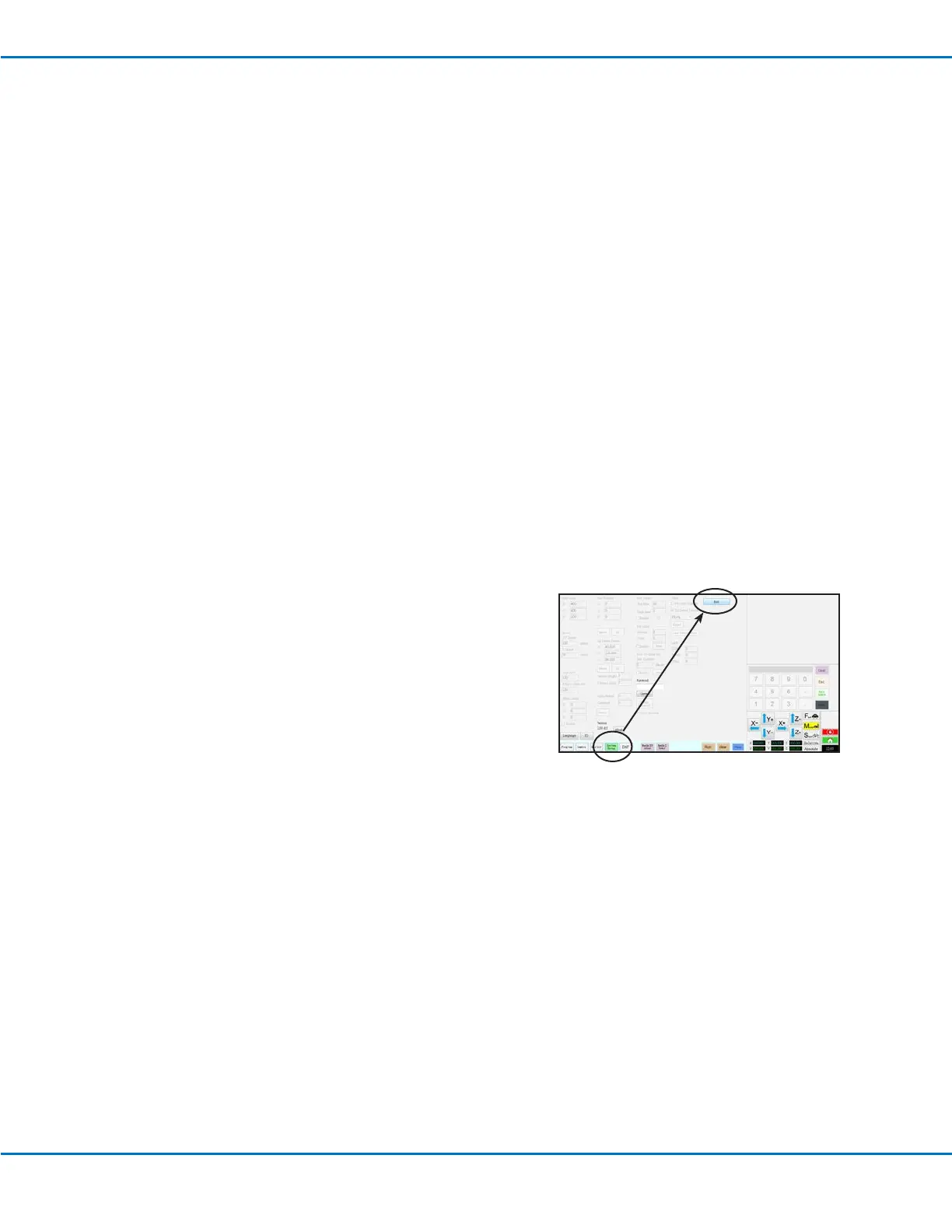
1. Click SYSTEM SETUP > EXIT to close the DispenseMotion
software. If prompted to save a le, select YES or NO.
2. Switch off the following components:
• DispenseMotion controller
• Monitor
• Robot
3. Refer to the dispensing system manuals for any special
shutdown instructions.


 To Next Page