www.nordsonefd.com info@nordsonefd.com 800-556-3484 Sales and service of Nordson EFD dispensing systems are available worldwide.
EV Series Automated Dispensing Systems
91
# Click Step Reference Image
8
• Continue to add additional QR codes as
needed.
• To remove a QR code, right-click on the QR
code and then click DELETE.
9
>
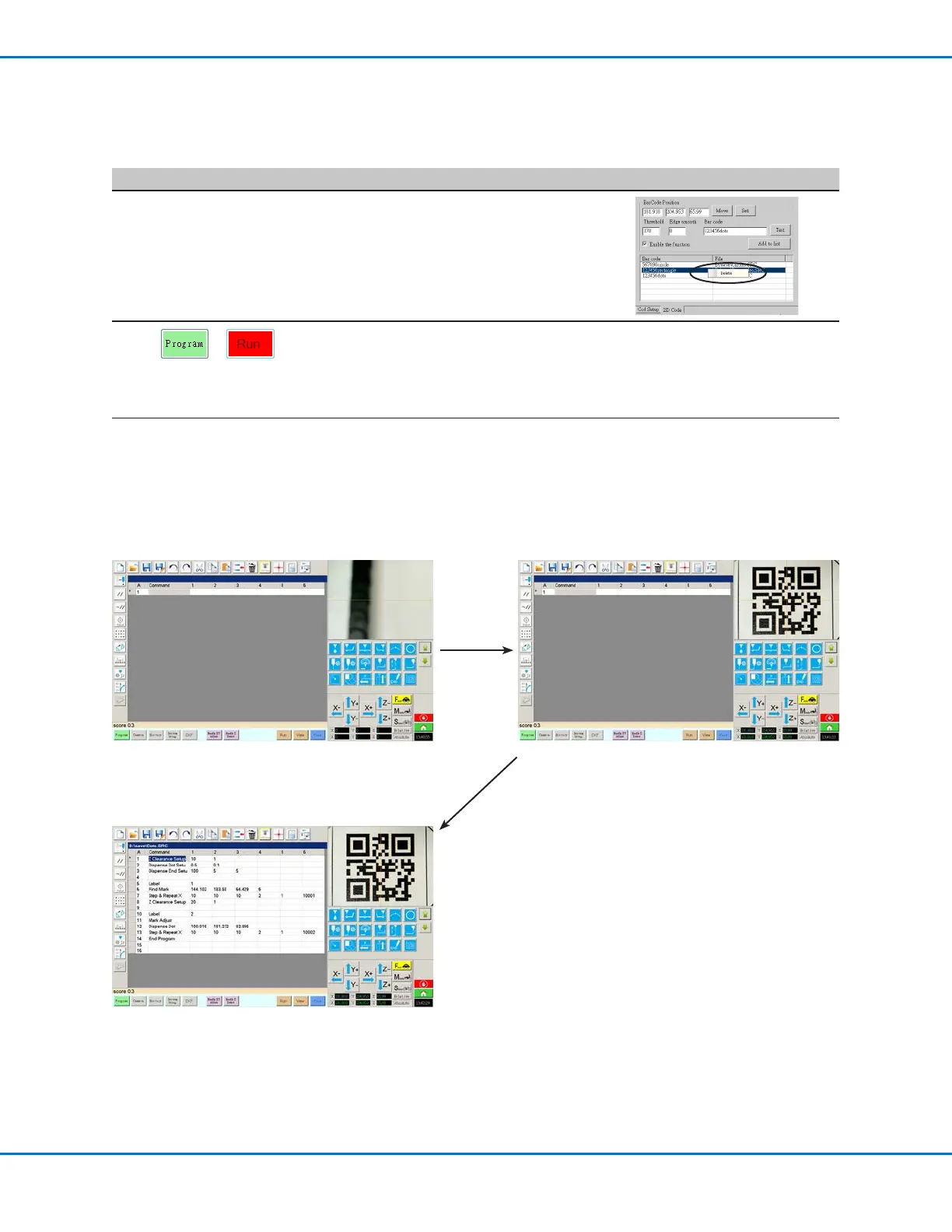
• Return to PROGRAM screen and then click
RUN to test the program.
The system nds the QR code, scans
it, opens the associated program, and
executes the program.
Refer to the screen captures
The system is now set up for QR code
scanning. Refer to “Running a Program by
Scanning a QR Code” on page 60 for an
operating procedure.
Appendix C, QR Code Scanning Setup (continued)
To Associate a QR Code with a Program (continued)
1. Clicking PROGRAM and then RUN to test the program. 2. The system moves to the QR code and scans it.
The system opens the program and executes it.


 To Next Page