Using Objet Studio
5–24
DOC-00500 Rev. F
Additional Objet Studio Features
Dividing
Objects
YoucanusetheSplitObjectfeaturetoproduceobjectslargerthanthebuild
traybydividingthemodelintoseparateparts.Withthisfeature,you
produceonlyaspecificsectionofamodel.
To split an object:
1. Selecttheobject.
2. FromtheObjectmenu,select
Split.
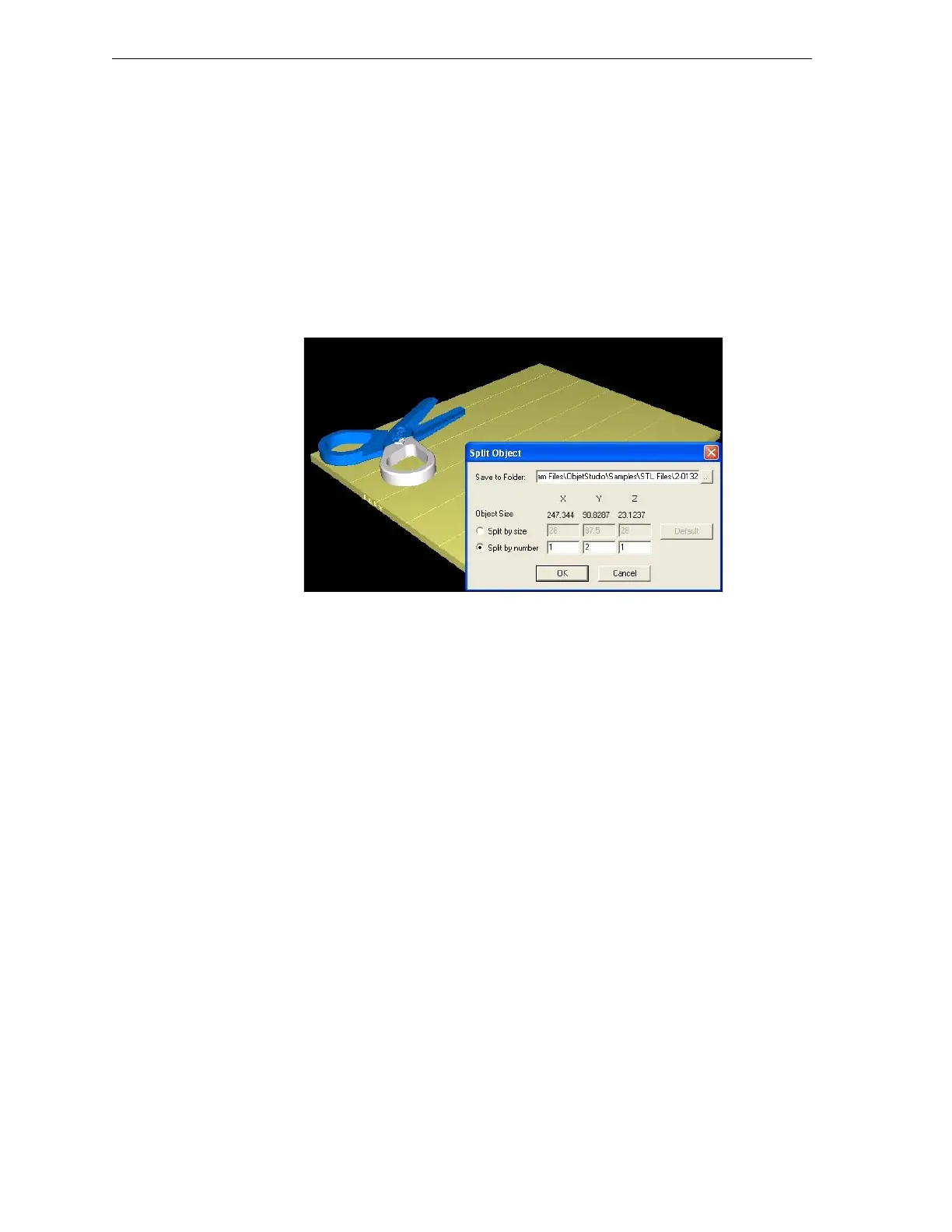
3. IntheSplitObjectdialogbox,enterthevaluestodeterminehowObjet
Studiowilldividetheobject.Youcandivideanobjectalonganyofits
axes,byenteringeitherexactmeasurementsorthenumberofparts.
Figure 5-30:Split Object dialog box
4. InSavetoFolder,enterthefoldername.
5. Click
OK.
Thecompositepartsaresavedasnewstlfileswith“Part1,”“P art2,”
etc.,addedtotheoriginalfilename.
Note: Before printing the newly created stl files, it is recommended that you
check them for defects in an STL-repair application, such as Magics,
by Materialise.
Choosing the
Support
Strength
Whenproducingmodels,supportmaterialfillssomehollowandempty
sections(see“ModelOrientation”onpage 10).ObjetStudioallowsyouto
adjustthestrengthofthestructureformedwiththesupportmaterial.This
adjustmentisusefulwhenproducingeitherlarge/massivemodelsorsmall/
delicatemodels.Formostpurposes,thedefaultsetting
providesadequate
supportstrength.
To change the strength of the support structure used when printing a
model:
1. Selectamodelonthebuildtray.
2. IntheOptionstaboftheEntityPropertiesdialogbox,click
Advanced.



 To Next Page