DOC-00500 Rev. F 5–19
Eden500V/350V/350 User Guide
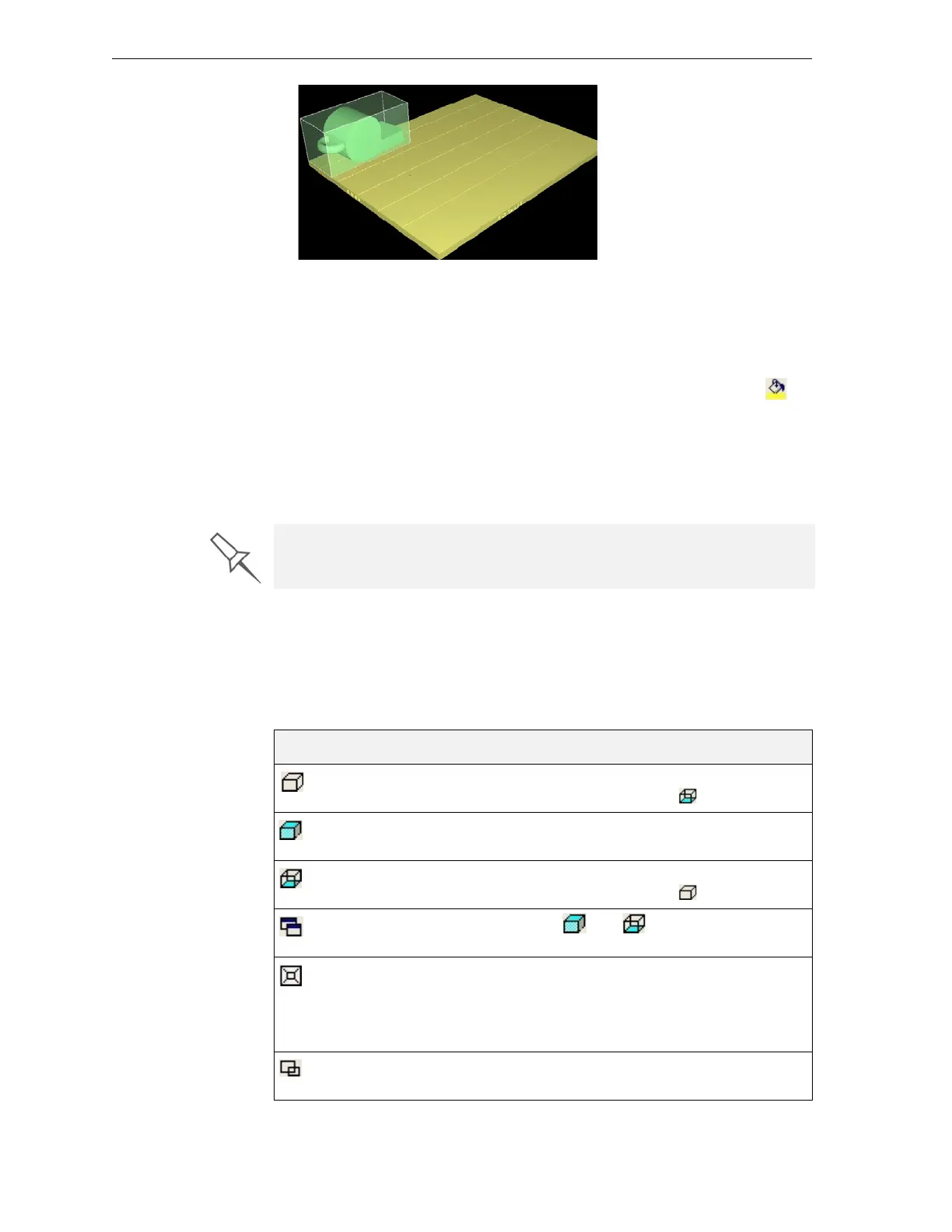
Figure 5-25: Model displayed with thickening box
To change the display color of an object:
1. Selecttheobject.
Itscolorchangestoblue,indicatingthattheobjecthasbeenselected.
2. FromtheObjectmenu,select
Fill ColororclicktheFillColoricon .
3. Selectacolorfromthecolorpaletteandclick
OK.
Whentheobjectisde‐selected,itappearsinthenewcolor.
Note: You can repeat this procedure for other objects, so that different
objects on the build tray are displayed in different colors.
Tray Viewing
Options
TheObjetStudiotoolbarscontainseveraliconsforchangingthe
appearanceofthedisplayscreen,enablingyoutoviewthetrayandobjects
indifferentmagnificationsandfromvariousperspectives.
Note: You must display the relevant toolbar(s) to access many of the icons
described below (see ).
Objet Studio displays objects to be produced with matte and glossy finishes
in different colors. See “Surface Finish” on page 17 and “Object Color
Codes” on page 22
Icon Tool Tip Name Purpose
ZoomFull Revert stonormalviewafterusingvarious
zoomoptions.(Thesameas .)
ZoomObject Fillstheviewingpanewiththeselected
object(s).
ZoomWorkArea Revertstonormalviewafterusingvarious
zoomoptions.(Thesameas .)
AllWindows Ifenabled,andeffectallviewing
panes.
Perspective/Parallel Whenselected,thetrayisdisplayed
withdepth
perspective—closerobjectsappearbigger.
Whennotselected,the trayisdisplayedintwo
dimensions—identicalobjectsappearthesame
size,regardlessoftheirpositiononthescreen.
ZoomByRectangle Fillstheactiveviewingpanewithanareaofthe
buildtrayafteryouselectitwiththemouse.


 To Next Page