Using Objet Studio
5–14
DOC-00500 Rev. F
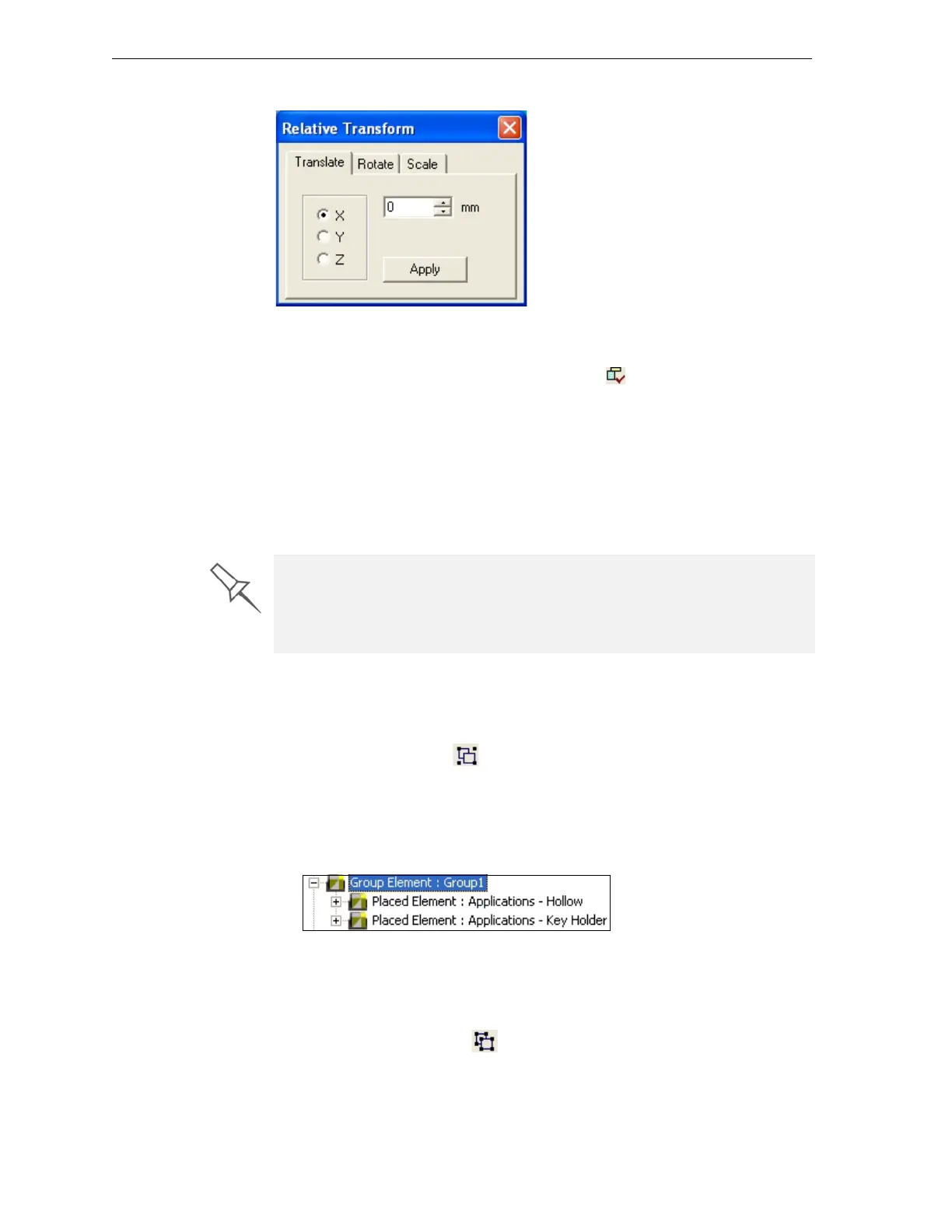
• TheRelativeTransformdialogbox,accessiblefromtheObjectmenu.
Figure 5-18: Relative Transform dialog box
Valid Object
Placement
Toensurethatmodelsdonotoverlapwhenyoupositionthemonthebuild
tray,youcanselecttheDynamicCheckingiconfromtheToolstoolbar.
Whenselected,ObjetStudioonlyallowsthepositioningofobjectsifthey
donotinterferewithotherobjectsonthetray.Notethatthespace
occupied
byanobjectincludesthe“boundingbox”surroundingit(seefig ure 5‐24on
page 18).
Note: Because of the unique characteristics of each type of modeling
material, it is recommended that you select the material before
precisely positioning objects on the tray.
Grouping and
Ungrouping
Objects
Youcanmanipulatetwoormoreobjectsonthebuildtray,atthesametime.
To group objects:
1. Selecttheobjects(see“SelectingObjects”onpage 5).
2. ClicktheGroupicon .
or—
FromtheObjectmenu,select
Group.
Inthetrayhierarchypane,theobjectsnowappearunder“Group
Element.”
Figure 5-19:Group Element in the tray hierarchy pane
To separate grouped objects:
1. Selectthegroupelement(eitheronthebuildtrayorinthetray
hierarchypane).
2. ClicktheUngroupicon .
or—
FromtheObjectmenu,select
Ungroup.
Even if you do not use Dynamic Checking when placing objects on the build
tray, Objet Studio automatically checks if there is a problem with the
positioning of objects on the tray before sending it to the printer. You can
also manually check for problems after positioning objects (see “Tray
Validation” on page 21).


 To Next Page