Using Objet Studio
5–16
DOC-00500 Rev. F
To select an object’s plane and re-align it with one of six basic directions:
• FromthePlaneAlignmenttoolbar:
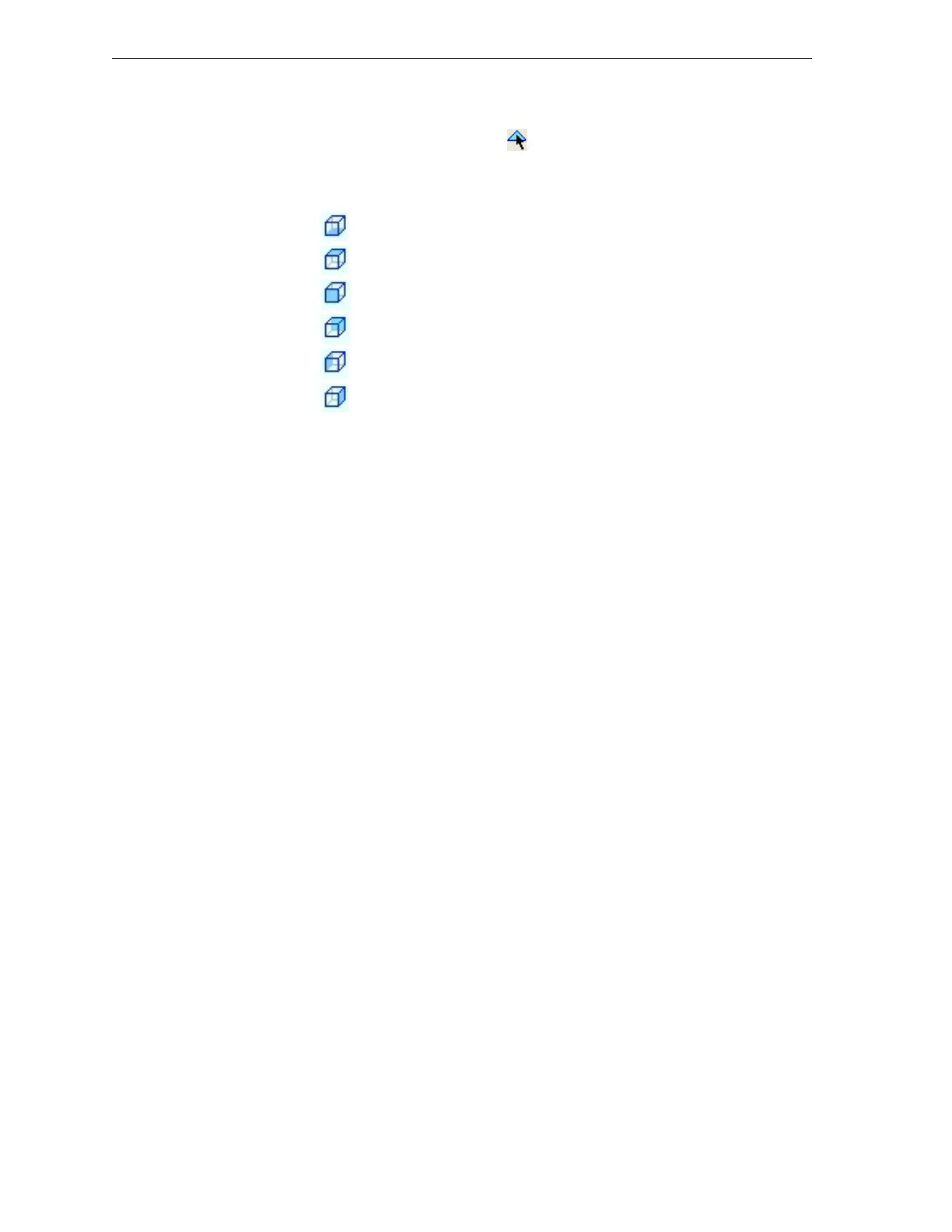
1. ClicktheSelectPlaneicon .
2. Clickaplaneonanobjectdisplayedonthebuildtray.
3. Clicktheappropriatealignicon—
• FromtheToolsmenu:
1. Select
Plane Alignment > Select Plane.
2. Clickaplaneonanobjectdisplayedonthebuildtray.
3. Select
Plane Alignment > Align Bottom/Top/Front/Back/Left/Right(as
appropriate).
Note: When you are finished re-aligning the plane of objects on the build
tray, release the Select Plane icon or
clear Select Plane from the
Tools > Plane Alignment menu.
To flip an object 180 degrees on any axis:
1. Selecttheobject.
2. FromtheObjectmenu,select
Flip > Flip X / Flip Y / Flip Z.
To make precise changes to the object’s orientation on any axis:
1. Selecttheobject.
2. DisplaytheTransformtabortheR.Trans.taboftheEntityProperties
dialogbox(seefigure 5 ‐16onpage 13andfigure 5‐17onpage 13).
or—
FromtheObjectmenu,select
Relative Transform (seefigure 5‐18on
page 14).
3. ChangetheRotatevaluesforthedesiredaxis.
Freezing an
Object’s
Orientation
Ifyoumanipulateanobjectonthebuildtray,youcanfreezeitsorientation
sothatitdoesnotchangewhenyouperformAutomaticPlacement(see
“A u t o m a t i c Positioning”onpage 8).
To freeze an object’s orientation:
1. Selectamodelonthebuildtray.
2. IntheOptionstaboftheEntityPropertiesdialogbox,click
Advanced.
AlignBottom
AlignTop
AlignFront
AlignBack
AlignLeft
AlignRight


 To Next Page