Using Objet Studio
5–26
DOC-00500 Rev. F
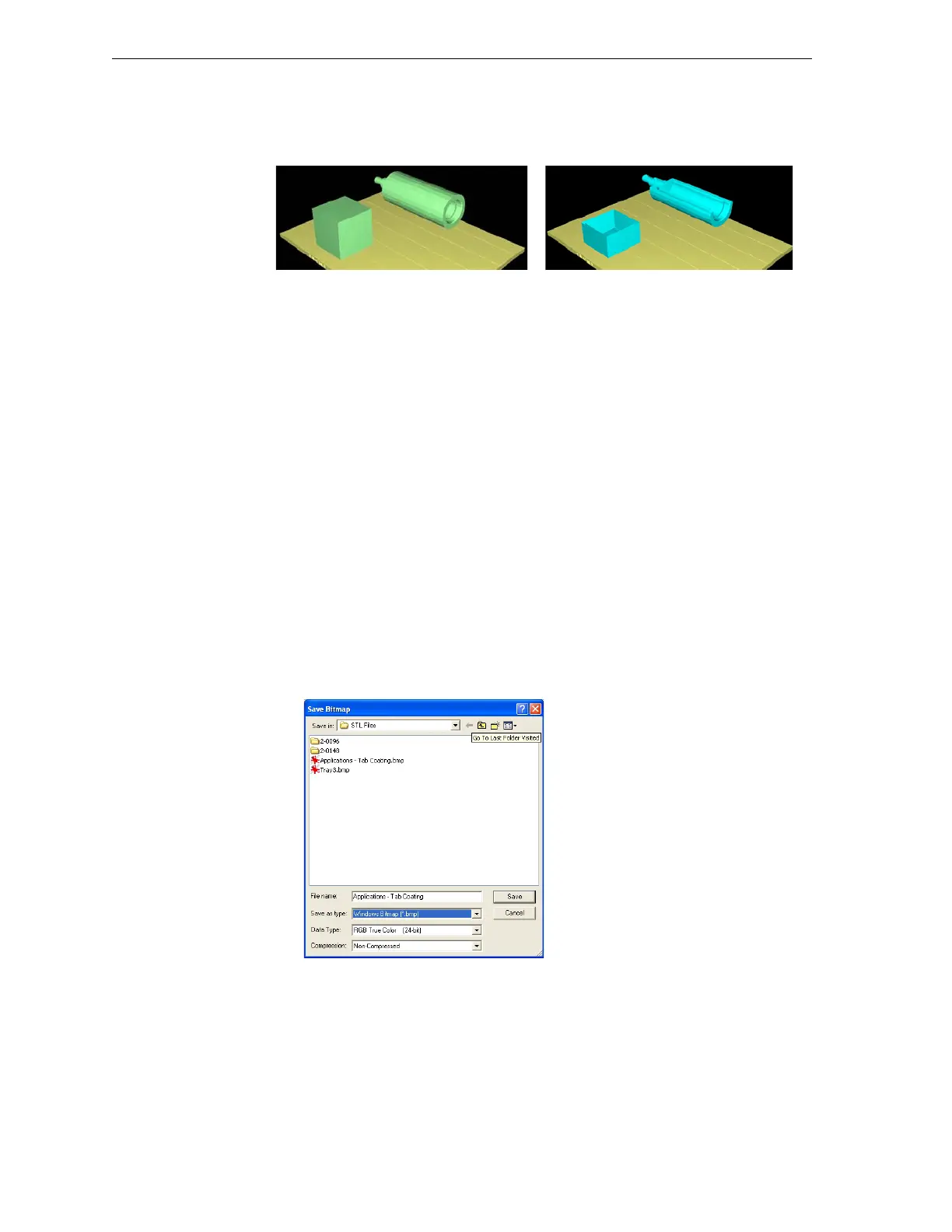
2. SelecttheEnableClickingcheckbox.
3. UsetheslidercontrolsfortheX‐,Y‐,andZ‐axestocutthetraysothat
youseethecrosssectionyouwant.
Printing the
Screen Display
on Paper
Youcanprinttheviewdisplayedintheactivepaneonaregular(paper)
printer.Beforeprinting,youcanconfigurehowthetraywillbeprintedon
thepage,andyoucandisplayascreenpreviewoftheprintedpage.
To access the paper printing controls:
¾
FromtheFilemenu,select—
Page Setup…
Page Preview…
Print
YoucanalsoprintapapercopyofthetraybyusingthestandardWindows
keyboardshortcutforprinting:
Ctrl+P.
Saving the
Screen Display
as an
Image File
Youcansavetheimagedisplayedintheactiveviewingscreenasagraphic
file.
To save the screen display as an image:
1. FromtheFilemenu,selectSave Bitmap…
TheSaveBitmapdialogboxopens.
Figure 5-35:Save Bitmap dialog box
2. Atthetopofthedialogbox,selecttheappropriatefolder.
3. Atthebottomofthedialogbox,enterafilename.
4. OpentheSaveastypepull‐downmenu,andselectthefileformat.
5. Click
Save.
Figure 5-33: Whole view Figure 5-34: Cross-section view, after
using the Z-slider


 To Next Page