DOC-00500 Rev. F 7–3
Eden500V/350V/350 User Guide
or—
• FromtheStartmenu,selectObjet > Eden500/Eden350V/Eden350.
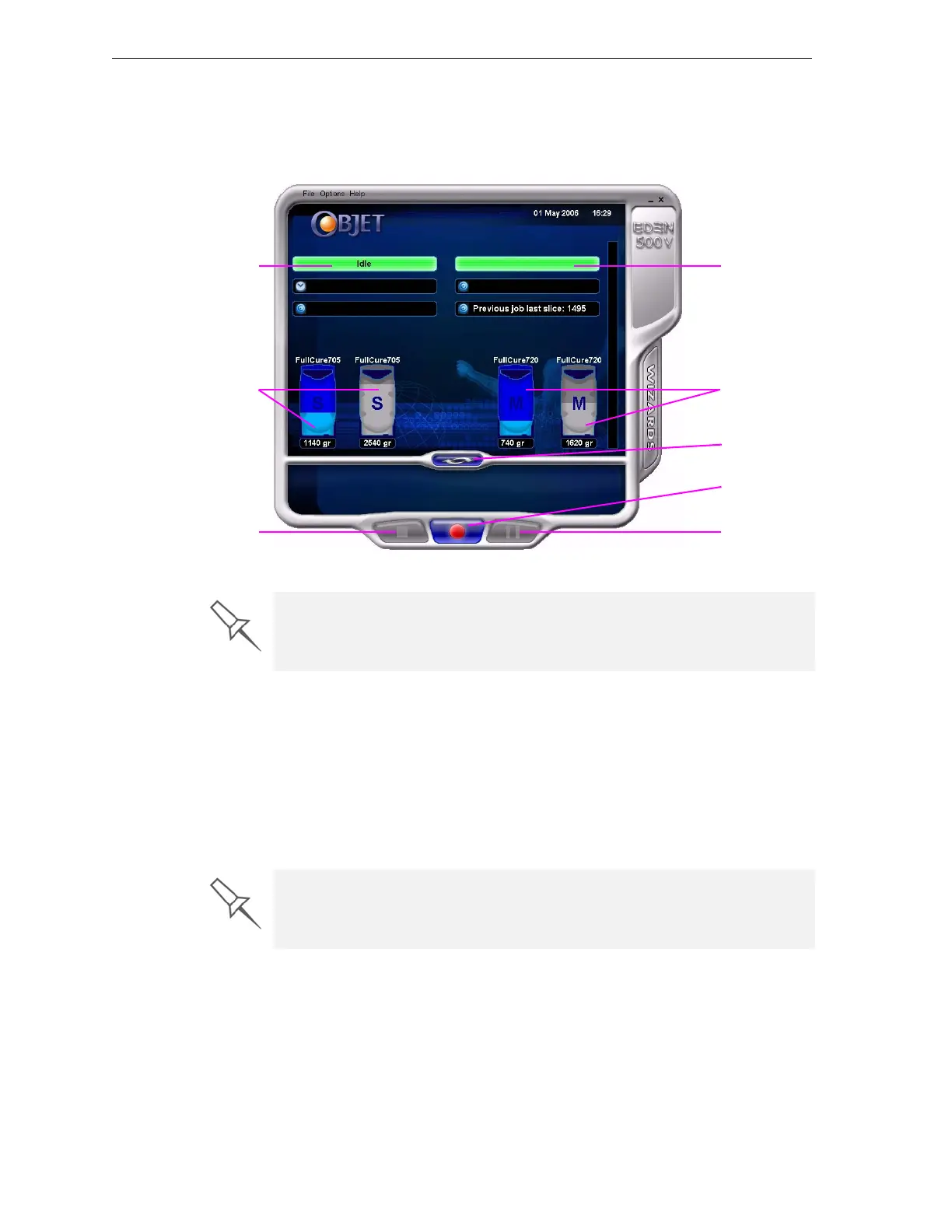
TheEdenprinterinterfacescreenopens(seefigure 7‐3).Allmonitoringand
controllingoftheEdenprinterisdonefromthisinterface.
Figure 7-3: Eden500 interface
Loading Model and Support Cartridges
TheEden350printerusesonecartridgeofmodelmaterialandonecartridge
ofsupportmaterial,eachweighing3.6kilogramswhenfull.Eden500Vand
Eden350Vprintersareequippedtobeloadedwithtwocartridgesofeach
type.Thisletsyouprintlongerwithoutchangingcartridgesandallowsyou
toeasilyreplaceempty
cartridgesduringprolongedprintingoperations.A
graphicalrepresentationofthecartridgesandtheircurrentweightappears
intheEdenprinterinterface(seefigure 7‐3).
To load model and support cartridges:
1. OnthefrontoftheEdenprinter(seefigure 7‐1),pullopenthedoorsof
thestoragecompartment.
2. Ifyouarereplacingacartridge,graspitshandleandpullthecartridge
out,takingcarenottotwistorturnit.
Printer mode
Current activity
Support material
cartridges
Display
toggle button
Pause button
Stop button
Online/offline
button
Model material
cartridges
Eden installations utilize one monitor for displaying both the computer
running Objet Studio / Job Manager and the computer installed inside the
printer. Make sure that the KVM (keyboard-video-mouse) switch is in the
correct position so that the Eden printer interface is displayed.
If you need to replace the model material currently installed with another
type, see “Changing the Model Material” on page 8. Otherwise, make sure
to replace the model cartridge with one containing the same type of
material.


 To Next Page