17 Imaging
Instruction Manual Keratograph 5M (G/77000/XXXX/EN – Rev05) 61 / 106
ROI: (Region of Interest); the illumination for a defined region of the im-
age is adjusted.
Activate the checkbox [ROI].
Move the cursor to the desired position and click on the left mouse
button.
You can now adjust the illumination for the selected region.
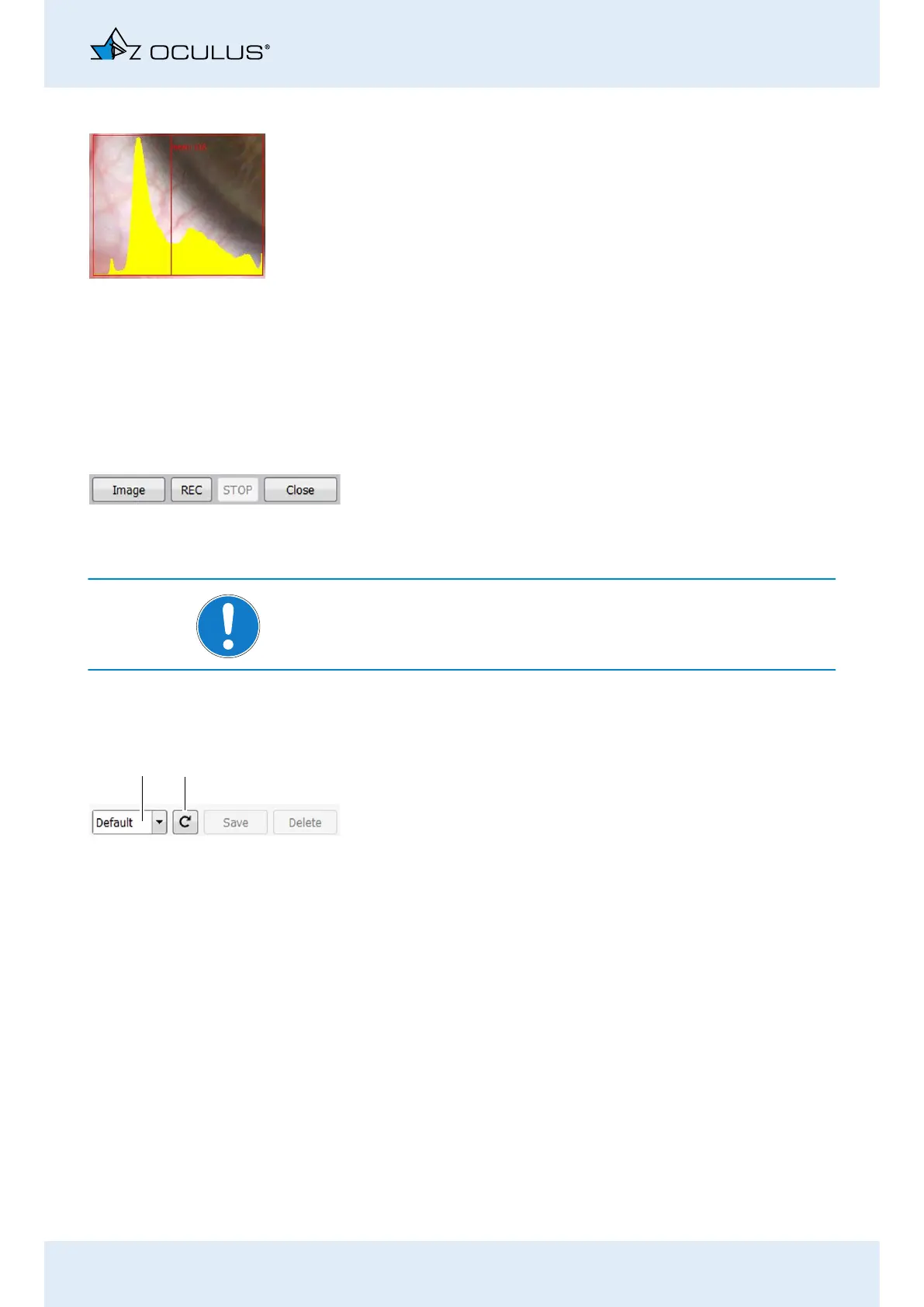
Histogram: Depending on what has been selected, a histogram is dis-
played for the entire image or just for the ROI.
The illumination is properly adjusted when the peak on the graphic lies
on the red center line.
High Resolution, Middle R. (B/W) or High Frame Rate: Details will be
more visible at a higher resolution, high frame rates provide “smooth”
videos.
Color or B/W: You can choose color or black and white display.
17.5.4 Buttons
REC/STOP: You start or stop the video recording with these buttons.
Limit the duration of the recordings to maximum one minute. otherwise
the volume of data on your computer will become too extensive.
Image: With this button you start an individual recording. You can, for
example, record static fluo images.
Note
The video recordings and single images are saved automatically.
17.5.5 Selecting and saving settings
You can use default settings and you can save your own settings as an
image program.
Using default settings:
In the drop down list select the “Default” program.
default settings
“XXX”: your own saved settings
17.5.6 Using your own settings for an image program
Select the settings.
Enter the name of the program.
Press the [Save] button.
If you press the button, the image program uses the saved settings.
If you press the [Delete] button, you delete the image program. You
cannot delete the manufacturer “default” settings.
1
2


 To Next Page