19 Performing extended examinations: JENVIS Pro Dry Eye Report (optional)
72 / 106 Instruction Manual Keratograph 5M (G/77000/XXXX/EN – Rev05)
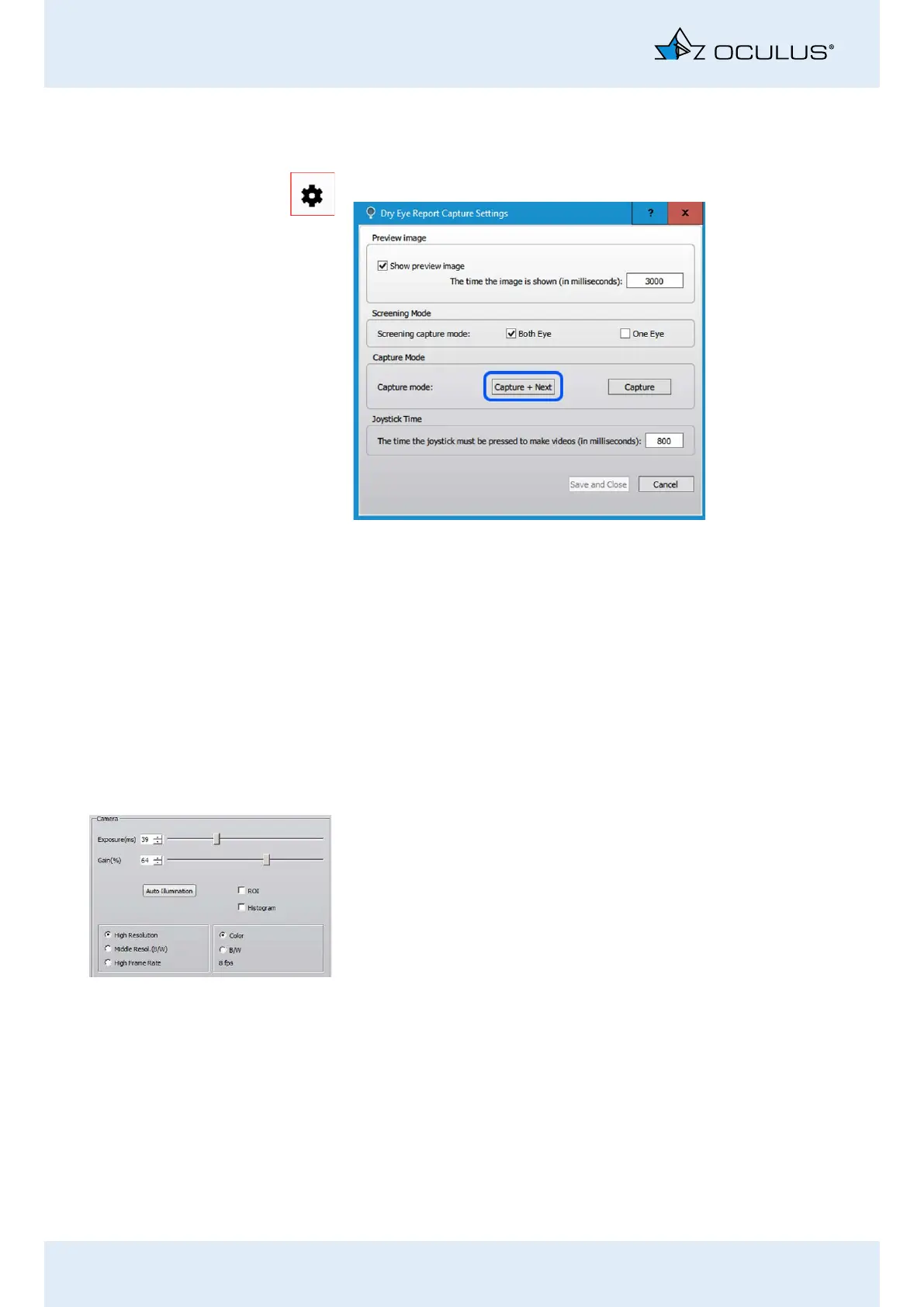
19.3.4 Modifying Dry Eye Report capture settings: cog icon groupbox
Click this icon to open the “Dry Eye Report Capture Settings” window.
Preview: Click to enable or disable the preview image and set the dis-
play duration time.
Screening mode: Click to determine if both eyes or just one eye should
be examined in screening mode. If you select “one eye”, the screening
will be done on the eye that the Keratograph 5M is currently facing.
Capture mode: Click to decide if the software should automatically go
on to the next examination step (other eye or next examination) after
completing a measurement/image.
Joystick time: Define the length of time that the joystick button must
be held down to initiate video recording.
19.4 Adjusting the Camera: Camera groupbox
Exposure time: The longer the exposure time is, the brighter the image
will be. The image can, however, become less sharp as a result.
Change the exposure time using the slider control.
Gain: If you increase the gain value, the picture brightens. However, the
image quality suffers as a result; too much gain results in grainy images.
Change the gain setting on the slider control.
Auto Illumination: You can adjust the illumination with this function,
e.g. so as not to overexpose an image.
Press the button [Auto Illumination].
You can now adjust the illumination for the entire image capture.
High Resolution, Middle R. (B/W) or High Frame Rate: Details will be
more visible at a higher resolution, high frame rates provide “smooth”
videos.
Color or B/W: You can choose color or black and white display.
fps: frames per second
Fig. 19-6: Dry Eye Report capture settings


 To Next Page