1-6 MicroHAWK Engine Integration Guide
Explore the Start View
Step 5 — Explore the Start View
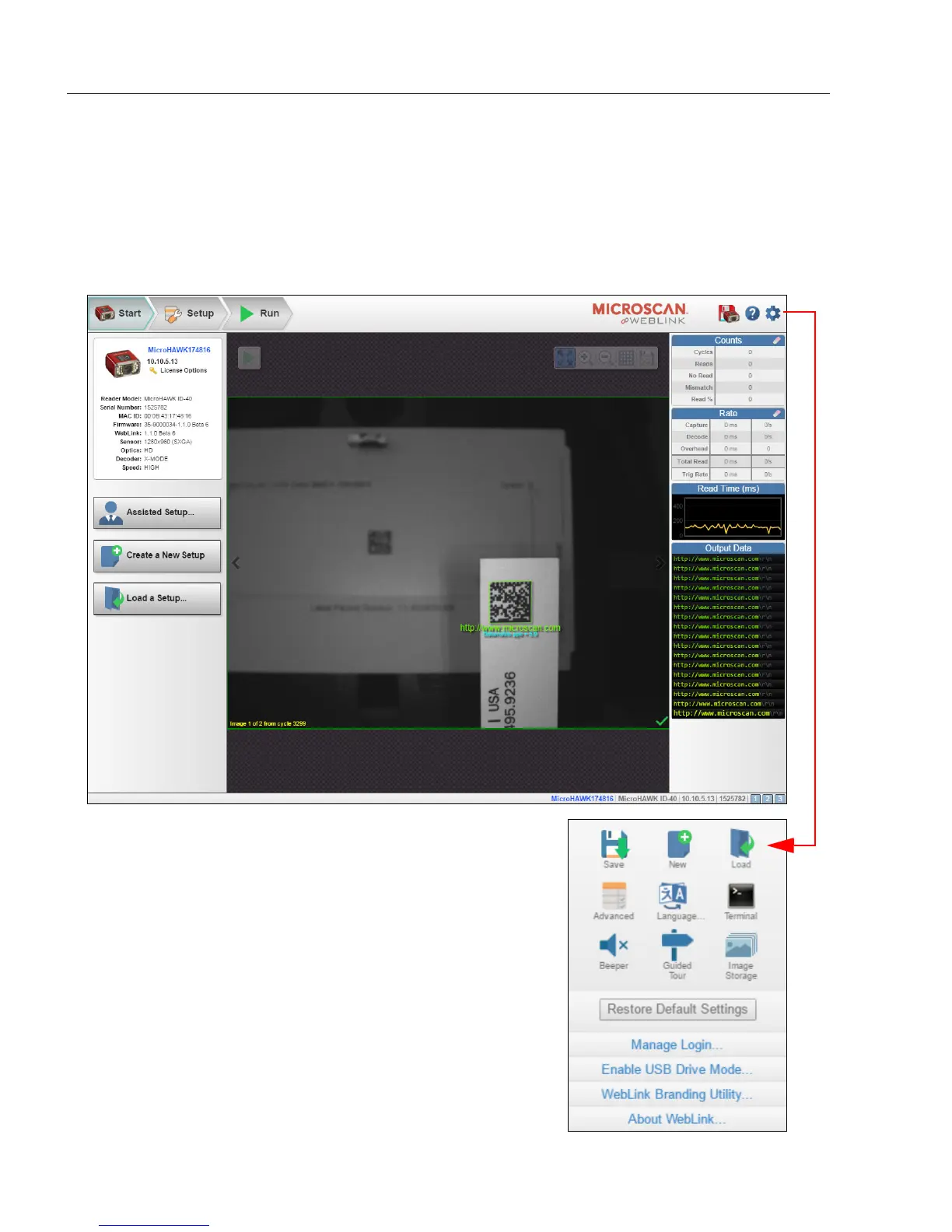
The Start view is the initial view you will see when the session begins. The connected
reader is shown, along with its user-defined name (19 characters or fewer), IP address,
Reader Model, Serial Number, MAC ID, Firmware Version, Sensor, Optics, Decoder,
and Speed. This view allows you to choose Assisted Setup, to Create a New Setup, or
to Load a Setup.
Click the gear icon to open the Application
Settings menu, which gives you access to
several functions: Save, New, Load,
Advanced, Language, Terminal, Beeper,
Guided Tour, Image Storage, Restore
Default Settings, Manage Login, Enable
USB Drive Mode, WebLink Branding
Utility, and About WebLink.
Note: The Enable USB Drive Mode option
only appears when you are using an ID-20
or ID-30, which support USB connectivity.




 To Next Page