2-2 MicroHAWK Engine Integration Guide
EZ Mode
EZ Mode
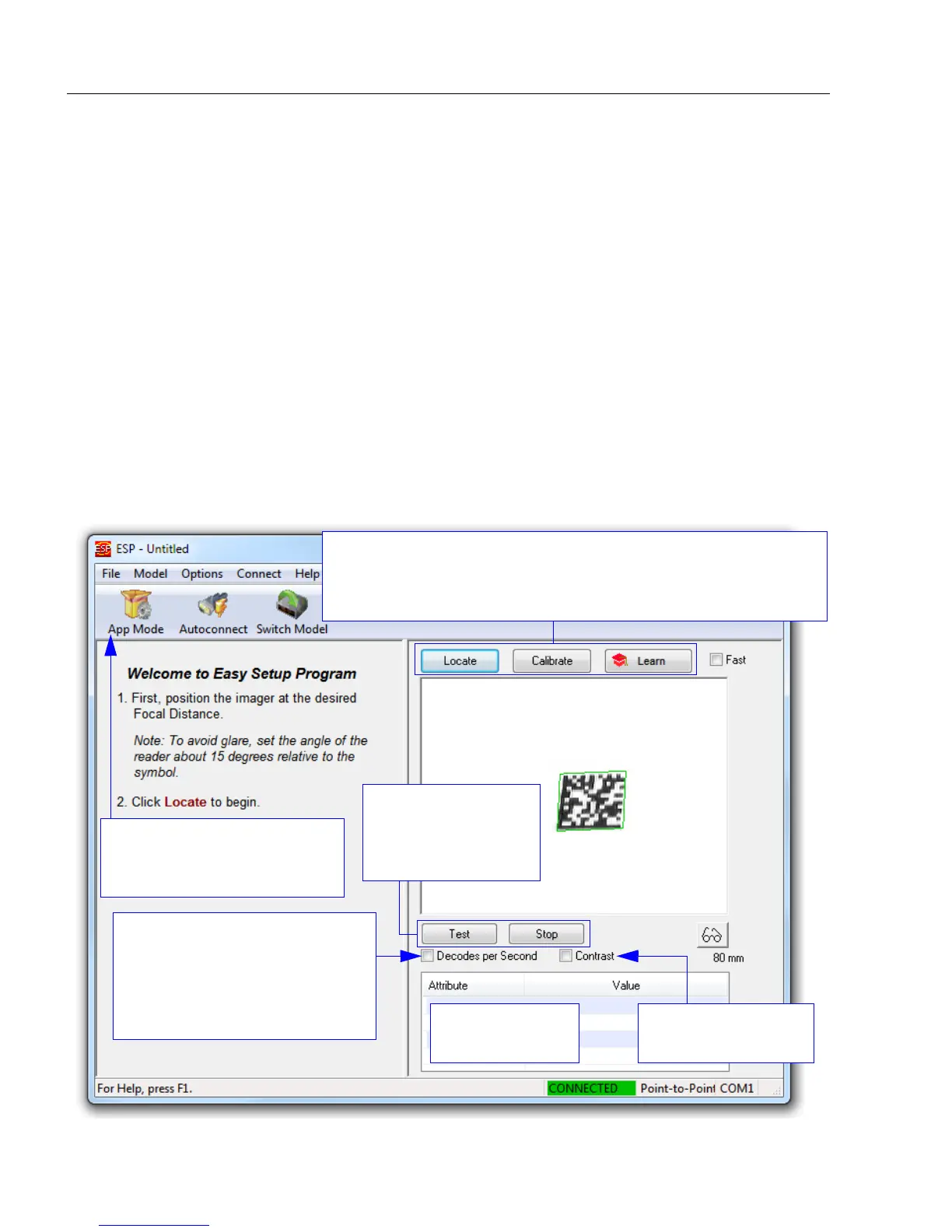
EZ Mode allows the user to test read rate and calibrate the MicroHAWK Engine. After
connecting to the
MicroHAWK Engine, the
EZ Mode
view will appear. On-screen instructions
assist the user with positioning,
testing, and calibration.
Locate/Calibrate/Learn
The calibration routine optimizes the MicroHAWK Engine by comparing Read Rates at various
camera and image processing settings. Click
Locate
to find the symbol in the field of view
and display it in the video view. Then click
Calibrate
to begin the calibration routine. The
Learn
button allows you to save information about the next Data Matrix symbol decoded,
which allows faster and more consistent processing of subsequent identical symbols.
Test
Click the Test button to start the Read Rate test for a quick indication of the MicroHAWK
Engine’s read capabilities and the limits of the application. When Decodes per Second is
unchecked, the test will count the percentage of decodes relative to the number of actual
scans. Click Stop to end the test.
Symbol data is
displayed here.
Click the App Mode button
to access configuration trees
and other setup features.
Click Test button to
start the Read Rate
test and click Stop
to end the test.
When Decodes per Second
is checked, the read rate test
displays how many decodes
the MicroHAWK Engine
achieves each second, instead
of displaying a percentage.
Contrast brightens
the image.
Click
Locate
to find and display the symbol. Click
Calibrate
to begin the
calibration routine. Calibration is also explained in
Quick Start
. Click
Learn
to save information about the next Data Matrix symbol decoded.




 To Next Page