MicroHAWK Engine Integration Guide 2-3
Using ESP
Application Mode
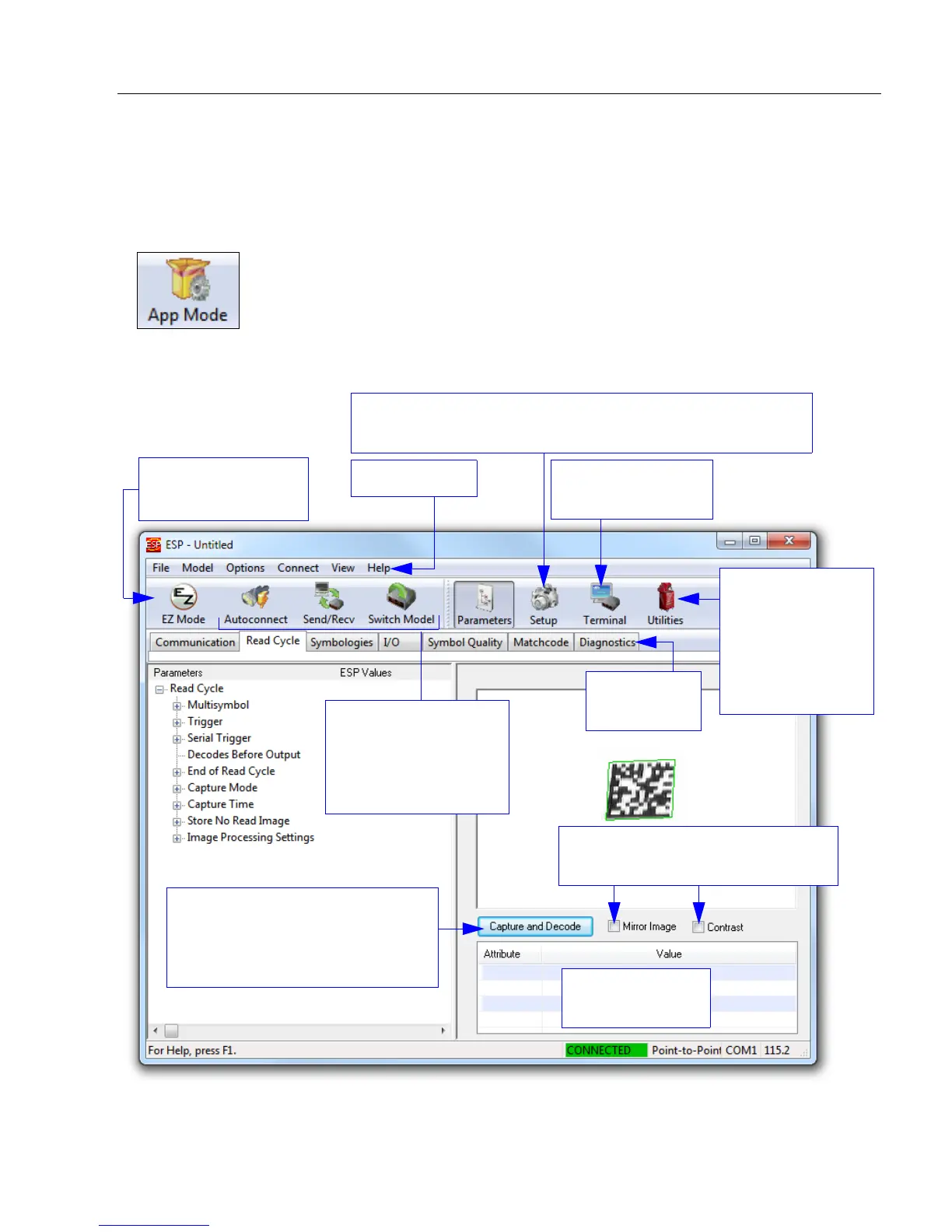
From EZ Mode, click on the App Mode button to access the tabbed tree controls in
Parameters, the intuitive user interfaces in Setup, the Terminal interface, and the Utilities
interface.
Note: The App Mode and EZ Mode buttons appear in the same position to allow easy
switching between these primary modes.
Click here to open
the Terminal view.
Menu toolbar
Click this icon to
return to EZ Mode.
Read Rate,
Counters,
Device Control,
Differences
from Default,
Master Database,
Firmware
Video, Evaluation, Calibration, WOI, Configuration Database,
Ordered Output, Output Format, Dynamic Setup
Autoconnect to the
MicroHAWK Engine,
Send and Receive
command settings,
and Switch Model.
Symbol data is
displayed here.
Click Capture and Decode to
decode the symbol in the field of
view, and to see a high resolution
image capture of the symbol.
Tabbed tree
controls
Mirror Image reverses the image.
Contrast brightens the image.




 To Next Page