1-28 MicroHAWK Engine Integration Guide
Save Configuration in ESP
AutoVISION Overview
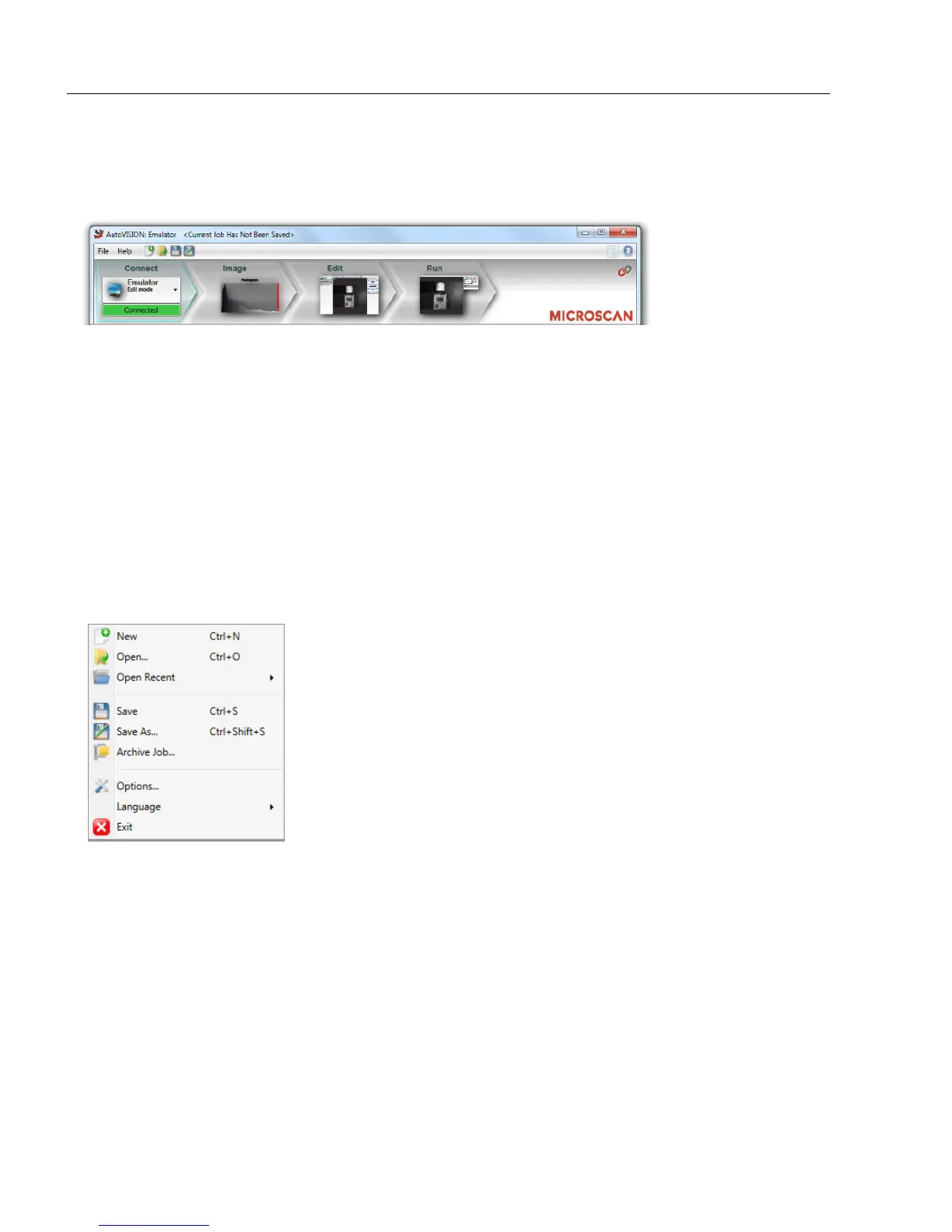
Navigator Bar
The Navigator Bar allows for quick switching between views.
There are four main views within AutoVISION:
• Connect: Select a device
• Image: Adjust image settings such as Focus, Gain, and Shutter
• Edit: Build an inspection using machine vision tools and adjust job settings
• Run: Monitor the status of a running job
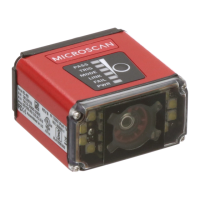
File Menu
The file menu allows you to create a new job or open an existing job, open a recent job,
save a job (.avp), archive a job (
.avz
), open the
AutoVISION Options
dialog, or exit AutoVISION.
The New, Open, Save, and Save As options are also available on the toolbar as icons
that match the icons shown in the dropdown menu.
• New: Start a new job.
• Open: Open a saved job.
• Open Recent: Open a recent job.
• Save: Save current job (.avp file).
• Save As: Rename and save current job (.avp file).
• Archive Job: Compress a job and its supporting files in an .avz archive (also saves the
job as an .avp file).
• Options: Open AutoVISION Options dialog.
• Language: Select the preferred language for the AutoVISION user interface (English,
German, Chinese).
• Exit: Exit current job or close AutoVISION.




 To Next Page