2-4 Operator’s Manual – OPTI CCA-TS
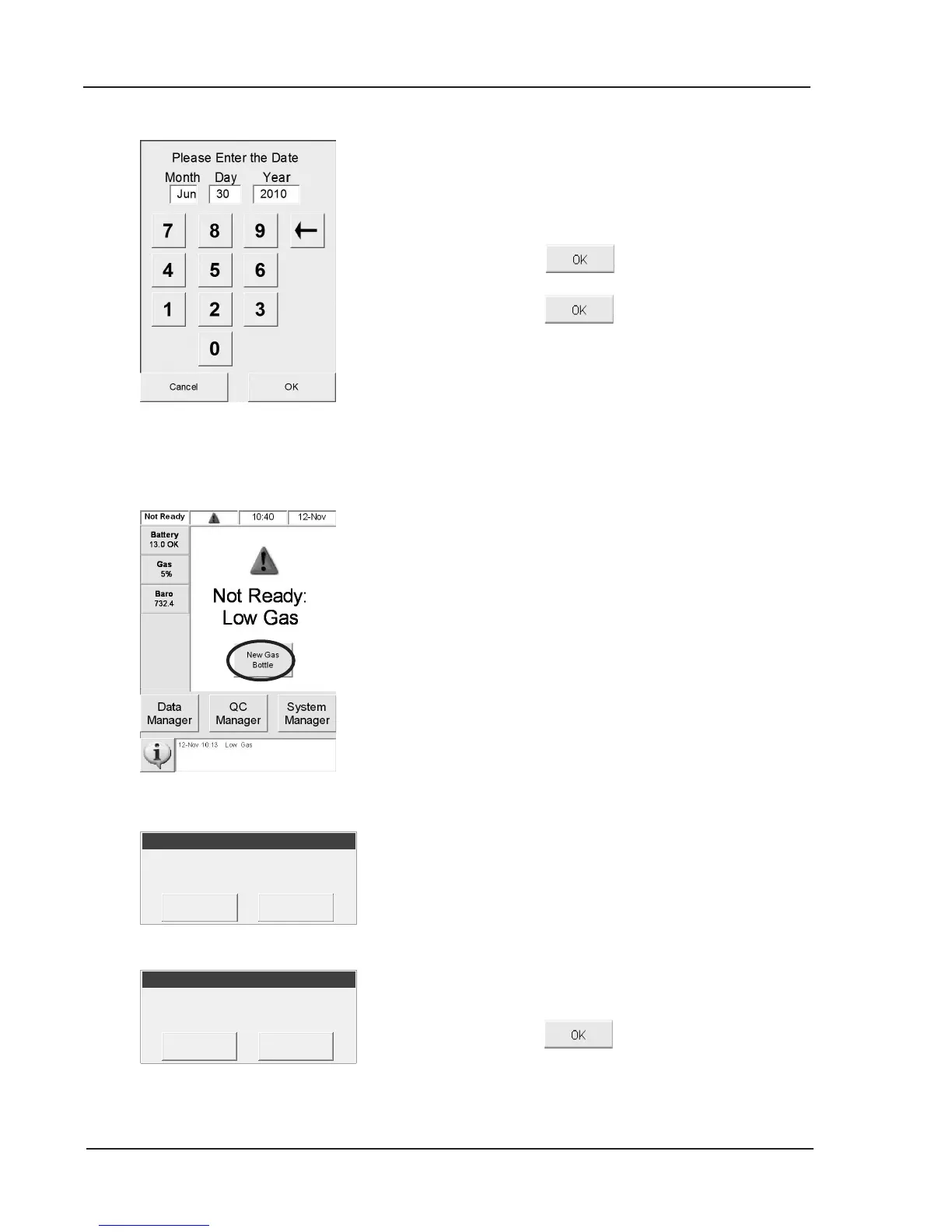
• In the next screen, you may enter the current
day (Fig. 2-7).
• Press
and enter the 4-digit year.
• After entering the current time and date
press
to save your settings.
5. Installing a New Gas Bottle
• This screen will appear after initial power-
up sequence, when no gas bottle is present
(Fig. 2-8).
• Press <New Gas Bottle>.
• Open the gas bottle by unscrewing the cap.
• Scan the new gas bottle bar code by holding
it 2-3 inches (5-8 cm) from the bar code
scanner located on the bottom right-hand
corner of the analyzer.
• The red line from the bar code scanner
should cover the entire bar code.
• The analyzer will beep when the bar code is
accepted.
• The bar code can be found on the gas bottle
instructional insert.
•
Record the date of installation on the gas
bottle for later reference.
NOTE: To enter the bar code manually, press
<Manual> and enter the bar code
using the numeric keypad.
•
Press when prompted to insert the
gas bottle.
Fig. 2-7 Enter Date
Fig. 2-8 Select New Gas Bottle
Scan Barcode for New Gas Bottle
Scan Barcode for New Gas Bottle


 To Next Page