Chapter 3 - How to...
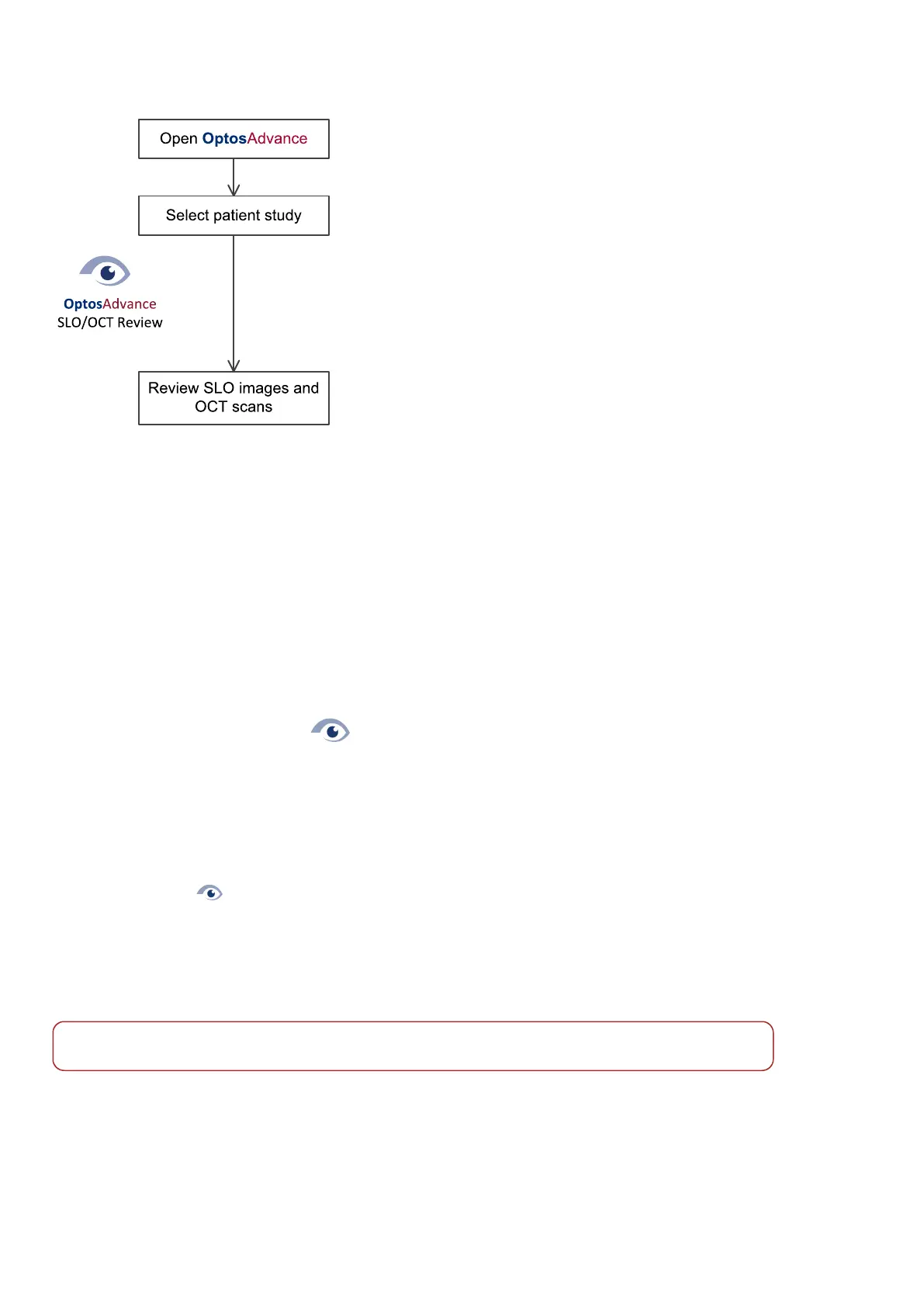
FIGURE 16: Reviewing images workflow
3.3.1 Starting the review software
Access OptosAdvance using any standard web browser, see Review client properties on page65.
3.3.1.1 How to start the application
1.
Use your web browser to go to the address provided by your System Administrator.
2.
Enter your username and password, then select Login. OptosAdvance starts.
3.
You can now search for a patient.
You can also run the OptosAdvance software from the following:
1.
Double-click the desktop icon .
2.
Log in using your username and password.
3.3.2 Reviewing patient images and scans
Captured images and scans are displayed using the OptosAdvance software. Refer to the help files for details
on using the applications.
1.
Double-click to run OptosAdvance.
2.
Log in using your username and password.
3.
Select the patient.
4.
Select the image or scan to be reviewed.
5.
Adjust the study layout and views as required.
6.
Compare results across studies if required.
Note
Detailed instructions can be found in the application help files.
3.3.2.1 Overview of review screen
After you have selected your study you can see the images captured as a series of thumbnails down the side of
the screen. Position your mouse over a thumbnail to display more details about the specific image modality.
Select Help to get more information.
Page 52 of 75 Part Number: G108707/8GME
English Copyright 2018, Optos plc. All rights reserved.



 To Next Page