Menu Descriptions
44
5
DELETE DATA LOG FILE: When this key is
pressed the contents of the data log file are
deleted.
LOG TRIGGER: Toggles between Timebase and
Bucket Conversion.
» TIMEBASE. The data will be recorded
in the log file at regular intervals as
defined by Data Log Interval. Note that
the bucket temperature is updated ap-
proximately every 10s so setting the
Data Log Interval to less than 10s is not
recommended.
» BUCKET CONVERSION. The data will
be recorded in the log file when the
bucket temperature is updated.
VIEW SYSTEM LOG: This key accesses its sub-
menu which displays the contents of /flash/log/
messages. This file is used primarily to log appli-
cation program debug messages. Press the Print
key to print these messages.
USER DEFINED FUNCTIONS: This key leads to a
sub-menu that offers five special purpose user/fac-
tory definable function keys.
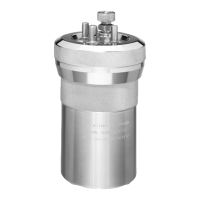
RINSE BOMB: This key initiates a bomb rinse. This
function can be used to clean out the cylinder in
the event a sample is spilled inside the cylinder.
INSTRUMENT MONITOR: This key accesses its
sub-menu screen which provides a summary of
most of the important instrument parameters. This
screen is used to detail the course of a test or to
observe the heating/cooling performance of the
calorimeter.
VIEW SYSTEM INFO: Press this key to display a
screen with current operating system information/
statistics such as:
• Processes and their associated PIDs
• Memory
• Mass Storage
• Network
Press the Print key to print this information.
VIEW INSTRUMENT LOG: No longer used. Press-
ing this key will display a blank window.
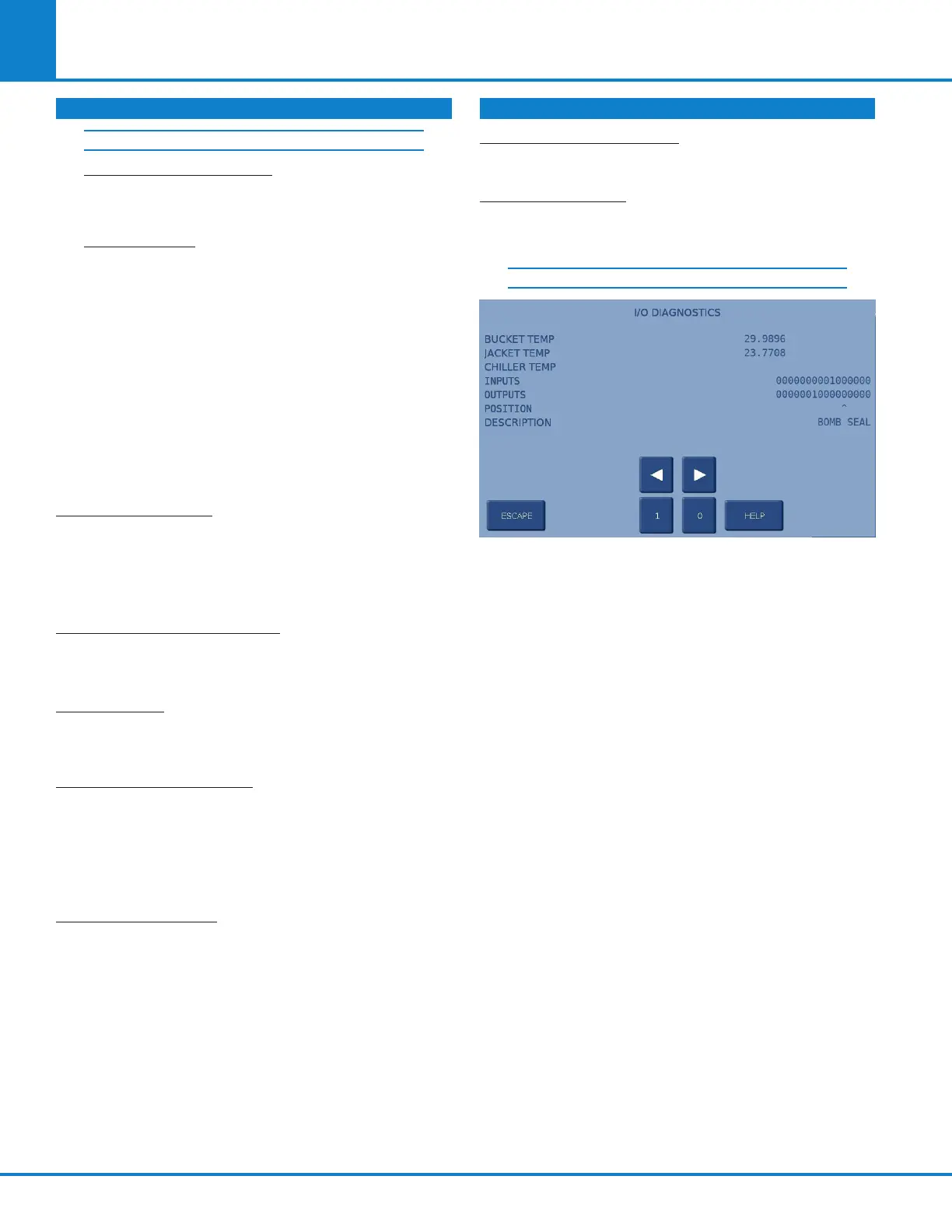
I/O DIAGNOSTICS: Press this key to display its I/O
Diagnostics sub-menu, which allows the user to
manipulate digital outputs for troubleshooting.
I/O DIAGNOSTICS:
Press this key to display the I/O Diagnostics sub-
menu, which allows the user to manipulate digital
outputs for troubleshooting. The I/O Diagnostics
screen is used to display the digital outputs at a
basic level for troubleshooting. Both the bucket
and jacket temperatures are also displayed on this
screen. Any output can be selected using the left
and right arrow keys. The selected output is turned
ON (1) or OFF (0) using the 1 and 0 keys. Prior
to entering the Diagnostics menu, the controller
stores the present state of the outputs. This state is
restored when you exit this screen. Digital outputs
cannot be manipulated while a test is in progress.
DIAGNOSTICS (CONTINUED) DIAGNOSTICS (CONTINUED)
DATA LOGGER CONTROLS (CONTINUED)



 To Next Page