Menu Descriptions
28
5
chaPter 5
Menu Descriptions
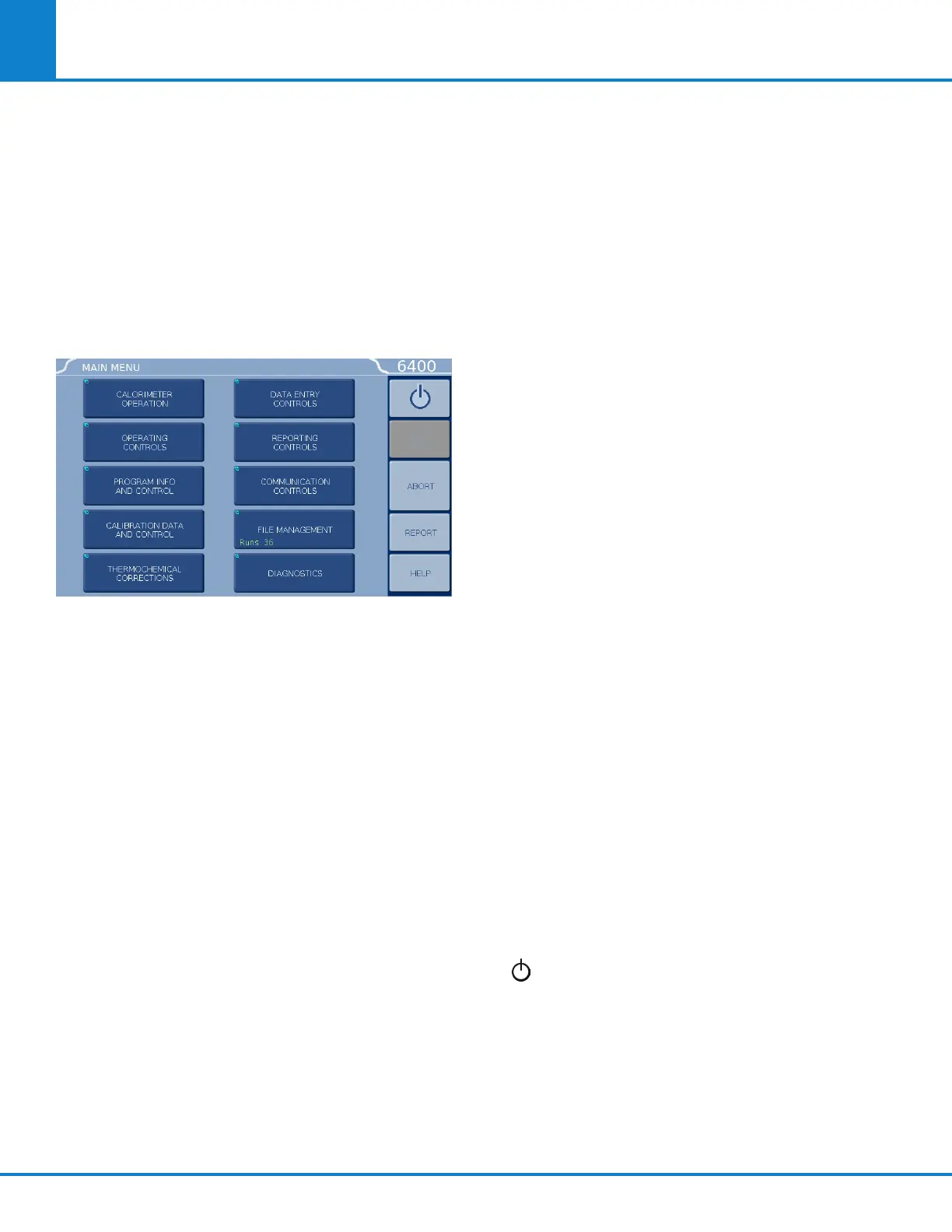
Menu System
All configurations and operations are handled by
a menu-driven system operated from the bright
touchscreen display. The settings and controls are
organized into ten main sections as displayed on
the MAIN MENU.
Note: Keys with a “double box” in the upper left
hand corner lead to sub-menus.
Menu Keys
The controls that change the data field information
in the menus will be one of the following:
1. Toggles. These data fields contain ON/OFF or
YES/NO choices. Simply touching the key
on the screen toggles the choice to the other
option. The current setting is displayed in the
lower right corner of the key.
2. Option Selection. These data fields contain a
list of options. Touching the key on the screen
steps the user through the available choices.
The current setting is displayed in the lower
right corner of the key.
3. Value Entry Fields. These data fields are used
to enter data into the Calorimeter. Touching
the key on the screen brings up a sub-menu
with a key pad or similar screen for entering
the required value. Some keys lead to multiple
choices. Always clear the current value before
entering a new value. Once entered the screen
will return to the previous menu and the new
value will be displayed in the lower right corner
of the key.
4. Data Displays. Most of these keys display
values that have been calculated by the calo-
rimeter and are informational only. Certain
ones can be overridden by the user entering a
desired value through a sub-menu. The value
is displayed in the lower right corner of the key.
Note: Some keys will respond with an opportunity
for the user to confirm the specified action to mini-
mize accidental disruptions to the program and/or
stored data.
Control Keys
There are five control keys which always appear in
the right column of the primary displays. These keys
are unavailable when they are gray instead of white.
1. Escape. This key is used to go up one level in
the menu structure.
2. Main Menu. This key is used to return to the
main menu touchscreen from anywhere in the
menu structure.
3. Start. This key is used to start a test.
4. Abort. When a test is running the Start button
changes to Abort. When pressed it will termi-
nate the current test or pre-test.
5. Report. This key is used to access the test
results stored in the calorimeter, to enter
thermochemical corrections, and to initiate a
report on the display or printer.
6. Help. This key is used to access help screens
related to the menu currently displayed on the
touchscreen.
7. This key appears in the Escape key location
when the main menu is displayed. This key is
used to shut down the calorimeter program
before turning off the power.



 To Next Page