Reporting Instructions
6400
9
57
chaPter 9
Reporting Instructions
Report Options
The 6400 Calorimeter can transmit its stored test
data in either of two ways. The AUTO REPORT
DESTINATION key on the Reporting Controls Menu
toggles the report destination between the display
and an optional printer connected to the USB port
of the calorimeter. This menu also selects the type
of reports that are generated automatically by the
calorimeter.
Reports can also be downloaded to a PC via the
Ethernet port or copied using an USB stick.
Report Generation
There are two kinds of reports: Preliminary and Final.
• Preliminary Reports are generated at the con-
clusion of a test. They are intended to confirm
to the operator that the results of the test fell
within the expected range.
• Final reports are generated once all of the
thermochemical corrections have been entered
into the file. If fixed corrections are used for all
of the thermochemical corrections, a prelimi-
nary report will not be generated. The report
will automatically become finalized.
Thermochemical corrections are entered by using
the following steps to select and edit preliminary
reports. Test results are stored as files using the
sample ID number as the file name. A listing of the
stored results is accessed by pressing the REPORT
command key. The REPORT command key brings
up a sub-menu on which the operator specifies.
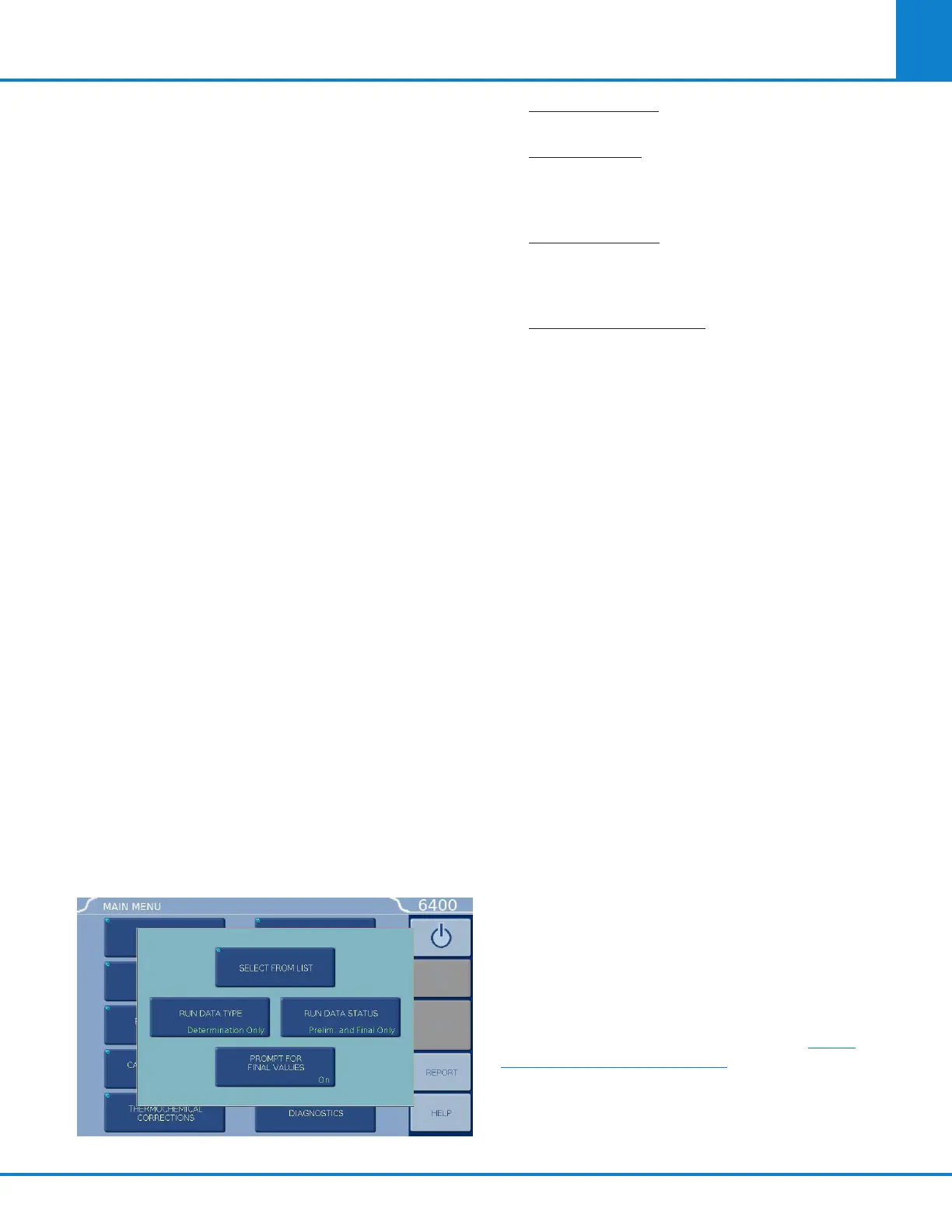
• Select From List. This key displays the stored
results specified with the following two keys.
• Run Data Type. This key enables the operator to
display only determination runs, only standard-
ization runs, only solution runs (not applicable
to the 6400) or all runs.
• Run Data Status. This key enables the operator
to display only preliminary reports, only final
reports, only pre weighed samples reports, all
stored reports or preliminary and final reports.
• Prompt For Final Values. When turned on, the
controller will prompt the operator to enter any
missing corrections for fuse, sulfur and acid in
any selected preliminary reports. When turned off
preliminary reports will be displayed as entered.
The displayed files can be sorted by sample ID
number, by type, by status or by date of test by
simply touching the appropriate column. Individual
files can be chosen by highlighting them using the
up and down arrow keys to move the cursor. Press
the SELECT key to actually enter the selection. Once
selected the highlight will turn from dark blue to light
blue. A series of tests can be selected by scrolling
through the list and selecting individual files. The
double up and down keys will jump the cursor to
the top or bottom of the current display. If a range
of tests is to be selected, select the first test in the
series, scroll the selection bar to the last test in the
series and press EXTEND SEL to select the series.
The DESEL ALL key is used to cancel the current
selection of files. To bring the selected report or
series of reports to the display, press the DISPLAY
key. To send the reports to the printer press the
PRINT key.
The EDIT key brings up a sub-menu which enables
the operator to edit any of the data in the report or
add thermochemical corrections to convert prelimi-
nary reports to final reports. Final reports can only
be edited if Edit Final Reports on the Reporting
Controls Menu is turned on.
Net Heat of Combustion
To have the Net Heat of Combustion print as part
of preliminary and final reports, go to the THER-
MOCHEMICAL CORRECTIONS menu and then to
the NET HEAT/DRY FACTORS menu. Then turn ON
CALCULATE NET HEAT OF COMBUSTION. During
the reporting process, the controller will prompt for
the hydrogen (H) value.



 To Next Page