EasyManua.ls Logo

QuickLabel Kiaro! 200 - User Manual

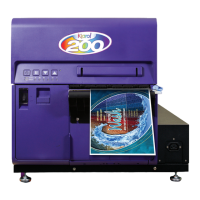
QuickLabel Kiaro! 200
150 pages
Print Icon
To Next Page IconTo Next Page
Loading...
The Labels You Want When You Need Them.
®
QuickLabel.com
Create Custom Labels 4"-8" wide
Print 1200 dpi at 8" per second
No wasting labels
USER
GUIDE
Congratulations on owning a Kiaro!
200 inkjet color label printer. This
User Guide will help you start printing
labels, re-load printing supplies,
troubleshoot problems, and
perform routine maintenance.

Table of Contents

Questions and Answers

  • C
    Collin RobersonSep 16, 2025
    What to do if upper unit, ink tank door, or maintenance cartridge door is open on QuickLabel Kiaro! 200 Label Maker?
    • T
      Tara WillisSep 16, 2025
      Close the upper unit, ink tank door, or maintenance cartridge door of your QuickLabel Label Maker and ensure it is closed tightly.
  • R
    Ronnie PhillipsSep 17, 2025
    What to do if printer power cord is unplugged from QuickLabel Kiaro! 200 Label Maker?
    • R
      Robert SotoSep 17, 2025
      Ensure that the power cord of your QuickLabel Label Maker is plugged in completely.
  • C
    Cynthia MooneySep 18, 2025
    What to do if main power switch is at the off position on QuickLabel Label Maker?
    • T
      thompsonkristenSep 18, 2025
      Press the main power switch of your QuickLabel Label Maker to the on position.
  • A
    Anthony MarshallSep 18, 2025
    What to do if maintenance cartridge door is open on QuickLabel Label Maker?
    • S
      Sarah RodriguezSep 22, 2025
      Close the maintenance cartridge door of your QuickLabel Label Maker.
  • A
    Amanda JohnsonSep 23, 2025
    What to do if ink tank door is open on QuickLabel Kiaro! 200?
    • M
      mark10Sep 23, 2025
      Close the ink tank door of your QuickLabel Label Maker.
  • M
    Micheal PhillipsSep 23, 2025
    How to close upper unit of QuickLabel Kiaro! 200?
    • C
      Cheyenne PetersSep 23, 2025
      Close the upper unit of your QuickLabel Label Maker.
  • D
    David WalkerSep 23, 2025
    What to do if power supply is not providing power to QuickLabel Kiaro! 200 Label Maker?
    • D
      Daniel FlowersSep 23, 2025
      Connect another device to the power supply to confirm that the outlet is providing power. If you cannot restore the printer to normal operation, contact QuickLabel Support.
  • S
    Sean YoungAug 23, 2025
    What to do if media is physically coming into contact with the printhead surfaces in QuickLabel Kiaro! 200?
    • A
      Allison JacksonAug 23, 2025
      To resolve issues with media physically contacting the printhead surfaces in your QuickLabel Label Maker, reload the media, ensuring it is perfectly aligned and that the media guides aren't causing any wrinkling. Also, inspect the roll of media for any defects.
  • S
    Sarah RossSep 6, 2025
    What if Status Monitor setting is incorrect in QuickLabel Kiaro! 200 Label Maker?
    • R
      Ruth CunninghamSep 6, 2025
      If the Status Monitor setting is incorrect on your QuickLabel Label Maker, open the printer driver Status tab and then click Status Monitor. Set the details after the Status Monitor starts. With some Status Monitor settings, printer errors will not be displayed and the Status Monitor will not start.
  • L
    Laura QuinnSep 5, 2025
    How to fix multiple clogged nozzles in QuickLabel Kiaro! 200 printhead?
    • O
      oharrellSep 5, 2025
      To address multiple contiguous clogged nozzles in your QuickLabel Label Maker, run a heavy printhead cleaning routine from the maintenance utility. If that doesn't work, run a printhead priming routine from the maintenance utility to drain and refill the printheads with ink. If the problem persists, please contact Technical Support.

Summary

Quick Start Guide

Choosing an Installation Location

Specifies environmental factors and requirements for printer placement.

Installation Precautions

Lists critical steps to follow during printer installation to prevent damage.

System Requirements

Outlines the necessary hardware and software for the printer.

Unpacking the Printer

Step-by-step guide for safely removing the printer from packaging.

Loading Ink Tanks

Instructions for installing the ink cartridges into the printer.

Initial Ink Filling

Procedure to fill the printer's ink system for the first time.

Loading Media

Guide on how to correctly load label rolls into the printer.

Installing the Printer Driver (USB)

Steps to install the printer software via a USB connection.

Installing the Printer Driver (Network)

Steps to install the printer software via a network connection.

Introduction

About the Kiaro! 200

Overview of the Kiaro! 200's features and benefits.

Printer Part Names and Functions

Identifies and describes the main components of the printer.

Operation Panel

Explains the controls and indicators on the printer's operation panel.

Switching the Printer On and Off

Instructions for powering the printer on and safely turning it off.

Designing and Printing Labels

Choosing Design Software

Guide to selecting appropriate software for label creation.

Setting up the Printer Driver

Configuration of printer driver settings for label printing.

Setting up Appearance Options

Adjusting visual settings like print quality and color for labels.

Printing Labels

Process for sending label jobs to the printer and monitoring them.

Using the Manual Cutter

Instructions for cutting printed labels with the built-in cutter.

Kiaro! 200 Maintenance Utility

Printer Information Tab

Accessing printer status, firmware, and environment details.

Position Tab

Adjusting print alignment for vertical, horizontal, and stop positions.

Cleaning Tab

Performing printhead cleaning and preparing the printer for transport.

Adjustments Tab

Tools for calibrating color registration and printhead alignment.

System Logs Tab

Viewing error history and saving diagnostic log files.

Parts Replacement Tab

Procedures for replacing printer components like printheads.

Printer Maintenance

Replacing Ink Tanks

Instructions for swapping out empty ink cartridges.

Replacing the Maintenance Cartridge

Guide for replacing the waste ink collection cartridge.

Cleaning the Printer

Steps to clean the exterior and interior of the printer.

Upgrading the Printer Firmware

Process for updating the printer's internal software.

Troubleshooting

Removing a Paper Jam

Procedure to safely clear media jams from the printer.

Printer Not Operating Correctly

Diagnosing and resolving issues with printer power and operation.

Print Quality is Poor

Common causes and solutions for low-quality print output.

Printhead Not in Correct Position

Resolving issues where print output shows abstract patterns due to misaligned printheads.

Clogged Nozzle

Addressing print defects caused by blocked nozzles.

Rewinder

Installing the Rewinder

Instructions for physically attaching the rewinder accessory.

Rewinding Labels

Process for setting up and using the rewinder to collect printed labels.

Adjusting Rewinder Alignment

Fine-tuning the rewinder's position for proper label collection.

Safety Warnings and Precautions

Location

Guidelines for choosing a safe and suitable environment for the printer.

Power Supply and Power Cord

Important safety information regarding the printer's power connection.

General Safety

Essential safety practices for operating and maintaining the printer.

Specifications

Printer

Technical details and performance characteristics of the Kiaro! 200 printer.

QuickLabel Kiaro! 200 Specifications

General IconGeneral
Print TechnologyInkjet
ConnectivityUSB, Ethernet
CutterAutomatic
Max Print Speed152 mm/s
Resolution1200 dpi
Media TypesTags
Operating System CompatibilityWindows, Mac
Supported Label MaterialsPaper, polyester, polypropylene
Weight10 kg

Related product manuals