Alpha 710ML User’s Guide 34
Programming Department Keys
When you are programming the alpha
descriptions for Departments and PLUs use
the Alpha Keyboard.
Note
Only capital letters of the alphabet are on the
Alpha Keyboard. To use lower case letters,
press the Return <caps> key.
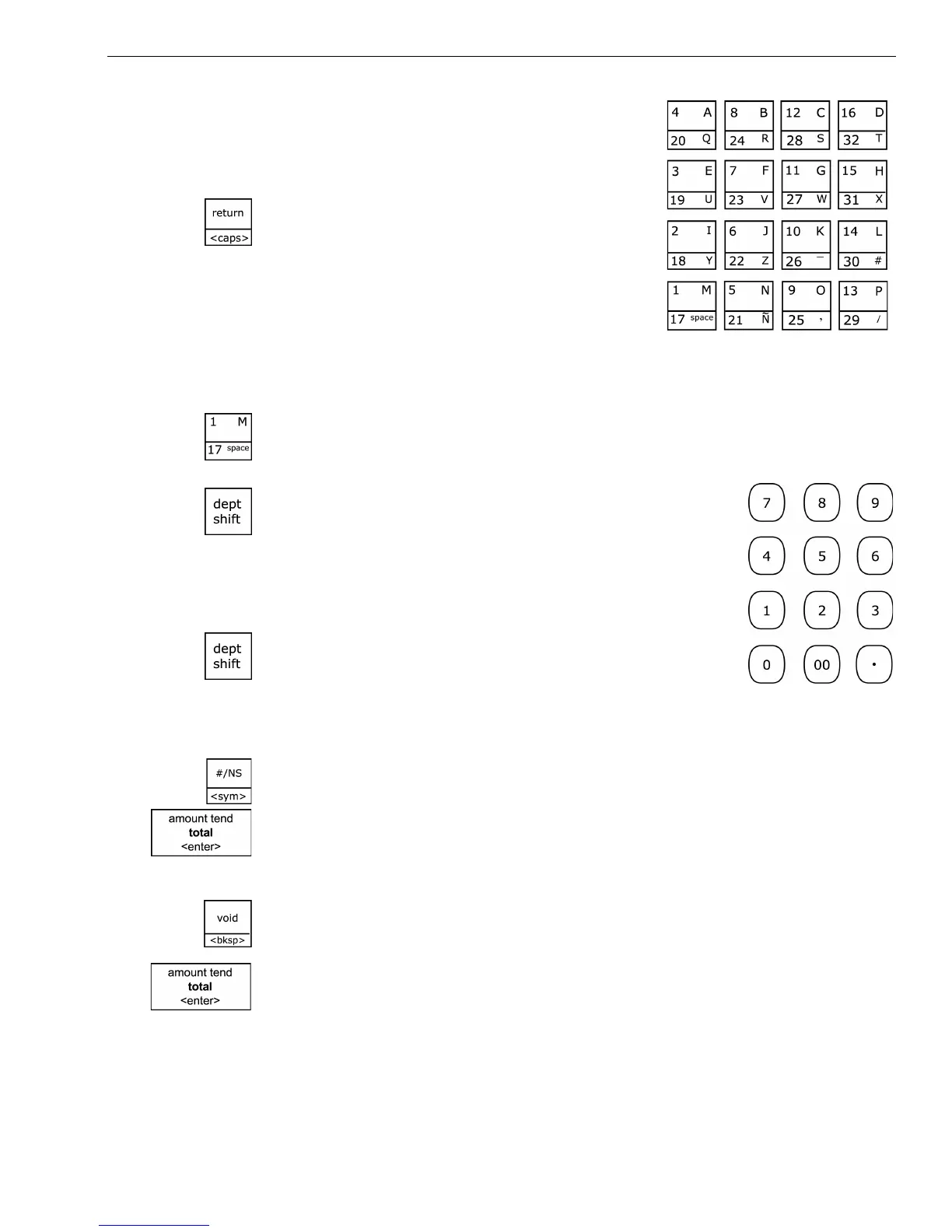
The department keys are clearly labeled
with all the letters needed to program these
descriptions. When you are programming
alpha descriptions, use the department keys to spell out the words you
want.
To use the letters in the white part of the Department keys, simply press
the Department key.
To use the letters and characters in the lower green
area of the keys, press the Dept Shift key and then
press the key with the letter you want.
Use the round number keys to enter any numbers you
want.
You may need certain special symbols on the Alpha
Keyboard. For example, if you need a space between
words, if you need the / symbol, or if you need a
comma, press the Dept Shift key and then press the Department key that
has the character you want.
Some symbols and international characters are only available using the # /
NS <sym> key. When you press the # / NS <sym> key, use the arrow keys
to move through the symbols to highlight the symbol you want. Press the
Amount Tend Total <Enter> key to select the highlighted symbol. Press the
# / NS <sym> key again to exit this from screen.
Important
If you enter the wrong character, press the Void <bksp> key to delete the
character. Now you can continue.
When you are done programming the department description, press the
Amount Tend Total <Enter> key to save your programming. The
information is saved in the cash register and you can program the next
item.



 To Next Page