Chapter 6 Ringing up Sales and Using Training Mode
65 Alpha 710ML User’s Guide
• Using the round Number keys, press the three digit passcode and then
press the Check key.
3 Put the barcode reader light over the barcode, about ½ inch or closer
above the UPC symbol on the product to read the barcode properly.
4 Press the button on the scanner and flick the scanner slightly to move the
red LED over the barcode. The barcode scanner makes a beep sound
and the item appears on the display.
5 Continue using the barcode scanner to scan bar code symbols until you
are done.
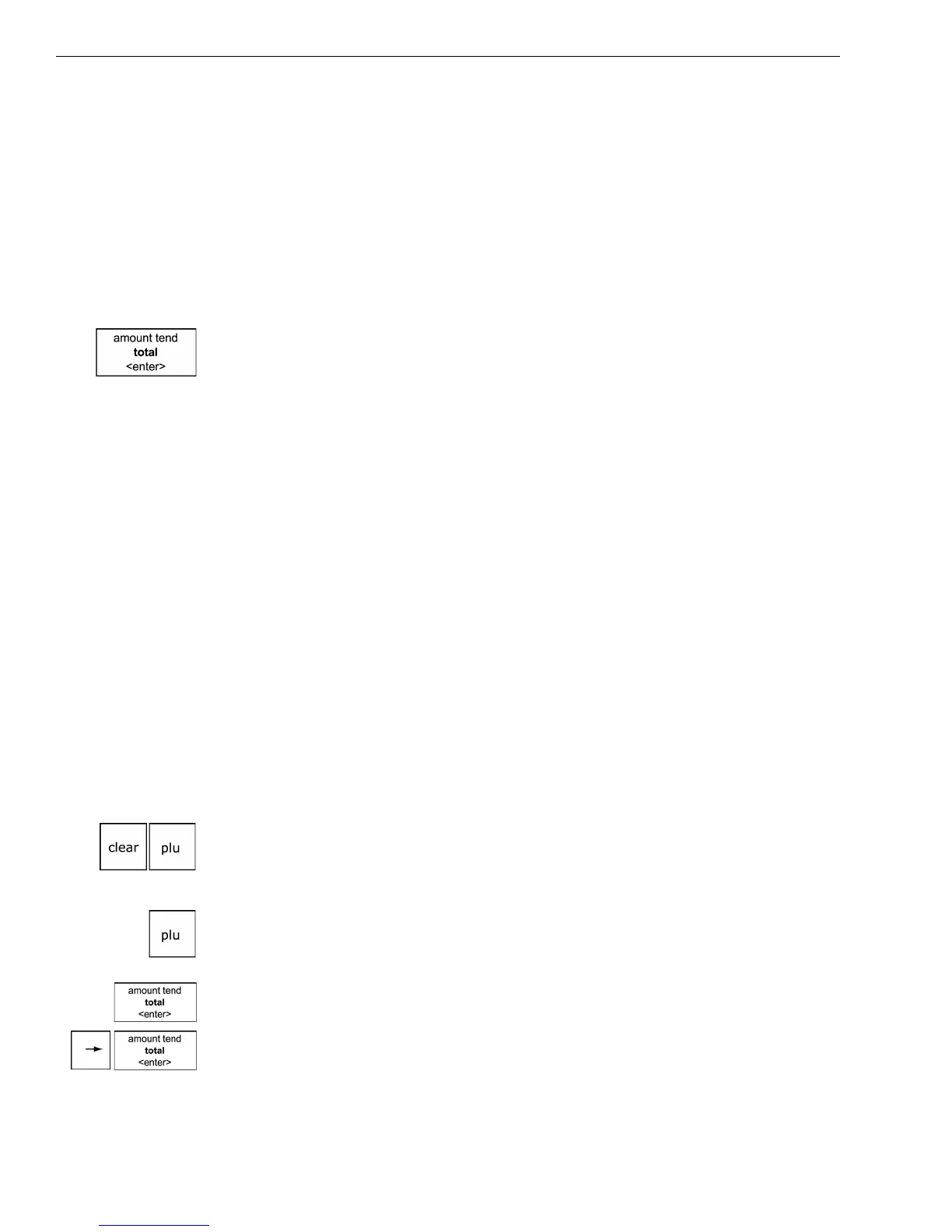
6 When you are done, press the Amount Tend Total <enter> key. The
cash drawer opens and the receipt or journal prints.
7 Make any change needed and place the money you are given in the cash
drawer. Close the cash drawer.
8 Give the customer the receipt, if you set the cash register to print
receipts. You are ready to ring up another sale.
Verifying the PLU Information for an Item
You can verify the PLU information, including price, using a PLU number
or barcode. You can verify the PLU information while you are in the
middle of a sales transaction or when you are not ringing up any sales.
This is helpful if a customer wants to know the price of an item before
ringing up the item.
You can verify the PLU information for an item by either entering the
PLU number or by scanning the barcode using the optional barcode
reader. After you verify the PLU information, you can also easily ring the
item up.
To find the price of an item using the PLU
1 Either in a sales transaction or just in Sales Registration mode, press the
Clear key and then press the PLU key.
2 Either enter the PLU number or scan the barcode.
3 If you entered the PLU number manually, press the PLU key again. The
PLU information appears on the clerk display.
4 Do one of the following:
• Ring this item up by pressing the Amount Tend Total <enter> key.
• Exit this screen by pressing the Arrow Right key and pressing the
Amount Tend Total <enter> key.



 To Next Page