Chapter 4 Setting Up Your Cash Register - the Basics
29 Alpha 710ML User’s Guide
6 Select On. Press the Amount Tend Total <Enter> key. Now when the
clerk enters Sales Registration mode, s/he is prompted for the clerk
number.
To turn on Clerk Passcodes
ProgrammingSecurity Set UpClerk Passcode
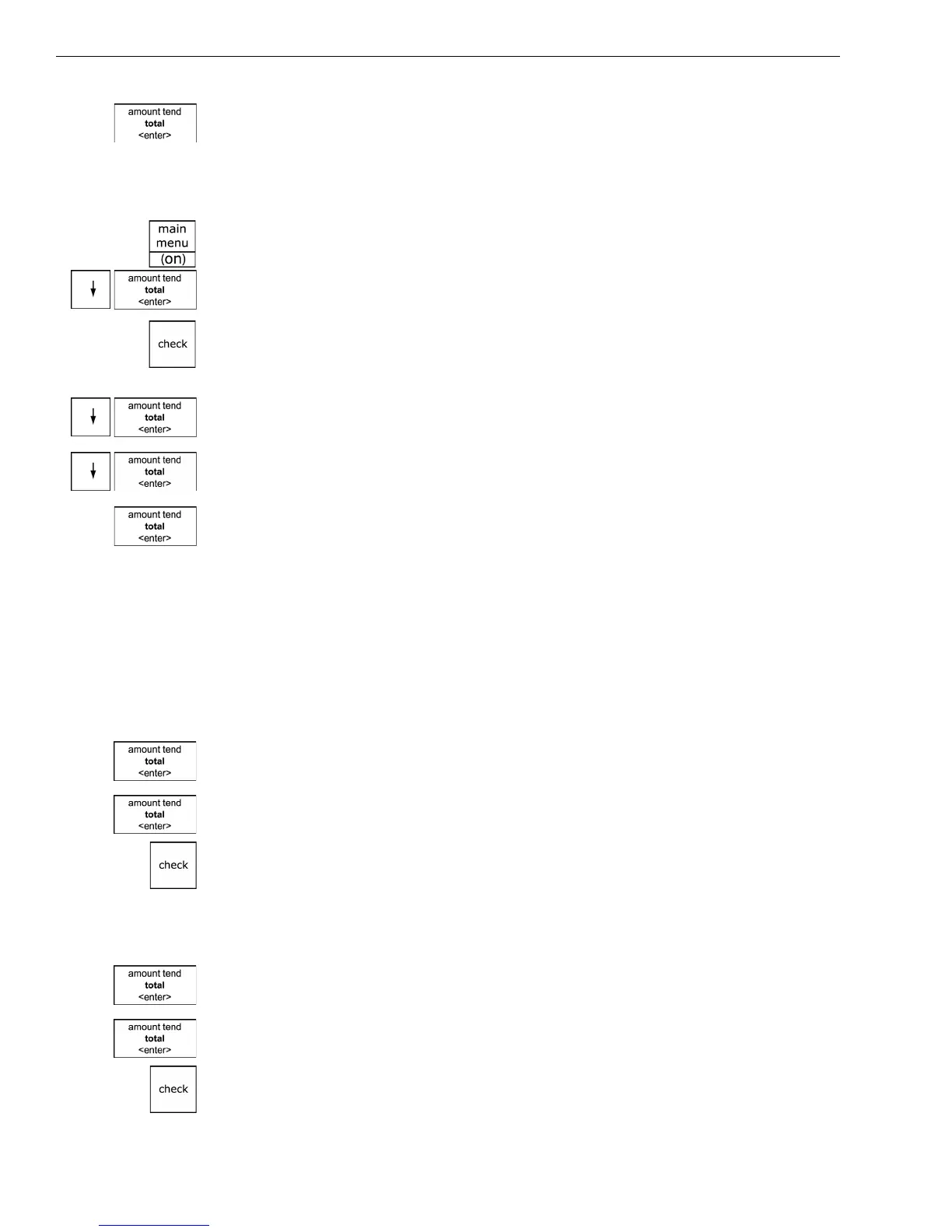
1 Press the press the Main menu (on) key.
2 Press the Arrow Down key to select Programming. Press the Amount
Tend Total <Enter> key.
3 If you are prompted for a Manager Passcode, type the passcode number
and then press the Check key. If you did not program a Manager
Passcode, go to the next step.
4 Press the Arrow Down key to select Security Set Up. Press the Amount
Tend Total <Enter> key.
5 Press the Arrow Down key to select Clerk Passcode. Press the Amount
Tend Total <Enter> key.
6 Select On. Press the Amount Tend Total <Enter> key. Now when the
clerk enters Sales Registration mode, s/he is prompted for the clerk
number and passcode.
Using the Clerk System
If the clerk security system is active, the clerk is prompted to enter the
clerk number and passcode when they enter the Sales Registration mode.
To use the clerk system
1 Make sure Sales Registration is highlighted on the main menu and press
the Amount Tend Total <enter> key.
2 Using the round Number keys, enter the clerk number and then press
the Amount Tend Total <enter> key.
3 If prompted for a passcode, use the round Number keys and press the
three digit passcode. Then press the Check key.
To use clerk numbers (example)
Example 1: Clerk #1 has a passcode of 234
1 At the main menu, select Sales Registration and press the Amount Tend
Total <Enter> key.
2 Using the round Number keys, press 1, then press the Amount Tend
Total <Enter> key.
3 Press 234 and then press the Check key.



 To Next Page