Chapter 5 Setting Up Your Cash Register Parameters
55 Alpha 710ML User’s Guide
Others Set Up
The Others Set Up menu includes the options listed in this section.
To open the Others Set Up menu
ProgrammingMore OptionsOthers Set Up
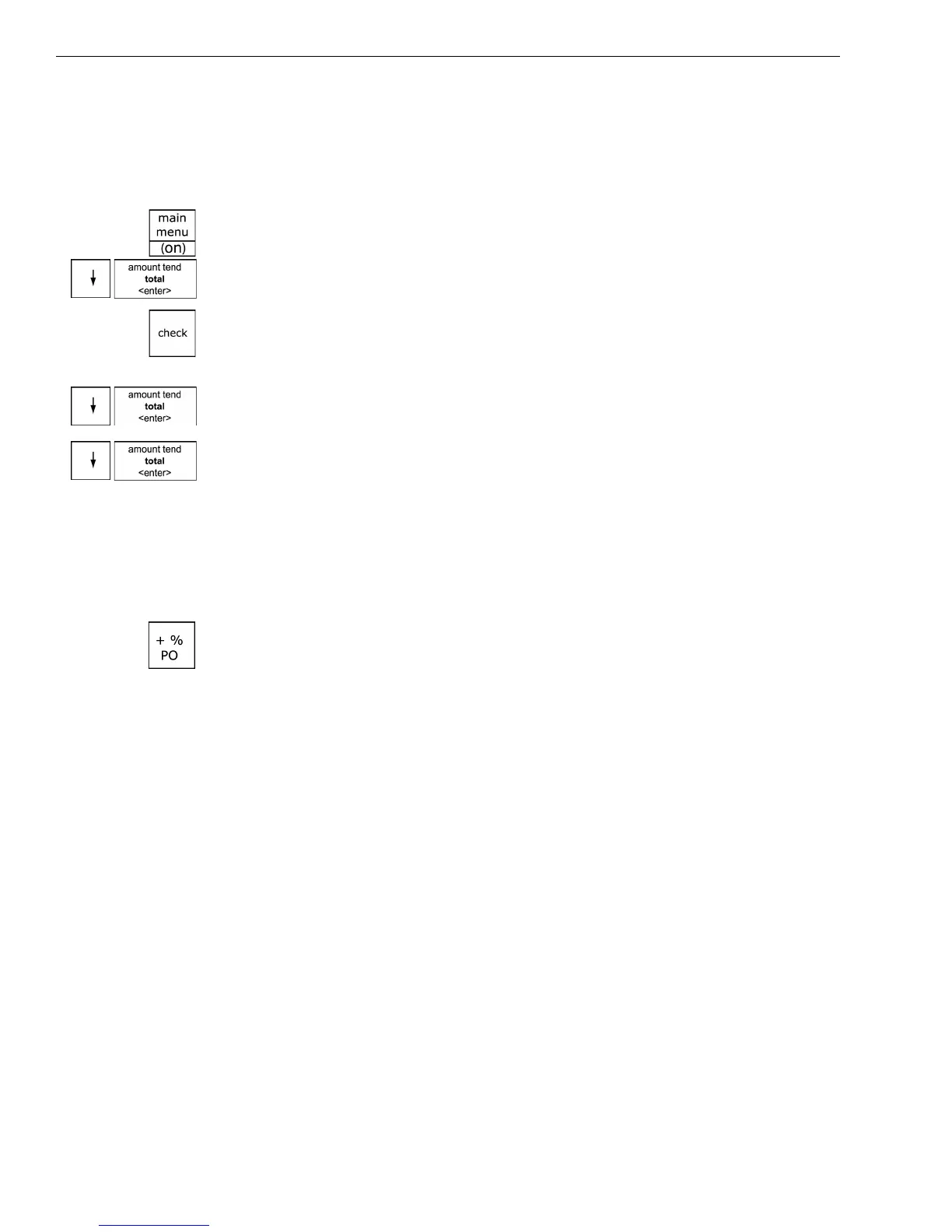
1 Press the Main menu (on) key.
2 Press the Arrow Down key to select Programming. Press the Amount
Tend Total <Enter> key.
3 If you are prompted for a Manager Passcode, type the passcode number
and then press the Check key. If you did not program a Manager
Passcode, go to the next step.
4 Press the Arrow Down key to select More Options. Press the Amount
Tend Total <Enter> key.
5 Press the Arrow Down key to select Others Set Up. Press the Amount
Tend Total <Enter> key.
The rest of this section explains each menu option.
[+%] Rate
You may want to add a default percentage amount to an individual item or
to a total, such as a fixed tip or other service charge. The + % PO key adds
a percent additional charge to an individual item if you press it
immediately after you ring up an item or adds a percent additional charge
to the sub-total amount of an entire sale if you press it after you press the
Sub-total reprint key.
You can program a default percentage rate for the + % PO key or you can
enter the rate manually each time the + % PO key is pressed. When you
enter the default pre-programmed Plus Percentage amount, use 2 decimal
places. For example, enter a 5% Plus Percentage as 500.
When you manually enter the Plus Percentage rate during a sale, use a
whole number without any decimal places. For example, enter 5% as 5, or
enter 10% as 10.
When you use the + % PO key, the words ADD ON appear on the display
and print on the receipt.



 To Next Page