EasyManua.ls Logo

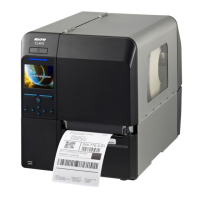
SATO CL4NX - User Manual

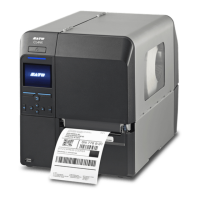
SATO CL4NX
807 pages
Print Icon
To Next Page IconTo Next Page
Loading...
CL4NX-J/CL6NX-J

Table of Contents

Other manuals for SATO CL4NX

Questions and Answers

  • M
    Michael LyonsAug 27, 2025
    What to do if my SATO Label Maker shows a 'Media error'?
    • W
      Wesley WilsonAug 27, 2025
      A 'Media error' on your SATO Label Maker can stem from a few causes. First, verify that the configured media size matches the size of the loaded media. If they differ, adjust the settings accordingly. Also, ensure that the print data doesn't exceed the configured media size. Finally, an incorrect sensor level can cause the media to feed improperly; adjust the sensor level to correct this.
  • J
    jordankarenSep 13, 2025
    What causes a machine error on a SATO CL4NX Printer?
    • P
      Paul VelasquezSep 13, 2025
      If your SATO Printer displays a machine error, it is likely due to a defective circuit board. The suggested solution is to replace the main board.
  • S
    Stephanie KirkAug 28, 2025
    What to do if my SATO Label Maker displays 'Cutter error'?
    • D
      Deborah HamiltonAug 28, 2025
      If your SATO Label Maker displays a 'Cutter error', it could be due to a media jam in the cutter unit. Clean the cutter unit to resolve this. If the cutter blade doesn't return to the specified position, press the FEED button for five seconds to move the cutter blade back.
  • P
    Patricia HernandezAug 28, 2025
    What to do if SATO Label Maker shows 'Head open' error?
    • M
      Morgan MooreAug 28, 2025
      If your SATO Label Maker displays a 'Head open' error, it might be because the print head is unlocked. In this case, lock the print head. If the issue persists, the sensor for sensing the open/close status of the print head may be defective and requires replacement.
  • W
    wallercraigSep 23, 2025
    What is 'CRC check error' on SATO Label Maker?
    • E
      eric15Sep 23, 2025
      A 'CRC check error' on your SATO Label Maker indicates that CRC has not been added to the data or the CRC does not match. Check transmitted data and interface settings.
  • J
    John GibsonSep 16, 2025
    What to do if my SATO Label Maker shows a parity error?
    • B
      Billy TorresSep 17, 2025
      If your SATO Label Maker displays a parity error, it could be due to incorrect RS-232C settings. In this case, adjust the interface settings correctly. Alternatively, the cable connection may be incorrect; ensure you check and connect the cable correctly.
  • L
    lanebrittanySep 12, 2025
    What does overrun error mean on a SATO CL4NX Printer?
    • K
      Kathy SuttonSep 12, 2025
      An overrun error on your SATO Printer usually indicates incorrect RS-232C settings or a faulty cable connection. Adjust the interface settings and check that the cable is correctly connected.
  • J
    james55Sep 9, 2025
    What causes a print head error on my SATO CL4NX?
    • W
      Willie RaySep 9, 2025
      A print head error on your SATO Printer may be due to worn out print elements or a damaged print head. Consider changing print head check conditions to only check for missing elements in barcodes and try to adjust missing elements to white bars. If the print head is damaged, replace it.
  • R
    rhonda63Aug 30, 2025
    What does 'Overheat error' mean on SATO Label Maker?
    • J
      Jennifer WilliamsAug 30, 2025
      An 'Overheat error' on your SATO Label Maker means the printer's temperature has exceeded its tolerance. Stop operating the printer to let the temperature decrease.
  • P
    Patrick SmithAug 30, 2025
    Why is my SATO CL4NX Printer showing a 'Media error'?
    • M
      Michelle RodriguezAug 30, 2025
      If your SATO printer is showing a 'Media error', check that the configured media size matches the installed media size. Also, verify that the received print data isn't larger than the configured media size and adjust the sensor level, if the media is fed with a longer distance due to the incorrect sensor level.

Summary

Before You Start

Safety Precautions

Describes how to use the printer safely and explains pictographic symbols.

Precautions for Installation and Handling

Provides instructions for safe installation and handling, including location selection.

Getting Started

Installation

Provides precautions and instructions for installing the printer in a suitable location.

Powering On;Off the Printer

Explains the procedure for connecting the power cord and powering the printer on or off.

Configuring the Interface Settings

Configuring Interface Settings with All-In-One Tool

Explains how to configure interface settings using the SATO All-In-One Tool software.

Installing the Printer Driver

Installing the Printer Driver (USB)

Guides on installing the printer driver for USB connection, including offline procedures.

Installing the Printer Driver (LAN;Wireless LAN)

Explains the process of installing the printer driver for LAN and Wireless LAN connections.

Installing the Printer Driver (Bluetooth)

Details the steps for installing the printer driver via Bluetooth interface connection.

Installing the Printer Driver (RS-232 C)

Provides instructions for installing the printer driver using RS-232C interfaces.

Installing the Printer Driver (IEEE1284)

Guides on installing the printer driver using the IEEE1284 compliant cable.

Printer Driver Features

Configuring Driver Settings as Administrator

Details how administrators can configure printer driver settings for optimal performance.

Loading Ribbon

Loading the Ribbon

Step-by-step instructions for loading the ribbon into the printer correctly.

When to Replace Media and Ribbon

Conditions Triggering Paper End, Label Near End, Ribbon End, Ribbon Near End

Details the conditions that trigger paper end, label near end, ribbon end, and ribbon near end errors.

Printer Adjustments

Flow of Printing Operations

Explains how printing operations vary based on print mode, sensor, and external signal settings.

Operations for RFID Write (CL4 NX only)

Operations When Barcode Check Function Is Enabled

Operations When Media Sensor Is Disabled

Adjusting the Print Position

Adjusting the Print Position

Guides on adjusting the print position using the [Pitch] setting in the printer menu.

Adjusting the Media Stop Position

Adjusting the Media Stop Position

Explains how to adjust the media stop position using the [Offset] setting in the printer menu.

Adjusting the Print Quality

Adjusting the Print Darkness

Guides on adjusting the print darkness using the [Darkness Adjust] setting in the printer menu.

Adjusting the Print Speed

Details on adjusting the print speed, which affects both speed and print quality.

Adjusting the Head Pressure Balance

Print Head Balance

Explains the importance of print head balance for print quality and media travel.

Head Pressure Setting

Guides on setting the head pressure according to media thickness using adjustment dials.

Pressure Balance Setting

Details on setting the pressure balance according to media width using adjustment dials.

Configuring Optional RFID (CL4 NX only)

Configuring Printer to Encode Inlays

Explains the procedures to configure the printer for encoding RFID inlays.

Configuring Optional Barcode Check Function

Basic Specifications of Barcode Check Function

Lists the basic specifications and supported features of the barcode check function.

Setting Up the Barcode Checker

Guides on performing necessary operational settings for supported barcode checkers.

Doing a Test Read with Barcode Checker

Explains how to perform a test read to confirm the correct functionality of the barcode checker.

Enabling the Barcode Check

Guides on enabling and selecting the mode for the barcode check function.

Initializing the Printer

Initializing Data Saved in the Printer

Guides on how to initialize fonts and graphics registered in the printer's data.

Initializing Data and Setting Values

Explains how to initialize both data and setting values of the printer to factory defaults.

Initializing Setting Values

Provides steps to initialize only the printer's setting values to factory defaults.

Maintenance

Cleaning the Printer

Provides instructions and precautions for cleaning the printer, including the print head and platen roller.

Cleaning Using the Cleaning Kit

Details the step-by-step procedure for cleaning printer components using a cleaning kit.

Cleaning Using the Cleaning Sheet

Explains the procedure for cleaning the printer's internal parts using a cleaning sheet.

Replacing Consumable Parts

Provides instructions for the safe removal and replacement of consumable parts.

Replacing the Print Head

Step-by-step guide for removing and replacing a damaged or worn print head.

Replacing the Platen Roller

Details the procedure for removing and replacing a damaged or worn platen roller.

When You Are in Trouble

When an Error Message Appears

Provides guidance on handling printer errors by checking causes and countermeasures.

Error Message 1001 (Machine Error)

Explains the cause and countermeasure for the Machine Error message.

Error Message 1003 (Parity Error)

Details the cause and countermeasure for the Parity Error message.

Error Message 1004 (Overrun Error)

Explains the cause and countermeasure for the Overrun Error message.

Error Message 1005 (Framing Error)

Provides cause and countermeasure for the Framing Error message.

Error Message 1006 (Buffer Overflow)

Details the cause and countermeasure for the Buffer Overflow error message.

Error Message 1007 (Head Open)

Explains the cause and countermeasure for the Head Open error message.

Error Message 1008 (Out of Paper)

Provides cause and countermeasure for the Out of Paper error message.

Error Message 1009 (Ribbon End)

Details the cause and countermeasure for the Ribbon End error message.

Error Message 1010 (Media Error)

Explains the cause and countermeasure for the Media Error message.

Error Message 1012 (Head Error)

Provides cause and countermeasure for the Head Error message.

Error Message 1013 (USB R;W Error)

Details cause and countermeasure for USB Read/Write errors.

Error Message 1014 (USB Memory Full)

Explains the cause and countermeasure when the USB memory is full.

Error Message 1015 (Cutter Error)

Provides cause and countermeasure for the Cutter Error message.

Error Message 1016 (Cutter Cover Open)

Details cause and countermeasure for the Cutter Cover Open error message.

Error Message 1017 (SBPL Command Error)

Explains cause and countermeasure for SBPL Command Errors.

SATO CL4NX Specifications

General IconGeneral
Wi-FiNo
Ethernet LANYes
Flash memory2000 MB
Storage mediaFlash
Internal memory256 MB
Built-in barcodesCode 39, Code 93, Code-128 Codabar Library, EAN13, EAN8, GS1 DataBar, Industrial 2/5, Interleaved 2/5, Matrix 2/5
Internal storage capacity2 GB
Storage temperature (T-T)-20 - 60 °C
Operating temperature (T-T)0 - 40 °C
Storage relative humidity (H-H)30 - 90 %
Operating relative humidity (H-H)30 - 80 %
Maximum roll diameter220 mm
Maximum printing width104 mm
Printing media thickness0.06 - 0.26 µm
Display typeLCD
Product colorBlack
Display diagonal3.5 \
Display resolution320 x 240 pixels
AC input voltage100 - 240 V
Power source typeAC
AC input frequency50 - 60 Hz
USB connectorUSB Type-A / USB Type-B
Bluetooth version3.0
Serial interface typeRS-232C
USB 2.0 ports quantity2
Connectivity technologyWired & Wireless
TypePOS printer
Print speed10 ips
Print technologyDirect thermal / Thermal transfer
Maximum resolution203 x 203 DPI
Weight and Dimensions IconWeight and Dimensions
Depth457 mm
Width271 mm
Height321 mm
Weight15000 g

Related product manuals