5
Front-Panel Operation
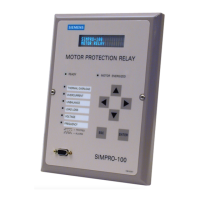
SIMPRO-100
78 PRIM-2400C
Before you can perform a front-panel menu
activity that is marked with the padlock symbol,
you must enter the correct Access Level 2
password once or assert input IN4. After you
have correctly entered the password, you can
perform other Access Level 2 activities without
reentering the password. The relay will not
request the password again until after the
front-panel inactivity timer expires (see
Section 4.7, page 66).
5.4.2.2 Access Level 2 Password Entry
When you try to perform an Access Level 2
activity, the relay determines whether you have
entered the correct Access Level 2 password
since the front-panel inactivity timer expired. If
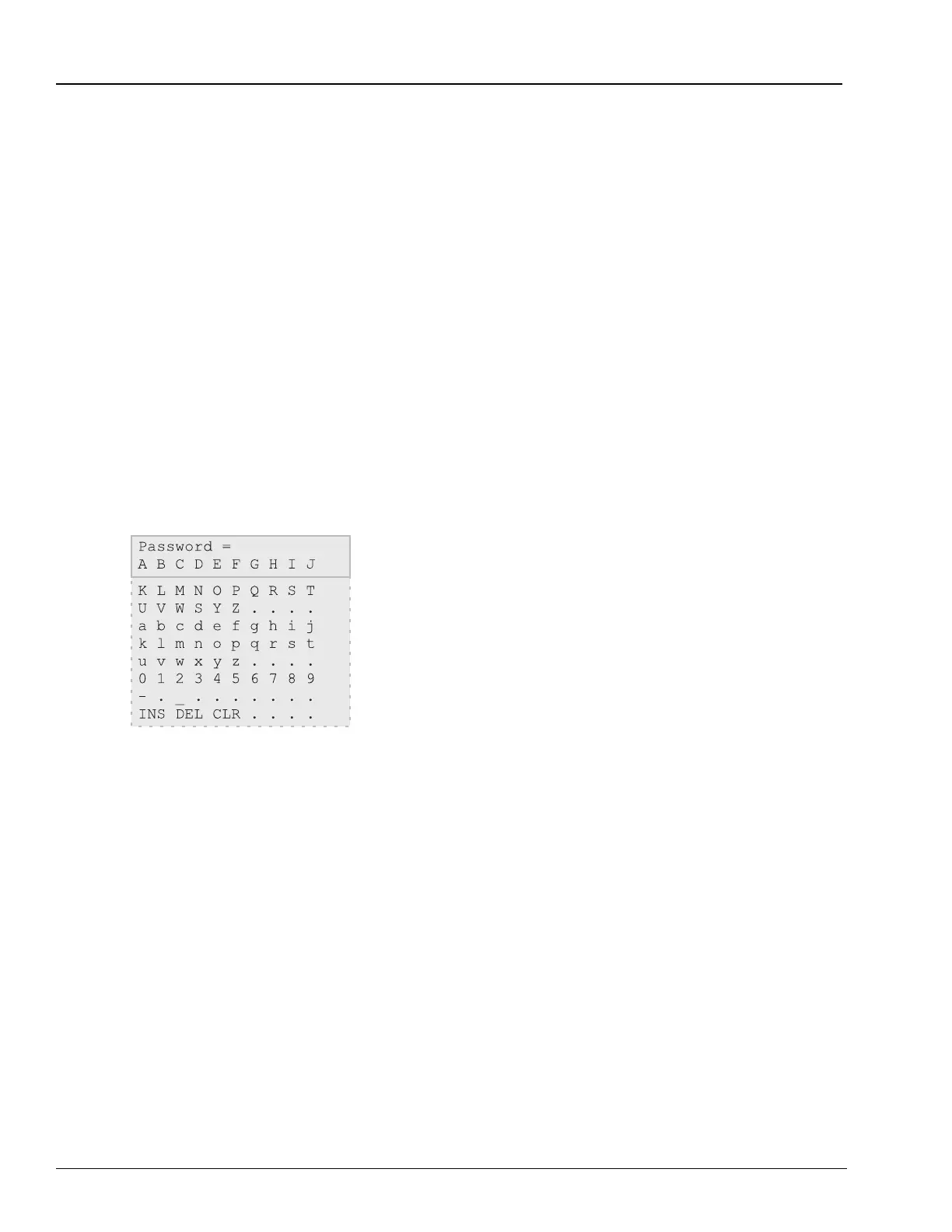
you have not, the relay displays the screen
shown in Figure 5.6 for you to enter the
password.
Figure 5.6 Password Entry Screen
5.4.2.3 To Enter the Password
Note: Use these steps to enter the correct
password to execute an Access level 2
function or to change the Access Level 2
password, as described in Figure 5.6.
1. Press the {Down Arrow} pushbutton. A
blinking cursor will appear in the first
character position of the password and an
underline will appear beneath the A character
in the lower line of the display.
2. Underline the first character of the password
by moving through the characters shown in
Figure 5.6. Use the left and right arrow
pushbuttons to move the underline to the left
and right and the up and down arrow
pushbuttons to move to other character rows.
3. With the correct first character underlined,
press the {ENTER} pushbutton. The first
character will appear in the upper line of the
display and the blinking cursor will move one
character to the right.
4. Using the arrow pushbuttons, continue to
move within the character table and select
each of the characters to build the Access
Level 2 password.
5. With the correct Access Level 2 password
spelled in the upper line of the display, press
the {ESC} pushbutton to move the cursor
from the lower line of the display. Now press
the {ENTER} pushbutton to accept the
password shown in the upper line of the
display.
• Correct Password: the relay displays the
message
Level 2 Access Granted
. Press
the {ENTER} pushbutton to continue your
task.
• Incorrect Password: the relay displays
the message
Invalid Password
. Press the
{ENTER} pushbutton to return to your
previous task.
Note: The factory default Access Level 2
password is 100.



 To Next Page