Modifying a scene (Modify)
I I_tTIFl
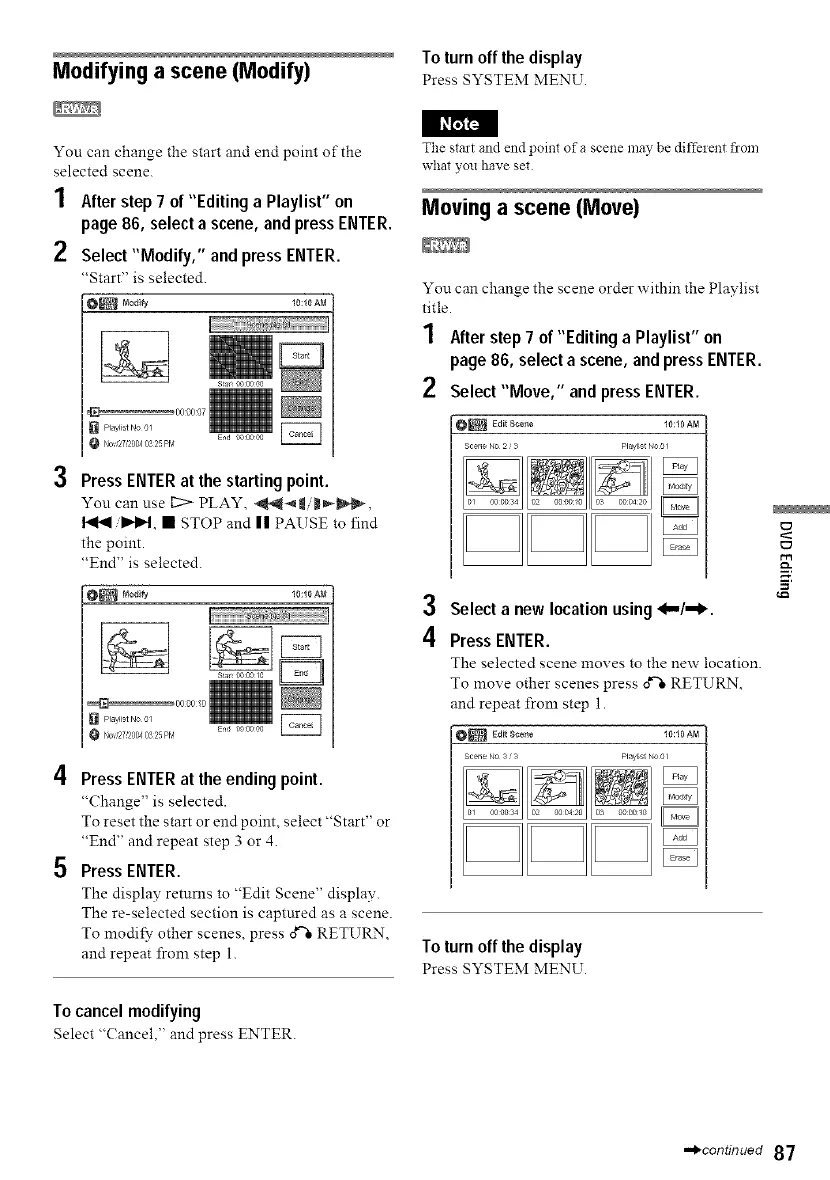
You can change the start and end point of the
selected scene.
1 After step 7 of "Editing a Playlist" on
page 86, select a scene, and press ENTER.
2 Select"Modify," and press ENTER.
"Start" is selected.
O_ 10:10 A_,I
S_r 00 00 00
navlis_No O1
NO,_27/20040325 Pr,'
3 Press ENTER at the starting point.
You can use I2:> PLAY, "_IiD_,
I'_ ib"l_, • STOP and II PAUSE to find
the point.
"End" is selected.
PlavlistNo OI
NO127,20040325Pr,q
ii
4 Press ENTER at the ending point.
"Change" is selected.
To reset the start or end point, select "Start" or
"End" and repeat step 3 or 4.
5 Press ENTER.
The display returns to "Edit Scene" display.
The re-selected section is captured as a scene.
To modify other scenes press o*'%RETURN,
and repeat from step 1.
Tocancel modifying
Select "( ancel," and press ENTER.
To turnoff the display
Press SYSTEM MENU.
The start and end point of a scene may be diffeient from
what you have set
Moving a scene (Move)
You can change the scene order within the Playlist
title.
1 After step 7 of "Editing a Playlist" on
page 86, select a scene, and press ENTER.
2 Select "Move," and press ENTER.
O_ Edit Scene 10:10 AM
Scene No 2 3 Playlsl r_oo
%
3 Select a new location using 4,,,,/,-_.
4 Press ENTER.
The selected scene moves to the new location.
To move other scenes press _ RETURN,
and repeat from step 1.
O_ Edit Scene 10:10 AM
Scene b_o s s Playlsl Noo
To turnoff the display
Press SYSTEM MENU.
•._continued 87


 To Next Page