Procedure
1. Move the cursor into the histogram / dot plot and right-click.
2. Select [Create vertical Regions] or [Create horizontal Regions].
Edit vertical or horizontal Regions
Move the cursor into the plot and keep the left mouse button pressed to adjust the
intersection of horizontal and vertical Regions.
Create a polygonal region
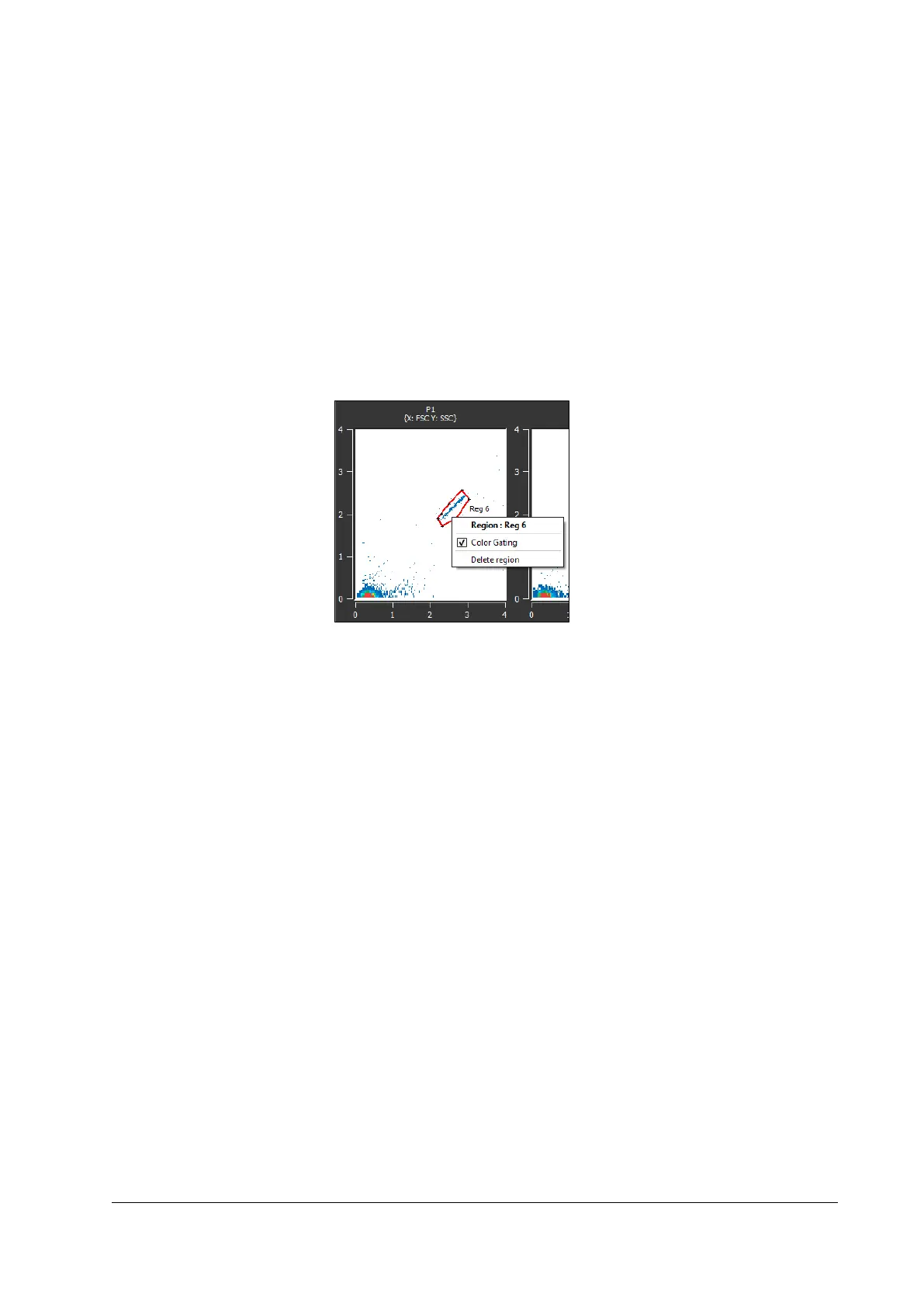
Polygonal regions are only available within a dot plot.
Figure 24: Create a polygonal region
Procedure
1. Double-left-click on a point within the plot to set a first corner point.
2. Left-Click on another point to set a further corner point.
3. Repeat step 2 until the desired number of corners is reached.
4. Right-click to finalize the region.
Edit a polygonal region
The position of a region can be adjusted by keeping the left mouse button pressed inside
the region and moving the cursor.
Select individual points with the cursor and keep the left mouse button pressed, to adjust
these individual points.
Resize a region by pressing [Shift] during cursor movement. The region is shifted on the
linear scale even when displayed on logarithmic scale.
Each region can be selected by right-click. Select [Delete region] for deletion.


 To Next Page