Need help?
Do you have a question about the VER-MAC V-Touch and is the answer not in the manual?
Instructions for interacting with the touchscreen interface using fingertips or styluses.
Details the three security levels: Viewer, Guest, and Administrator, with their respective access privileges.
Explains the process of logging in by selecting a security level and entering a password.
Describes the purpose and method of changing the community name for enhanced security.
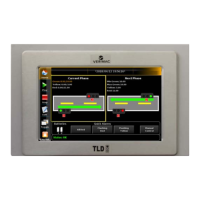
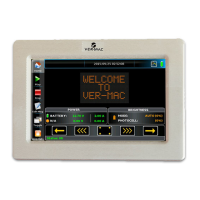
Overview of the Home screen layout, displaying status information and access to functions.
Describes the QuickPick feature for accessing frequently used graphic images.
Introduces the screen for locating and selecting messages from the Library or Collection.
Steps to browse, select, and display a message from the Library or Collection.
Procedure for deleting a message from the Collection, not from the sign itself.
Overview of the Edit Message screen for creating and modifying PCMS messages.
Explains how to insert dynamic data (special tags) into messages.
Allows setting conditions for displaying specific message pages, including radar or IO triggers.
Steps to insert graphic images into PCMS messages.
Details how to configure text to scroll horizontally or circularly within messages.
Enables automatic text resizing to fit available space within a message line.
Options for setting text and background colors for messages.
Introduction to the Schedule Editor for creating and managing message display schedules.
Step-by-step guide to building a daily plan and incorporating it into a schedule.
Procedures for modifying existing schedules, including day plans and periodicity.
Overview of the Options screen for testing and checking PCMS hardware and functions.
How to adjust the intensity of the display LEDs automatically or manually.
Procedure for testing the display board to locate faulty pixels.
Guides on performing routine verification tests on PCMS hardware components.
Lists all active peripheral devices connected to the PCMS unit.
Tools and procedures for creating, editing, and managing graphic images for messages.
Functions to start, stop, create, or edit schedules.
Setting predefined messages to display in response to specific unscheduled events.
Performing a test to display the current configuration of the PCMS panel.
Allows setting font and duration for countdown displays, available for admin users.
Creating and deploying custom data sets using USB keys for PCMS units.
Adjusting sign brightness intensity by controlling electrical current to LEDs.
Identifies the detected signboard connected to the unit; typically for Admin users.
Selecting a modem model and configuring its settings for GPS functionality.
Controls the position of signboards on truck-mounted units.
Displaying detected vehicle speed and activating the radar always-on feature.
Provides a bird's-eye view of intersections and unit positions for fleet management.
Setting NTCIP compliance for messages, affecting all messages.
Configuring energy-saving options like blinking pages based on battery voltage.
Admin users control access and manage guest user accounts and permissions.
Procedure for personalizing passwords for Admin and Guest users.
Configuration of network parameters like IP address, mask, and gateway.
Entering coded information upon Ver-Mac Support instructions.
Manually configuring the system clock or setting it up as an NTP client.
Aid for debugging problems that cannot be resolved otherwise.
Option to change the language of the user interface.
Detecting and accepting changes in hardware components, flagged by an alert icon.
Configuring automatic shutdown based on voltage or temperature to prevent damage.
Displaying charts of voltage, current, illumination, and cell signal over time.
Table of possible warnings that appear in the status dialogue on the home screen.
List of potential errors that can occur during message display.
Common problems, their causes, checks, and recommended actions for resolution.
 General
| Brand | VER-MAC |
|---|---|
| Model | V-Touch |
| Category | Controller |
| Language | English |

 To Next Page