Vitals Reference Manual
104 Part No. 79-MAN-04, Rev. I E.H. Wachs
If connection is not detected
when the Vitals controller
screen opens, a message will
ask if you want to autocon-
nect. Tap Yes.
You can tap the Tap to con-
nect button to try to make a
connection to the valve oper-
ator using the saved COM
port in the settings.
2.
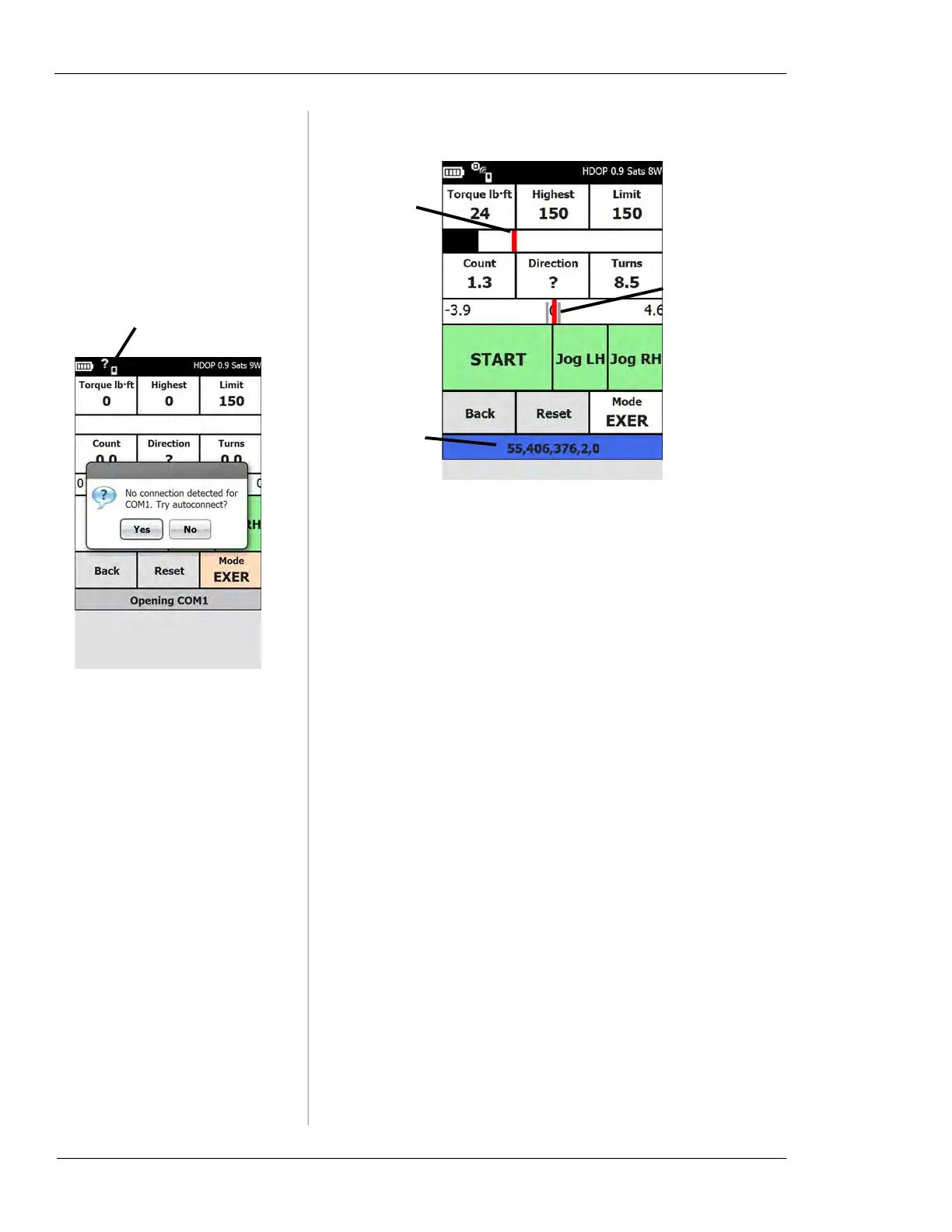
The Vitals Controller screen appears.
Figure 6-26. Vitals Controller
3.
The Torque lb-ft field displays the current operating
torque.
4.
The Highest field displays the highest torque level
during the current operation.
5.
The Limit field displays the current torque limit. (To
change the default torque limit setting, go
Back to the
main screen and tap the
Settings button. Select a
Default Torque Limit and tap the Apply button, then
confirm the “Changing Settings” dialog.)
6.
The Count field displays the current position, in num-
ber of turns from the starting point (positive or nega-
tive).
7.
To override the automated exercising program and set
a starting direction, tap the
Direction button until either
RH or LH appears. Leave the question mark in the dis-
play for automatic direction control.
8.
The Turns field displays the total number of turns per-
formed, in both directions, during the current opera-
tion.
The Machine Con-
nection Status icon
shows the status at
all times (shown
with no connection).
Red torque
line is a scale
displaying
highest
torque for
current oper-
ation.
Red count line is
a scale display-
ing relative posi-
tion (in turns)
from the opera-
tion starting
point. Gray set
points are dis-
played at both
ends of travel.
Status line


 To Next Page