Chapter 5, Using Vitals Mobile-TC (TC-100 Controller): Starting Up
E.H. Wachs Part No. 79-MAN-04, Rev. I 37
Dashboard Tab
1.
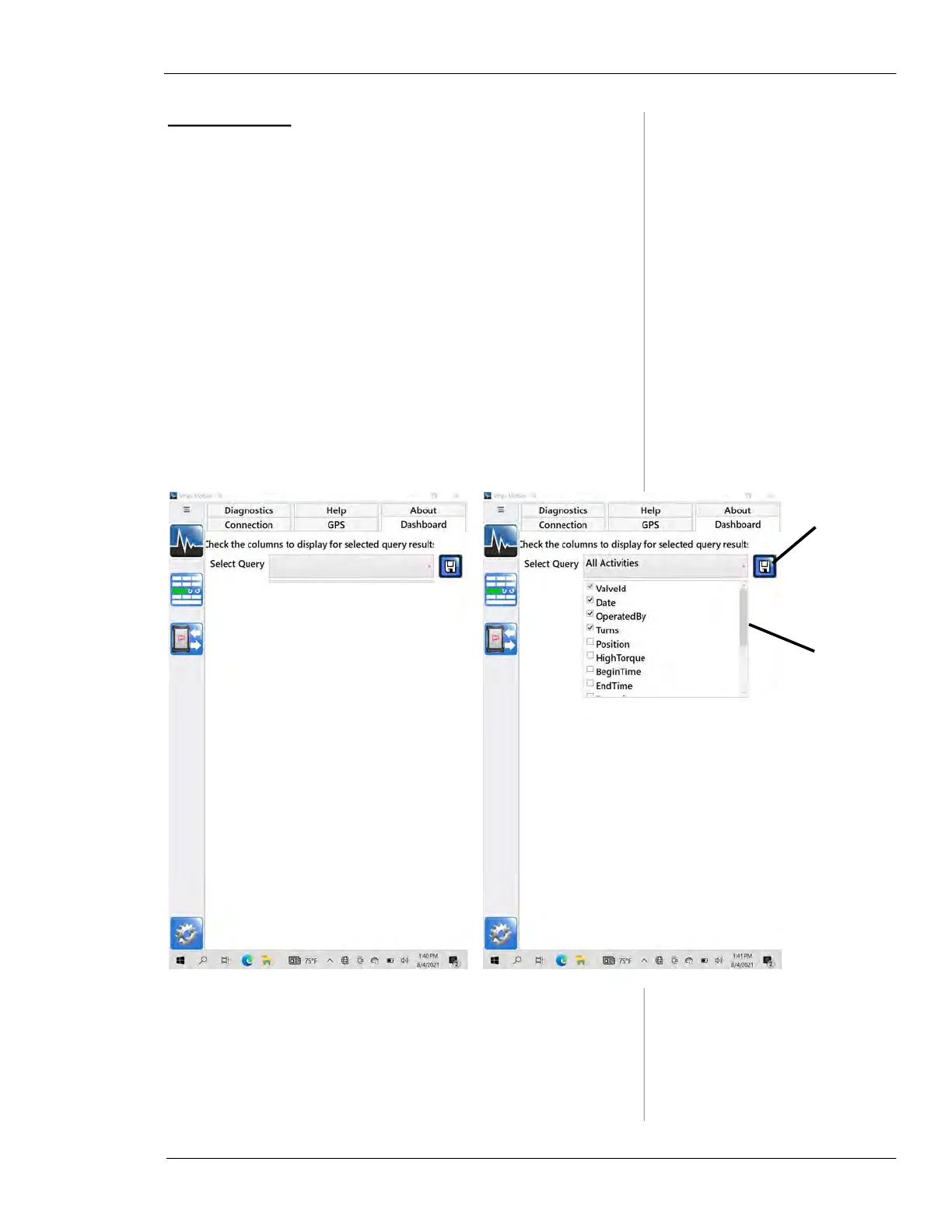
Tap the Dashboard tab.
2.
Tap the Select Query drop-down to select any of the
Home Screen data queries. Then tap to select the
fields you want to list on the Home Screen.
• You can arrange the order of the fields by dragging
them on the Home Screen.
• Select a limited number of fields for display. If there are
more than 3-5 fields displayed, the columns will be too
narrow to read.
• You can see the rest of the valve and activity data by
selecting the specific record on the Home Screen.
3.
After selecting the fields for the query, tap the Save
icon.
Figure 5-11. Dashboard Setting tab. Select a query to
choose the fields for display.
Tap the
Save icon
after
selecting
fields to
display
Drag the
scroll bar
to view all
the field
names


 To Next Page