FRONT CAMERA KEYPAD CONTROLS DETAILED DV-1 OPERATION
64
The Auto-Zoom feature allows the camera to automatically zoom in
on an object or subject for a set period of time, and then return to its
previous zoom level. This is particularly useful for automatically
zooming in on a vehicle license plate.
If the AUTO ZOOM key is pressed while the camera is operating in
Night View mode, the camera will first activate Auto-Focus, wait a
few seconds for the Auto-Focus to settle, and then begin the zoom
sequence. After completing the Auto-Zoom sequence, the fixed
focus position is reset back to around 50 feet.
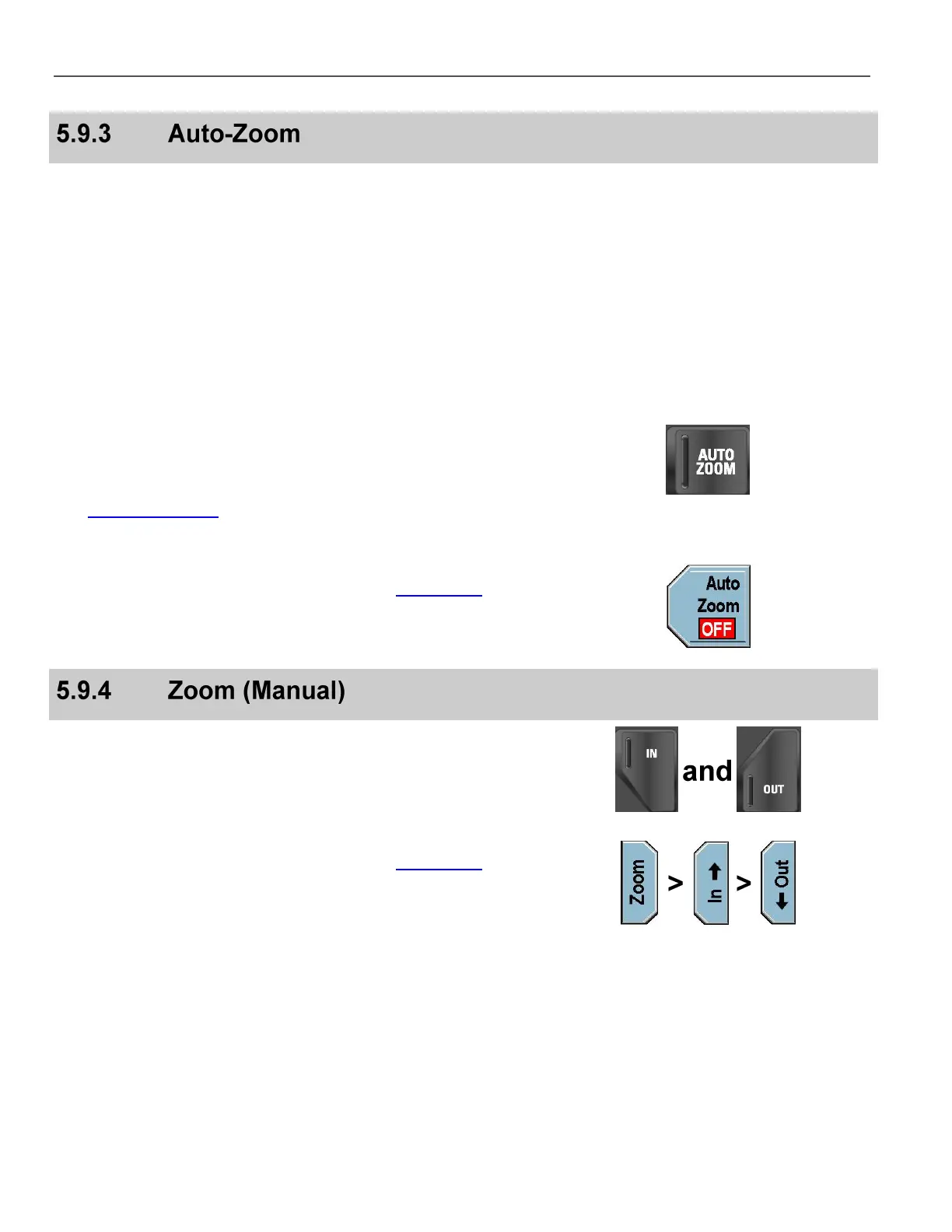
Press the AUTO ZOOM key on the Camera Keypad to initiate the
zoom sequence.
A Green LED indicates that the feature is ON (active), and a Blue
LED indicates the feature is OFF (inactive).
See Set the Auto-Zoom on page 39 for details on setting the
Magnification Level and Hold Time.
Alternatively, select either the Front Camera or the Rear Camera
from the Camera Menu on the Front Panel (see Camera Key on
page 61), and then press the Auto Zoom key to initiate the zoom
sequence. The on-screen status displays ON during the zoom
period, and then changes back to OFF when done.
Press and hold the IN and OUT keys which are located above and
below the AUTO ZOOM key on the Camera Keypad.
Alternatively, select either the Front Camera or the Rear Camera
from the Camera Menu on the Front Panel (see Camera Key on
page 61), and then press the Zoom key.
Press and hold the In & Out keys to control the zoom level.



 To Next Page