RECORDING SETUP DV-1 CONFIGURATION
38
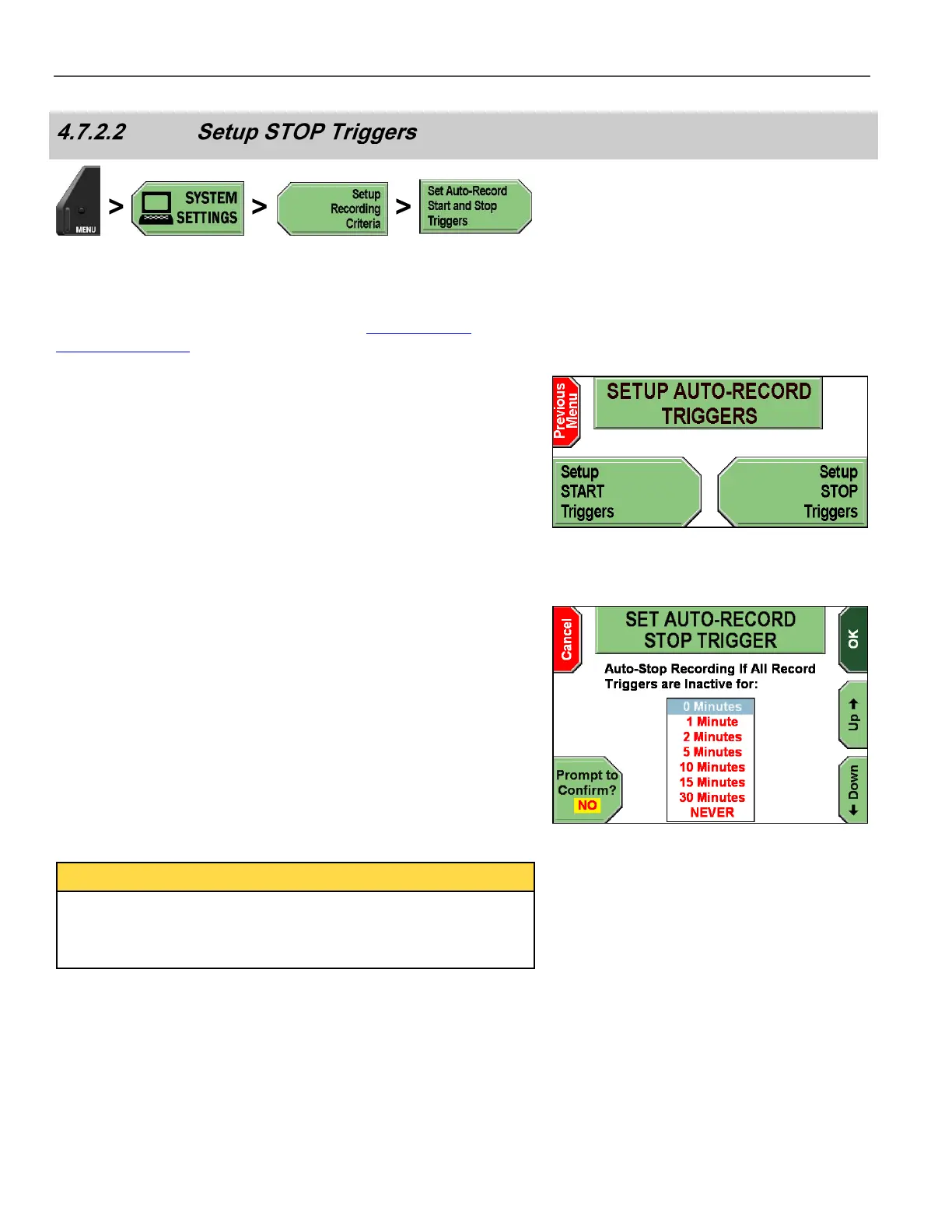
Press MENU > SYSTEM SETTINGS > Setup Recording
Criteria > Set Auto-Record Start and Stop Triggers.
If prompted to login, follow the steps listed in Supervisor and
Administrator Login on page 78.
The SETUP AUTO-RECORD TRIGGERS screen is displayed.
Press Setup STOP Triggers.
The SET AUTO-RECORD STOP TRIGGER screen is displayed.
Press the Up & Down keys to set the amount of time that
transpires between the time ALL auto-trigger devices become
inactive and when the system ends recording. Selecting NEVER
means that the system will not auto-stop recording based on inactive
triggers.
Press the Prompt to Confirm? Key to select whether or not the
system requests confirmation to end recording. Selecting YES
instructs the DV-1 to request permission to end the recording.
Selecting NO disables the prompt and automatically ends the
recording as specified.
Press OK to confirm, or Cancel to exit without making changes.
The Auto-Record Stop Trigger only applies when a recording was
initiated by one of the Start triggers. If a recording was manually
started by pressing the Record key, it will not automatically be
stopped or prompted by these auto-stop settings.



 To Next Page